
Learning Pathway for Accountants / Bookkeepers
Unlike generic training libraries, the Learning Pathway for Accountants / Bookkeepers in QuickEasy BOS brings together the core accounting areas you work with every day—structured clearly, logically, and professionally.
The pathway focuses on understanding both setup and ongoing use, ensuring you are not just entering data, but controlling the financial framework of the business with confidence.
Entities
| Entities | Branches, divisions, and departments are created as Entities. Entity Types: Explains the available entity types. Entities Edit View: Explains the fields, buttons, and available features for creating or editing entities. Entities List View: Explains the fields, buttons, and available features for displaying a list of entities. Entities Tutorials Creating and Editing: Step-by-step instructions for creating and editing entities. Entities Tutorials List View: Step-by-step instructions for using the available features when displaying a list of entities. |
Currencies
| Currencies | This topic only applies if you want to capture transactions in multiple currencies. Please first contact us to activate the currencies so that the exchange rates can be updated. Currency Settings: Explains the settings that determine how foreign currencies are used throughout QuickEasy BOS. Currencies List View: Explains the fields, buttons, and available features for displaying a list of currencies and exchange rates. Currency Tutorials: Step-by-step instructions for creating and editing currencies. |
Chart of Accounts
| Chart of Accounts | Creating and editing General Ledger Accounts. Understanding the Chart of Accounts: Explains what a chart of accounts is and how it integrates with financial reports. Interface: Explains the fields, buttons, and available features for viewing, creating, or editing accounts. Tutorials: Step-by-step instructions for creating and editing accounts. |
VAT
| VAT | Setting up VAT Types according to your country’s regulations. VAT Types Interface: Explains the fields, buttons, and available features for creating VAT types. VAT Types Tutorials: Step-by-step instructions for creating and editing VAT types. VAT Setup for Transaction Type Tutorials: Step-by-step instructions and explanations for setting up VAT for transactions. South African VAT Types: A list of commonly used South African VAT types. |
Transaction Types and Transactions
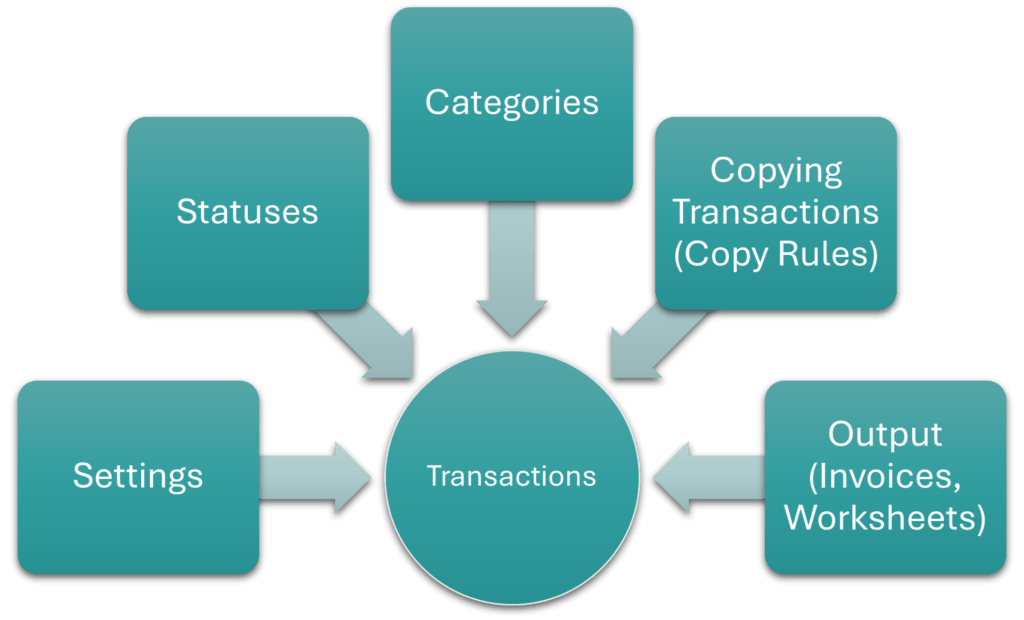
| Transaction Types | Transaction Types create the rules and environment for capturing transactions (e.g. which accounts can be debited or credited, how VAT is treated, and which of the additional features (e.g. calendars, estimating) are available. Transaction Types List View: Explains the fields, buttons, and available features for displaying a list of Transaction Types. Transaction Types Edit View: Explains the fields, buttons, and available features for creating and editing Transaction Types. Transaction Type Tutorials: Step-by-step instructions for creating Transaction Types. Each tab (1 – 5) is explained in detail below: 1. Transaction Type Settings: Part of creating Transaction Types. Explains the available settings, when to apply them and how to add them. 1a. Followers: Part of Transaction Type settings. Followers are the email recipients that receive the Output (e.g. Quotes, Invoices). Provides step-by-step instructions on using the followers’ feature. 2. Copying Transactions (Copy Rules): Part of creating Transaction Types. Explains the rules that determine when a transaction can be copied to create a new transaction (e.g. Quotation to Customer Invoice). Also explains how to set up the manual or automated copying of transactions. 2a. Linking Transactions: Part of Copying Transactions. Background information on what a transaction flow is and how it is created. 3. Transaction Type Statuses Interface and Tutorials: Part of creating Transaction Types. Explains how to create and edit statuses, including rules such as when a transaction can be edited, is posted to the ledger, or affects inventory. 4. Transaction Categories Interface and Tutorials: Part of creating Transaction Types. Allows transactions to be grouped to extract analytical data from it. Explains the fields, buttons and provides step-by-step instructions for creating and editing categories. 5. Transaction Types Output Tab: Part of creating Transaction Types. Output refers to the forms or documents that are created from the transaction (e.g. Quotation, Invoice, Worksheet). Explains how to link Output to the transaction type and the related settings. |
| Transaction Type Examples | Screenshots and brief explanations of commonly used Transaction Types. General Ledger: Setup Example – Bank Payments (General) Setup Example – Bank Receipts (General) Setup Example – General Journal Setup Example – Payroll Journal Setup Example – Periodic Journal Customer Transactions: Setup Example – Quotations Setup Example – Customer Invoices Setup Example – Customer Credit Notes Setup Example – Delivery Notes Setup Example – Customer Journals Setup Example – Customer Receipts Inventory Transactions: Setup Example – Goods Received Setup Example – Goods Issued Setup Example – Goods Returned Setup Example – Stock Adjustments Setup Example – Transfer Issued Setup Example – Transfer Received Supplier Transactions: Setup Example – Supplier Debit Notes Setup Example – Supplier Invoices Setup Example – Supplier Journals Setup Example – Supplier Payments Production Transactions (non-accounting): Setup Example – Purchase Orders Setup Example – Sales Orders Setup Example – Work Orders |
| Transactions | Explains transactions and the available transaction lists. General Transaction Features: Explains the features available to all transactions and the rules (e.g. for pricing and quantities) that apply. Transactions List View Interface: Explains the fields, buttons, and available features for viewing a list of transactions. Transactions List View Tutorials: Step-by-step instructions for using the available features when viewing transaction lists. Transactions Edit View Interface: Explains the fields, buttons, and available features for creating or editing transactions. Transactions Edit View Tutorials: Step-by-step instructions for creating, editing, and deleting transactions. Transaction Warnings and Troubleshooting: Lists transaction warnings and errors and explains how to resolve them. Ledger Transaction Tutorials: Detailed instructions for capturing specific ledger transactions: Bad Debts, Discount Allowed, Discount Received, Foreign Exchange Transactions, Hire Purchase Agreements, Payroll Transactions, Periodic Journal Entries (Inventory Movements). Transaction Allocations: (Refers to allocating payments to invoices.) Explains the fields, buttons, and available features for allocating transactions. Provides illustrated step-by-step instructions to allocating transactions. Items and General Ledger Transactions: Explains the process of creating items for general ledger entries. Using items and account defaults speeds up capturing transactions and ensures consistency. |
| Transaction Examples | Brief explanations and screenshot examples of transactions. Transaction Examples – Customers: Invoices, Credit Notes, Delivery Notes, Customer Receipts Transaction Examples – Suppliers: Invoices, Debit Notes, Payments Transaction Examples – Production: Sales Orders, Purchase Orders, Work Orders Transaction Examples – Ledger: Bank Payments, Bank Receipts, and various Journal Entries. Transaction Examples – Inventory: Stock-movement transactions. |
Bank Import and Reconciliation
| Bank Import and Reconciliation | Allows entries to be imported from bank records and to create transactions from them. Allows a bank account to be manually reconciled. Bank Profiles: Explains the fields, buttons, and available features for creating bank profiles. Bank Imports: Explains the fields, buttons, and available features for creating bank imports. Bank Reconciliations: Explains the fields, buttons, and available features for creating bank reconciliations. |
General Ledger
| Ledger | The General Ledger from which ledger entries can be viewed or created. Ledger List Views: Explains the fields, buttons, and available features when displaying ledger entries or transactions. Ledger Tutorials and Troubleshooting: Step-by-step instruction for displaying ledger transactions and using the related functions. |
Financial Statements
| Financial Statements | The financial statements and financial dashboard. How Financial Statements are Created: Explains how the transaction data is used to compile the financial statements. Financial Reporting Dashboard Interface: Explains the fields, buttons, and available features when viewing the Financial Dashboard. This dashboard displays transactions that do not balance and accrual account balances. Financial Reporting Dashboard Tutorials: Step-by-step instructions on using the Financial Dashboard features. Statement of Profit or Loss Interface: Explains the fields, buttons, and available features when viewing the Statement of Profit or Loss. Statement of Profit or Loss Tutorials: Step-by-step instructions for using the features and filters for the Statement of Profit or Loss. Statement of Financial Position Interface: Explains the fields, buttons, and available features for viewing the Statement of Financial Position. Statement of Financial Position Tutorials: Step-by-step instructions for using the features and filters for the Statement of Financial Position. Trial Balance Interface: Explains the fields, buttons, and available features for viewing the Trial Balance. Trial Balance Tutorials: Step-by-step instructions for using the Trial Balance features and filters. |
Learn More
- Learning the Basic Functions of QuickEasy BOS: The basic features of QuickEasy BOS.
- Learning Pathway for Creditors’ Clerks: Supplier records, reports, and transactions.
- Learning Pathway for Customer Relations: Helpdesk, customer relations, service tickets, and contacts.
- Learning Pathway for Debtors’ Clerks: Customer records, reports, and transactions.
- Learning Pathway for Estimators: Items and estimating features.
- Learning Pathway for Human Resources: Contacts, service manager, and timekeeping.
- Learning Pathway for Production Managers: Production planning and related features.
- Learning Pathway for Project Managers: Project service tickets and related features.
- Learning Pathway for Sales Reps and Managers: Customer records and transactions, service manager for sales leads.