
Chart of Accounts Interface
QuickEasy BOS has a fully integrated accounting system. For each Transaction Type, users can select if the transactions must also be posted to the Ledger (affect Accounting).
The Chart of Accounts is divided into two sections:
- Statement of Profit or Loss: Includes Income and Expense accounts. The corresponding report shows the organisation’s profitability.
- Statement of Financial Position: Includes Assets, Liabilities, Investments, and Equity. The corresponding report shows the organisation’s financial worth and solvency.
The Accounting Setup menu option includes tabs to setup Accounts, VAT Types, Currencies, Credit Terms and Bank Profiles which are used for bank imports.
Navigation: Main Menu > Setup > Accounting > Accounts (tab)
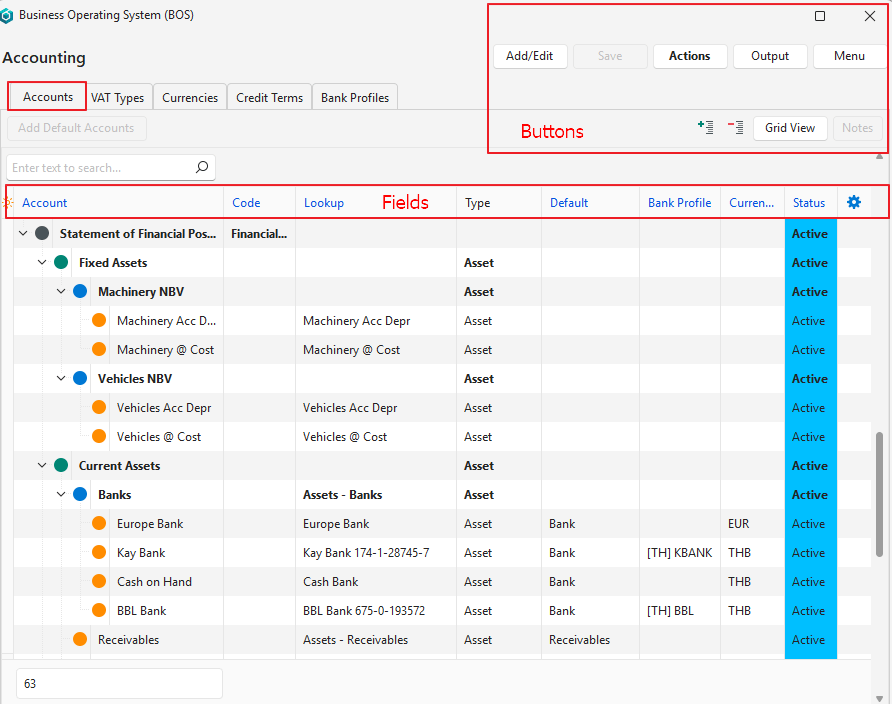
Buttons Explained
Button | Description |
Add/Edit | Used to add new entries or edit existing entries |
Save | Saves any changes. |
Actions | Changes multiple records. The options are:
|
Output | Used to export the display in .xlsx, .csv, or .htm format. |
Menu | |
Add Default Accounts | Creates the main categories (e.g. Sales, Assets, Expenses) needed for a Chart of Accounts. Only available if accounts have not yet been created. |
Grid View / Tree View | Toggles between the Grid (spreadsheet format) and Tree Views (accounts are embedded beneath their applicable Financial Statements). + – Icons collapse or expand the Tree View. |
Notes | A toggle that displays or hides account notes in Grid View only. |
Fields Explained: Grid View
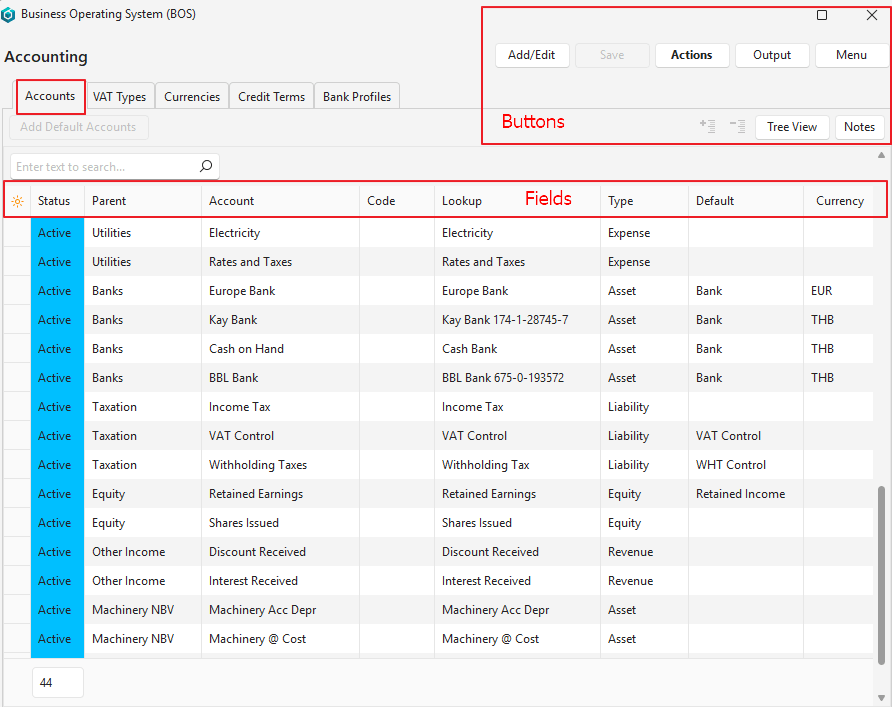
Field | Description |
Field Chooser (*) | Used to add or remove columns. |
ID | The system-generated number for the entry. |
Status | The current Status of the entry. |
Parent | The parent Financial Statement (Statement of Profit/Loss or Statement of Financial Position). |
Account | The account name. |
Code | The account number (optional). |
Lookup | The account’s lookup name (i.e. the name typed when using the account in a transaction). Warning: If a lookup is not entered, the account cannot be selected when creating transactions. |
Type | The type of account (e.g. Asset, Expense). |
Order ID | The order in which the account will displayed on the applicable financial statement in its group. |
Default | Allows users to specify defaults as follows:
|
Currency | Used to specify a Currency for bank accounts only. |
Created | The date on which the entry was created. |
Updated | The date on which the entry was updated. |
Updated By | The User who last updated the entry. |
Level | A number indicating the nesting level (e.g. Statement of Financial Position > Assets > Current Assets > Bank is level 4). |
Fields Explained: Tree View
Fields shown in blue are editable.
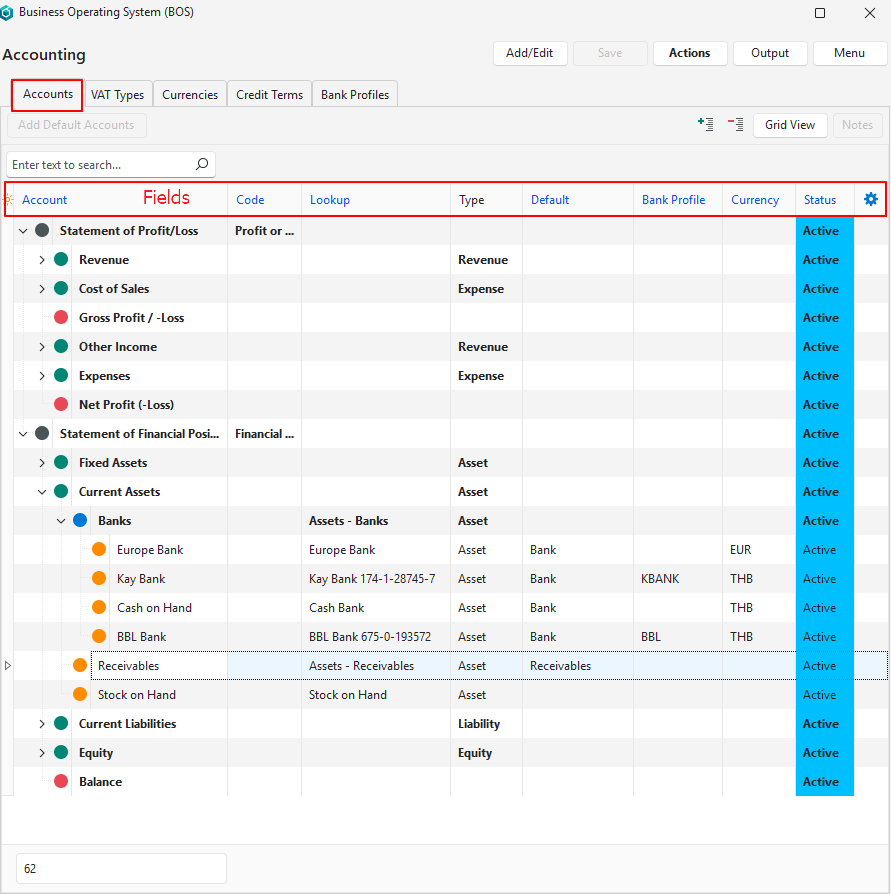
Field | Description |
Field Chooser (*) | Used to add or remove columns. |
ID | The system-generated number for the entry. |
Account | The account name. |
Code | The account number. Using an account number is optional but can be useful for bank imports if the numbers are used as reference numbers when making or receiving payments. |
Report | A code indicating its report section (e.g. Summary, Section). |
Lookup | The account’s lookup name (i.e. the name typed when using the account in a transaction). Warning: If a lookup is not entered, the account cannot be selected when creating transactions. |
Type | The type of account (e.g. Asset, Expense). |
Default | Allows users to specify defaults as follows:
|
Bank Profile | A dropdown list of all the bank profiles to select the one that belongs to the bank account. For the bank import to work, the account number must be part of the lookup field in the same format that it appears on the bank statement (see screenshot above). |
Currency | Used to specify a Currency for bank accounts only. |
ParentID | The system-generated number for the account’s Parent. |
Status | The account’s current status. |
Order ID | The system-generated number for the account’s order in its section |
Created | The date on which the entry was created. |
Updated | The date on which the entry was updated. |
Updated By | The User who last updated the entry. |
Level | A number indicating the nesting level (e.g. Statement of Financial Position > Assets > Current Assets > Bank is level 4). |
Note | A field to enter a note about the account. |

| A submenu that can also be accessed by right clicking an entry. The options differ depending on whether you clicked a Heading, an account on the Statement of Profit/Loss, or an account on the Statement of Financial Position. Statement of Profit/Loss:
Statement of Financial Position:
|
How VAT is Treated
If your business charges and claims VAT, the VAT exclusive amounts are shown on reports with the exception of these accounts:
- Receivables (the total of all customer accounts)
- Payables (the total of all supplier accounts)
- Bank Accounts
The VAT Control account records the VAT portion of transactions where VAT Input or Output categories were used:
- VAT Input + = Debits VAT Control Account.
- VAT Input – = Debits VAT Control Account with a negative amount.
- VAT Output + = Credits VAT Control Account.
- VAT Output – = Credits VAT Control account with a negative amount.
- VAT Payment = Debits the VAT Control Account (Cr Bank). Use VAT Type: VAT 100%.
- VAT Refund Received = Credits the VAT Control Account (Dr Bank). Use VAT Type: VAT 100%.
Once payment has been made, the account should be zero. For example, if the balance of the account at the end of July was a credit of 21 550.20, a payment of 21 550.20 must be made, and that payment will debit the account to bring it to zero (excluding transactions that have happened during August).
Warnings
Warnings are displayed at the top of the screen, highlighted in orange, when information is incomplete. Warnings are refreshed when Save (button) is clicked.
- Mandatory Account Defaults not assigned: These defaults are mandatory:
- Receivables: Totals all the customer accounts on the financial reports.
- Payables: Totals all the supplier accounts on the financial reports.
- Retained Income: Posts the profit or loss to the Statement of Financial Position as calculated on the Statement of Profit/Loss.
- VAT Control: If registered for VAT.
- WHT Control: In countries like Thailand where WHT is compulsory.
- Bank: A Currency has not been assigned to the bank account. Applicable if multiple currencies are used. Bank accounts must be allocated a specific currency.
- Duplicates: Duplicate names, codes, or lookups in the same group.
- Blank Names or Lookups.
Learn More
- Banking Category: Explains Bank Profiles, Bank Imports, and Bank Reconciliations.
- Chart of Accounts Tutorials: These tutorials explain how to create and edit a chart of accounts.
- Currencies List View: Explains the list of currencies’ interface and related features.
- Currency Settings: Explains how to set the conversion method and how many decimal places to use for currencies.
- Currency Tutorials: These tutorials explain how to setup currencies.
- Ledger List Views: Explains the various interfaces for displaying ledger transactions.
- Ledger Tutorials and Troubleshooting: These tutorials explain how to display a ledger and transactions.
- Understanding the Chart of Accounts: Explains what the chart of accounts is and how it impacts the financial statements.