
Learning Pathway for Production Managers
The Learning Pathway for Production Managers provides a comprehensive, system‑driven approach to managing people, materials, time, and transactions. By progressing from foundational data to advanced production planning, managers gain the tools and understanding needed to run efficient, traceable, and well‑controlled production environments.
Contacts, Assets, and Entities
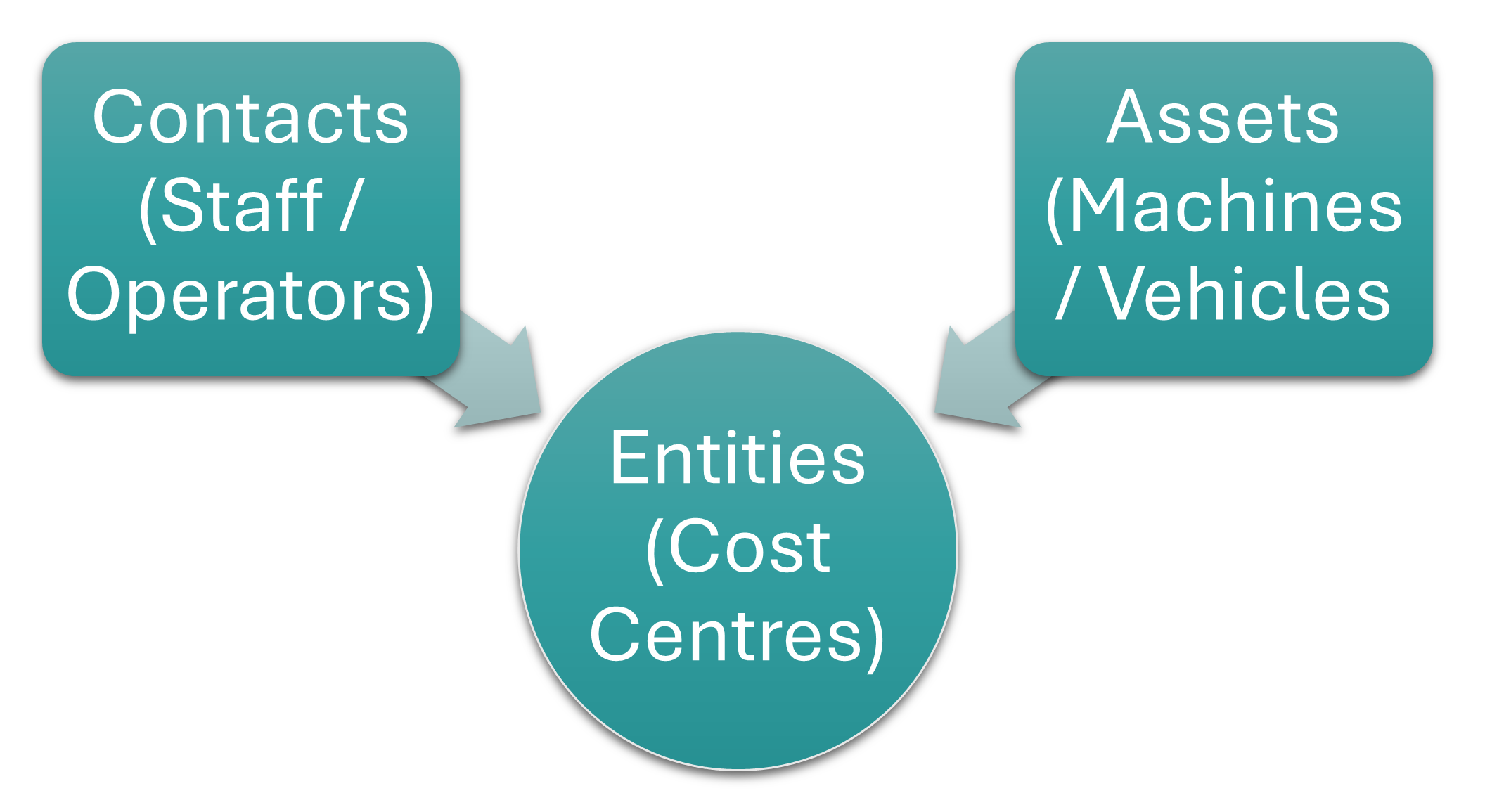
| Contacts | Contacts is a central database of all the customer, supplier, and staff (such as operators) records. Contacts Default View: Explains the fields, buttons, and available features for displaying a list of contacts. Contacts Addresses View: Explains the fields, buttons, and available features for displaying a list of contacts’ addresses. Contacts Edit View: Explains the fields, buttons, and available features for creating or editing contacts. Contacts Tutorials Creating and Editing: Step-by-step instructions for creating and editing contact records. Contacts Tutorials Viewing: Step-by-step instructions for using the related functions when displaying contact lists. |
| Assets | Assets such as equipment and vehicles can be linked to cost centres. Asset Edit Views: Explains the fields, buttons, and available features for creating or editing assets. Asset List Views: Explains the fields, buttons, and available features for displaying a list of assets. Assets Tutorials: Creating and Editing Assets: Step-by-step instructions for creating and editing assets. |
| Entities | Cost Centres and Inventory Locations are created as Entities. Operators and production costs are set per cost centre. Entity Types: Explains the available entity types. Entities Edit View: Explains the fields, buttons, and additional features available for creating or editing entities. Entities List View: Explains the fields, buttons, and additional features available for displaying a list of entities. Entities Tutorials Creating and Editing: Step-by-step instructions for creating and editing Entities. Entities Tutorials List View: Step-by-step instructions for using the available features when displaying a list of entities. |
Items and Inventory
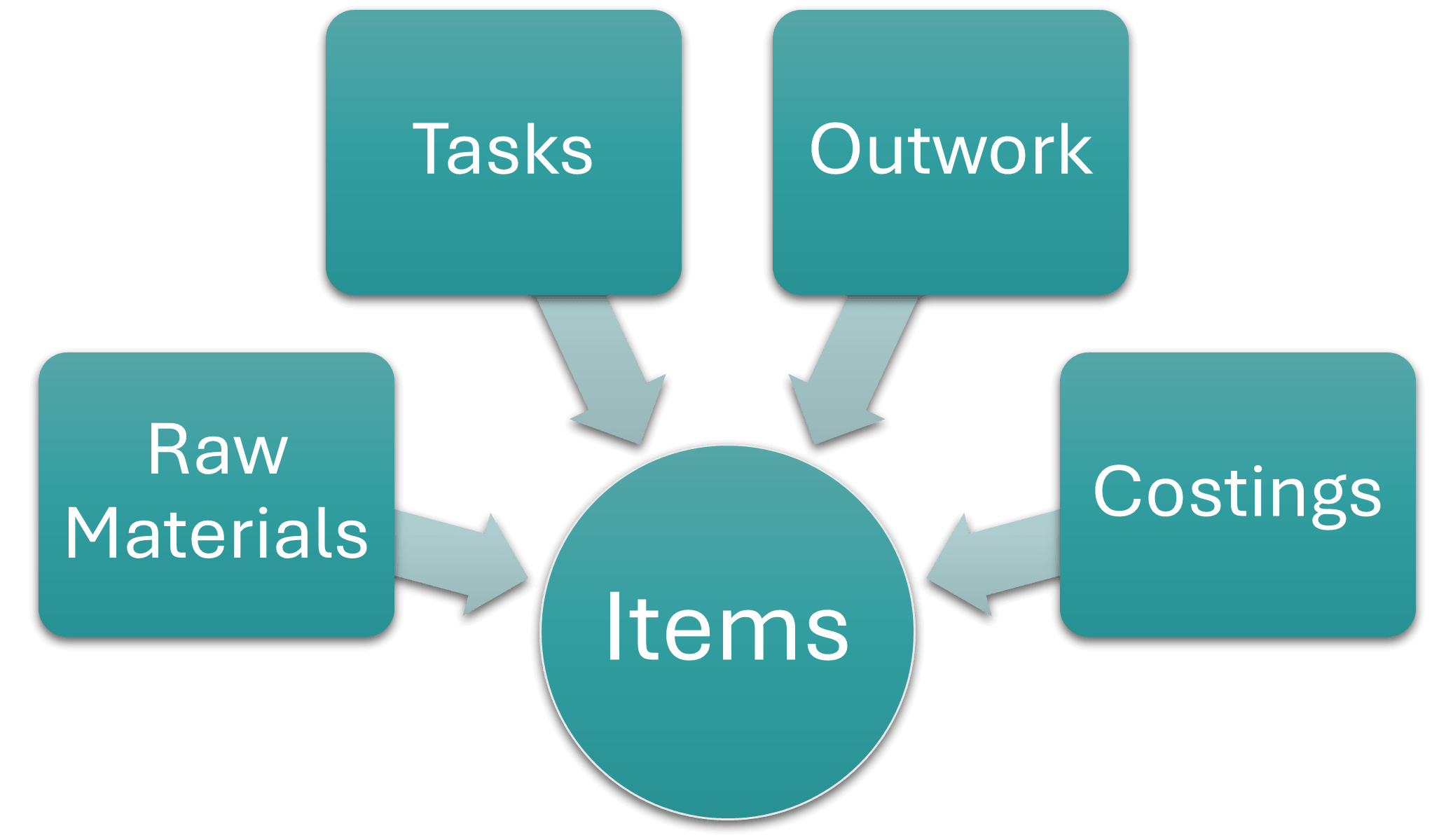
| Items | Items are the raw materials and finished goods used in production. Items can also consist of assemblies and costings (e.g. Item: Paper + Item: Ink + Task: Design + Task: Print = Item Finished Good: Brochure). Item Extension Types: Explains the types of items that are available. Item Prices Explained: Explains the various prices and how they are calculated and applied to transactions. Item Categories: Explains the fields, buttons, and available features for creating or editing categories and provides step-by-step instructions for creating and editing these categories. Item Creation and Editing Interface: Explains the fields, buttons, and available features for creating or editing items. Item Creation and Editing Tutorials: Step-by-step instructions for creating and editing items and using the available features. Item Attributes: Attributes are additional information that is added to items. These can be fixed sets that are used for estimating or custom sets. This article explains the fields, buttons, and available features for creating or editing attributes. Lists all the available attributes. Provides step-by-step instructions for adding attributes to items. Item List Views Interface: Explains the fields, buttons, and available features for viewing item lists. Item List Views Tutorials: Step-by-step instructions for viewing item lists and using the available features. Item Summary: Explains the item summary sections, fields, buttons and available functions. Provides step-by-step instructions for using the functions. Item: Print Costing Example: An example of an item with a costing that is used for a print project. |
| Inventory | Inventory Items are physical items that are stored in specific locations. Items (Materials) are turned into inventory items by changing the Inventory setting in the item’s header. Inventory Terms and Information: Explains the inventory terms and settings used. Inventory and Transaction Types: Explains how inventory integrates with transactions and how the Resolve function is used. |
Transaction Types and Transactions
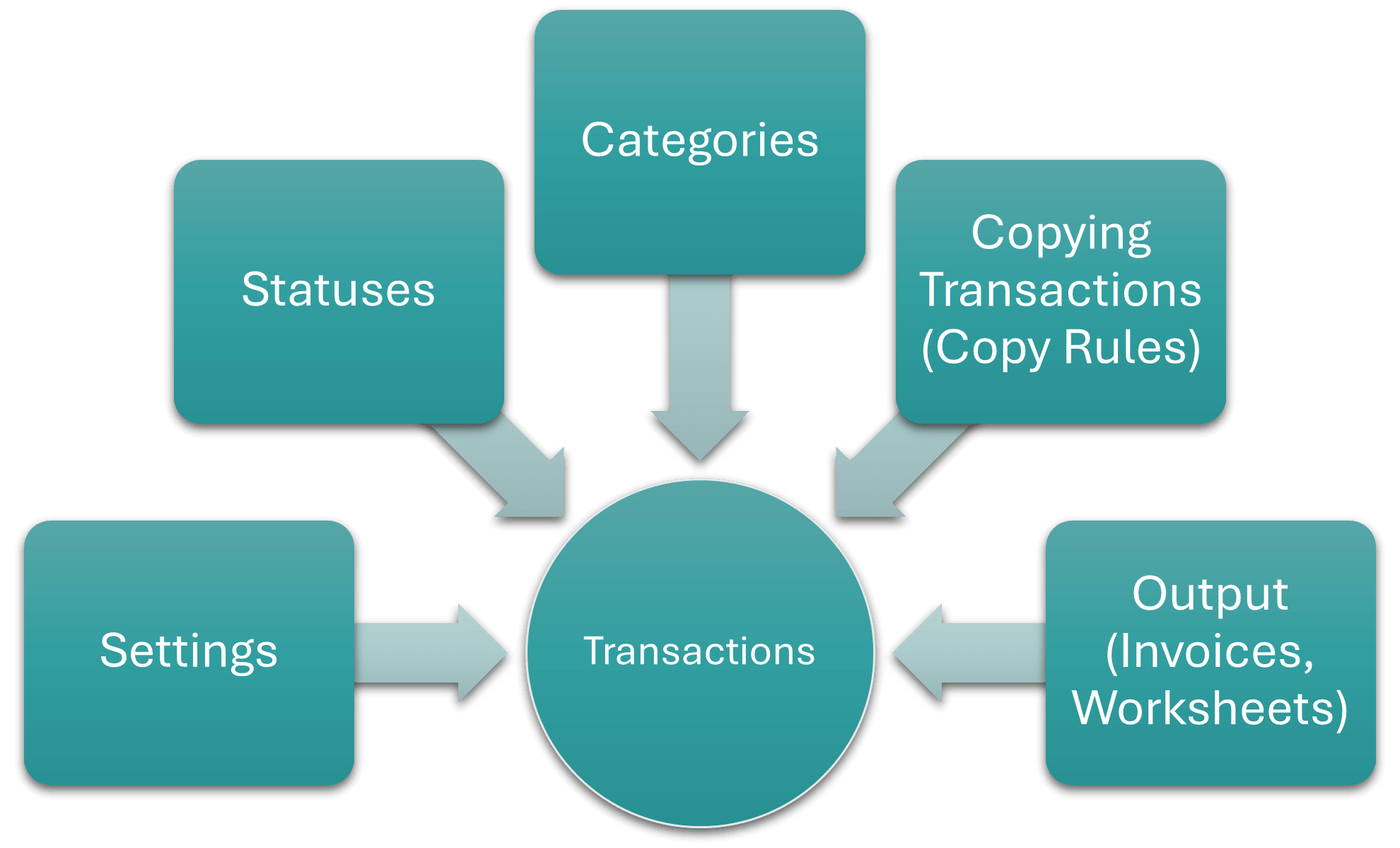
| Transaction Types | Transaction Types create the rules and environment for capturing transactions (e.g. which accounts can be debited or credited, how VAT is treated, and which of the additional features (e.g. calendars, estimating) are available. To enable production select Production in the value column next to this setting: Estimating > Enable Estimating. Production planning can be activated on multiple transaction types (e.g. Work Orders Construction, Work Orders Maintenance). Transaction Types List View: Explains the fields, buttons, and available features when displaying a list of Transaction Types. Transaction Types Edit View: Explains the fields, buttons, and available features for creating or editing Transaction Types. Transaction Type Tutorials: Step-by-step instructions for creating Transaction Types. Each tab (1 – 5) is explained in detail below: 1. Transaction Type Settings: Part of creating Transaction Types. Explains the available settings, when to apply them and how to add them. 1a. Followers: Part of Transaction Type settings. Followers are the email recipients that receive the Output (e.g. Quotes, Invoices). Provides step-by-step instructions on using the followers’ feature. 2. Copying Transactions (Copy Rules): Part of creating Transaction Types. Explains the rules that determine when a transaction can be copied to create a new transaction (e.g. Work Order to Purchase Order). Also explains how to set up the manual or automated copying of transactions. 2a. Linking Transactions: Part of Copying Transactions. Background information on what a transaction flow is and how it is created. 3. Transaction Type Statuses Interface and Tutorials: Part of creating Transaction Types. Explains how to create and edit statuses, including rules such as when a transaction can be edited, is posted to the ledger, or affects inventory. 4. Transaction Categories Interface and Tutorials: Part of creating Transaction Types. Allows transactions to be grouped to extract analytical data from it. Explains the fields, buttons and provides step-by-step instructions for creating and editing categories. 5. Transaction Types Output Tab: Part of creating Transaction Types. Output refers to the forms or documents that are created from the transaction (e.g. Quotation, Invoice, Worksheet). Explains how to link templates to the transaction type, and the related settings. |
| Transaction Type Examples | Production planning is usually integrated with work orders (e.g. Quotation > Sales Order > Work Order). Customer Transactions: Setup Example – Quotations Setup Example – Customer Invoices Setup Example – Customer Credit Notes Setup Example – Delivery Notes Setup Example – Customer Journals Setup Example – Customer Receipts Inventory Transactions: Setup Example – Goods Received Setup Example – Goods Issued Setup Example – Goods Returned Setup Example – Stock Adjustments Setup Example – Transfer Issued Setup Example – Transfer Received Supplier Transactions: Setup Example – Supplier Debit Notes Setup Example – Supplier Invoices Setup Example – Supplier Journals Setup Example – Supplier Payments Production Transactions (non-accounting): Setup Example – Purchase Orders Setup Example – Sales Orders Setup Example – Work Orders |
| Transactions | Explains the features of capturing transactions and the available transaction lists. General Transaction Features: Explains the features available to all transactions and the rules (e.g. for pricing and quantities) that apply. Transactions List View Interface: Explains the fields, buttons, and additional features available when viewing a list of transactions. Transactions List View Tutorials: Step-by-step instructions for using the available features when viewing transaction lists. Transactions Edit View Interface: Explains the fields, buttons, and available features when creating or editing transactions. Transactions Edit View Tutorials: Step-by-step instructions for creating, editing, and deleting transactions. Transaction Warnings and Troubleshooting: Lists transaction warnings and errors and explains how to resolve them. |
| Transaction Examples | Brief explanations and screenshot examples of transactions. Transaction Examples – Customers: Invoices, Credit Notes, Delivery Notes, Customer Receipts Transaction Examples – Suppliers: Invoices, Debit Notes, Payments Transaction Examples – Production: Sales Orders, Purchase Orders, Work Orders Transaction Examples – Inventory: Stock-movement transactions. |
Production Planning, Timekeeping, and Mobile App
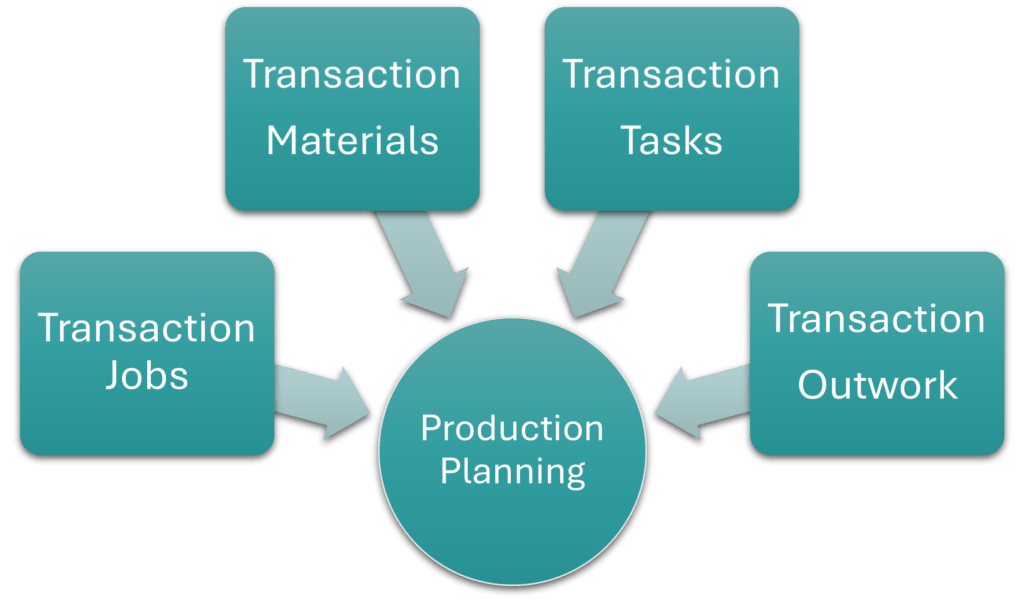
| Production Planning | Production Planning is integrated with transactions such as Work Orders and provides detailed interfaces to manage all aspect of production. Production Planning Setup: Explains how production planning works and provides step-by-step instructions for setting it up. Production Planning Jobs: Explains the fields, buttons, and available features for viewing a list of jobs and provides step-by-step instructions for using the features. Production Planning Materials: Explains the fields, buttons, and available features for viewing a list of materials and provides step-by-step instructions for using the features. Production Planning Tasks: Explains the fields, buttons, and available features for viewing a list of tasks and provides step-by-step instructions for using the features. Production Planning Outwork: Explains the fields, buttons, and available features for viewing a list of outwork and provides step-by-step instructions for using the features. Production Planning FAQ and Troubleshooting: Answers frequently asked questions on Production Planning. |
| Timekeeping | The timekeeping module can be used to record the time staff spend working on projects and tasks. Timekeeping Settings: Explains the available timekeeping settings and how to apply them. Timekeeping Edit View: Explains the fields, buttons, and available features for creating timekeeping records. Timekeeping List View: Explains the fields, buttons, and available features for displaying a list of timekeeping records. Timekeeping Tutorials: Step-by-step instructions for creating, editing, or deleting timekeeping records. Timekeeping User Access Tutorials: Step-by-step instructions for managing user access to timekeeping records. Timekeeping Statuses Tutorials: Step-by-step instructions for creating statuses for timekeeping records. |
| Mobile App | Timekeeping for transactions and project tasks can be managed from the mobile app. Mobile App Interface: Explains the fields, buttons, and available features for using the Mobile app. Mobile App General Functions Tutorials: Step-by-step instructions for using the Mobile app. Mobile App Timekeeping Interface: Explains the fields, buttons, and available features for using the Mobile app for timekeeping. Mobile App Timekeeping Tutorials: Step-by-step instructions for using the mobile app for timekeeping. |
Learn More
- Learning the Basic Functions of QuickEasy BOS: The basic features of QuickEasy BOS.
- Learning Pathway for Accountants / Bookkeepers: Entities, currencies, transactions, ledger, financial statements, and VAT.
- Learning Pathway for Creditors’ Clerks: Supplier records, reports, and transactions.
- Learning Pathway for Customer Relations: Helpdesk, customer relations, service tickets, and contacts.
- Learning Pathway for Debtors’ Clerks: Customer records, reports, and transactions.
- Learning Pathway for Estimators: Items and estimating features.
- Learning Pathway for Human Resources: Contacts, service manager, and timekeeping.
- Learning Pathway for Project Managers: Project service tickets and related features.
- Learning Pathway for Sales Reps and Managers: Customer records and transactions, service manager for sales leads.