
Learning Pathway for Sales Reps and Managers
Customer Records
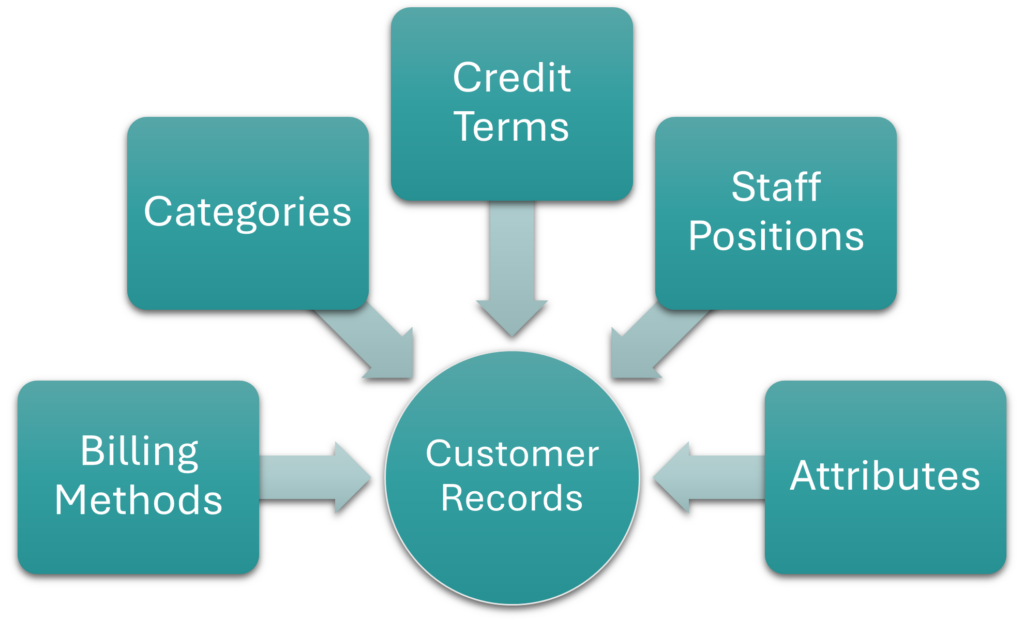
| Billing Methods | Billing methods refer to the ways in which customers must pay their accounts (e.g. debit order, EFT, SWIFT). The same billing methods are used for customers and suppliers. Billing methods: Explains the fields, buttons, and available features for displaying, creating or editing billing methods and provides step-by-step instructions for creating and editing billing methods. |
| Categories | Categories allow you to sort customers or supplier records and transactions for reporting purposes. The same categories are used for customers and suppliers. However, they can be differentiated by using prefixes. Categories: Step-by-step instructions for creating categories. |
| Credit Terms | Credit terms are the payment terms offered to customers. The same credit terms are used for customers and suppliers. Credit terms: Explains the fields, buttons, and additional features available when creating or editing credit terms and provides step-by-step instructions for creating and editing credit terms. |
| Positions | Positions allow you to identify the people working for customers (e.g. Accounts, Rep, CEO). The same positions are used for customers and suppliers. Positions: Step-by-step instructions for creating positions. |
| Attribute Sets Entities | Attributes are used to capture additional information such as currencies, bank details, and addresses. Attribute Sets Entities: Lists all the available attribute sets that can be added to customer records. |
| Custom Attributes | Custom Attributes can be created to capture bespoke information on customers. Custom Attributes: Step-by-step instructions for creating custom attributes and adding them to customer records (contacts). |
| Customer Records | All the customers’ static information. Customers are part of Contacts. Customer Records List and Edit Views: Explains the fields, buttons, and available features for creating or editing customer records. Customer Records Tutorials: Step-by-step instructions for displaying, creating, editing, and deleting customer records. |
| Customer Age Analysis and Ledger | The customer age analysis and ledger which are part of the same interface. Customer Age Analysis and Statements: Explains the fields, buttons, and available features for displaying the customer age analysis and generating statements. Customer Detailed Ledger: Explains the fields, buttons, and available features for displaying the customer ledger. Customer Age Analysis and Ledger Tutorials: Step-by-step instructions for displaying the customer age analysis and ledger and using the available features. |
Service Manager (Service Types and Service Tickets)
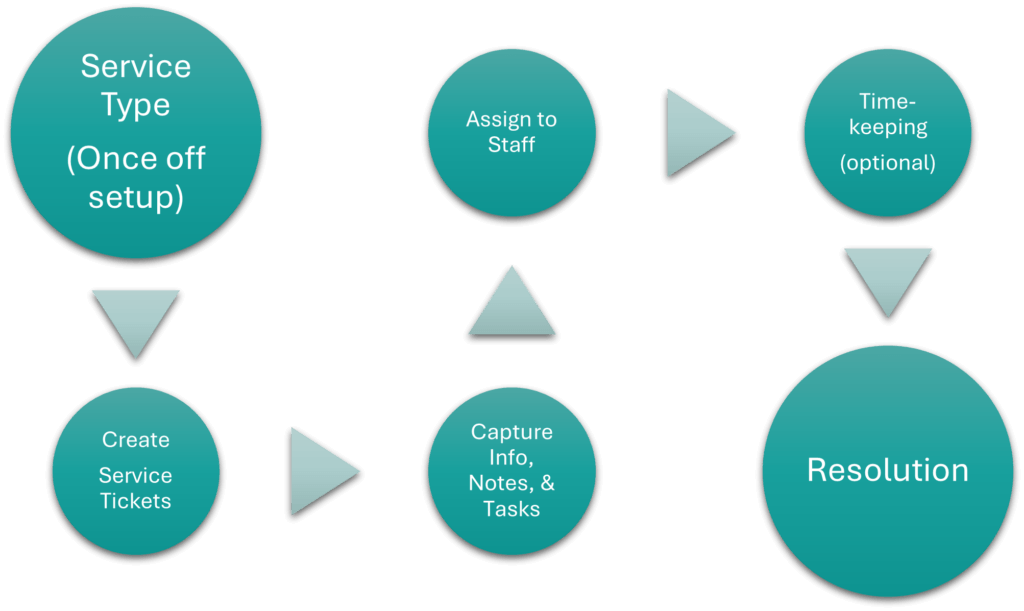
| Service Manager | The Service Manager can be used to follow up on leads. Service Types create the rules and features of service tickets. A dedicated Service Type can be created for sales. Service Types List View Interface: Explains the fields, buttons, and available features for displaying a list of service types. Service Types Edit View Interface: Explains the fields, buttons, and available features for creating a service type. Service Types Tutorials: Step-by-step instructions for creating and editing service types. Service Tickets List View Interface: Explains the fields, buttons, and available features for displaying a list of service tickets. Service Tickets Edit View Interface: Explains the fields, buttons, and available features for creating a service ticket. Service Tickets Tutorials: Step-by-step instructions for creating, editing, and managing service tickets. |
Transaction Types and Transactions
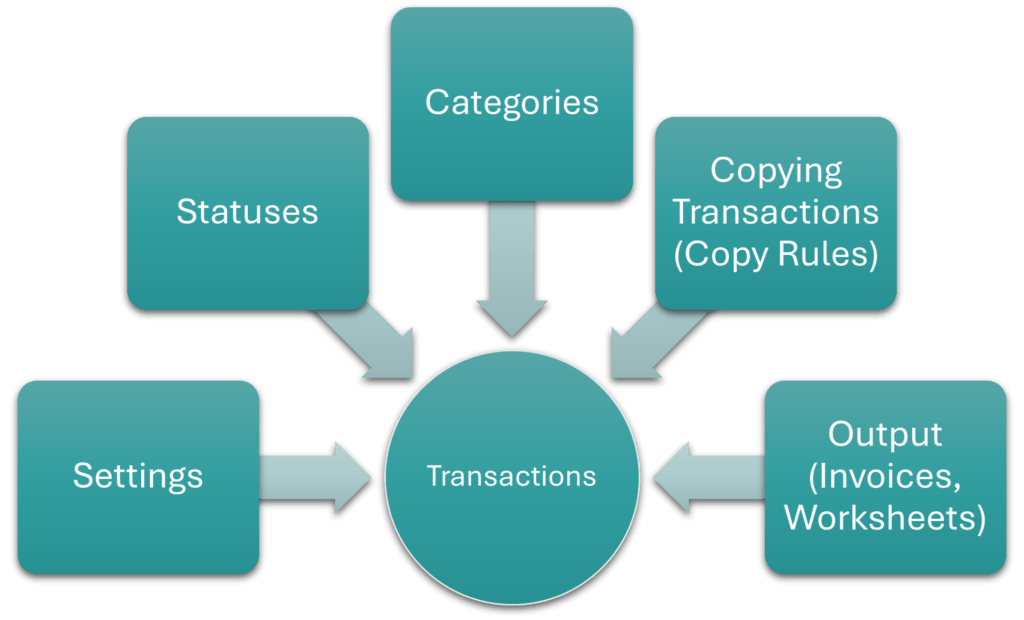
| Transaction Types | Transaction Types create the rules and environment for capturing transactions (e.g. which accounts can be debited or credited, how VAT is treated, and which of the additional features (e.g. calendars, estimating) are available. Key Focus Areas: 1. Creating statuses for quotations that provide meaningful feedback (Step 3 below). 2. Setting up followers so you are emailed a copy of all quotations and invoices sent to your customers (Steps 1 and 1a below). 3. Creating categories that divide transactions into meaningful groups (Step 4 below). Transaction Types List View: Explains the fields, buttons, and available features available for displaying a list of Transaction Types. Transaction Types Edit View: Explains the fields, buttons, and available features for creating or editing Transaction Types. Transaction Type Tutorials: Step-by-step instructions for creating Transaction Types. Each tab (1 – 5) is explained in detail below: 1. Transaction Type Settings: Part of creating Transaction Types. Explains the available settings, when to apply them and how to add them. 1a. Followers: Part of Transaction Type settings. Followers are the email recipients that receive the Output (e.g. Quotes, Invoices). Provides step-by-step instructions on using the followers’ feature. 2. Copying Transactions (Copy Rules): Part of creating Transaction Types. Explains the rules that determine when a transaction can be copied to create a new transaction (e.g. Quotation to Customer Invoice). Also explains how to set up manual or automated copying of transactions. 2a. Linking Transactions: Part of Copying Transactions. Background information on what a transaction flow is and how it is created. 3. Transaction Type Statuses Interface and Tutorials: Part of creating Transaction Types. Explains how to create and edit statuses, including rules such as when a transaction can be edited, is posted to the ledger, or affects inventory. 4. Transaction Categories Interface and Tutorials: Part of creating Transaction Types. Allows transactions to be grouped to extract analytical data from it. Explains the fields, buttons and provides step-by-step instructions for creating and editing categories. 5. Transaction Types Output Tab: Part of creating Transaction Types. Output refers to the forms or documents that are created from the transaction (e.g. Quotation, Invoice, Worksheet). Explains how to link Output to the transaction type and the related settings. |
| Transactions | Explains the features of capturing transactions and the available reports. General Transaction Features: Explains the features available to all transactions and the rules (e.g. for pricing and quantities) that applied. Transactions List View Interface: Explains the fields, buttons, and additional features available when viewing a list of transactions. Transactions List View Tutorials: Step-by-step instructions for using the available features when viewing transaction lists. Transactions Edit View Interface: Explains the fields, buttons, and available features when creating or editing transactions. Transactions Edit View Tutorials: Step-by-step instructions for creating, editing, and deleting transactions. Transaction Warnings and Troubleshooting: Lists transaction warnings and errors and explains how to resolve them. |
| Transaction Examples | Brief explanations and screenshot examples of transactions. Transaction Examples – Customers: Invoices, Credit Notes, Delivery Notes, Customer Receipts. |
Proposals
| Proposals | Proposals integrate with transactions and allow products to be customised (e.g. a customer can choose colour or design features, and a quotation can immediately be generated reflecting those choices). Proposal Templates Edit and List Views: Explains the fields, buttons, and available features for displaying, creating, or editing proposal templates. Proposals Tutorials: Step-by-step instructions for creating proposal templates and using them in transactions. |
Customer Age Analysis and Ledger
| Customer Age Analysis and Ledger | The customer age analysis and ledger which are part of the same interface. Customer Age Analysis and Statements: Explains the fields, buttons, and available features for displaying the customer age analysis and generating statements. Customer Detailed Ledger: Explains the fields, buttons, and available features for displaying the customer ledger. Customer Age Analysis and Ledger Tutorials: Step-by-step instructions for displaying the customer age analysis and ledger and using the available features. |
Mobile App and Metrics Dashboard
| Mobile App | Customer information can be viewed and edited from a browser using the Mobile App. Mobile App Interface: Explains the fields, buttons, and available features for using the Mobile app. Mobile App General Functions Tutorials: Step-by-step instructions for using the Mobile app. Mobile App CRM Interface and Tutorials: Step-by-step instructions for using the customer-relationship features on the Mobile app. |
| Dashboards (Mobile App) | Data can be displayed on the mobile dashboard which is a browser-based app. This data includes transaction summaries (e.g. quotations, sales orders) and a customer age analysis. Dashboard Interface (KPIs) BOS Desktop: Explains the fields, buttons, and available features for selecting and setting up indicators to display on the mobile dashboard. Dashboard Tutorials (KPIs) BOS Desktop: Step-by-step instructions for creating indicators to display on the Mobile app. Mobile App Dashboard Interface and Tutorials: Explains the fields, buttons, and available features for viewing the indicators on the mobile dashboard and provides step-by-step instructions for using the features. |
Document Designers
| Designers (optional) | The form designers can be used to customise quotations or invoices. Documents are linked using the Output Templates module. Output Templates Module: Explains the fields, buttons, and available features for using the output module. Output Template Tutorials: Step-by-step instructions for linking document templates to modules. Form Designer Interface: Explains the commonly used fields, buttons, and available features when creating custom documents using the Reportbuilder. Form Designer – Reportbuilder Tutorials: Step-by-step instructions for creating document templates. |
Learn More
- Learning the Basic Functions of QuickEasy BOS: The basic features of QuickEasy BOS.
- Learning Pathway for Accountants / Bookkeepers: Entities, currencies, transactions, ledger, financial statements, and VAT.
- Learning Pathway for Creditors’ Clerks: Supplier records, reports, and transactions.
- Learning Pathway for Customer Relations: Helpdesk, customer relations, service tickets, and contacts.
- Learning Pathway for Debtors’ Clerks: Customer records, reports, and transactions.
- Learning Pathway for Estimators: Items and estimating features.
- Learning Pathway for Human Resources: Contacts, service manager, and timekeeping.
- Learning Pathway for Production Managers: Production planning and related features.
- Learning Pathway for Project Managers: Project service tickets and related features.