
Statement of Profit or Loss Interface
The Statement of Profit or Loss provides an overview of an organisation’s profitability during a selected period. Data can be viewed monthly, annually, or for custom dates. Negative values are displayed in red where applicable.
Navigation Example: Main Menu > Accounting > Financial Reporting > Menu (button) > Statement of Profit/Loss
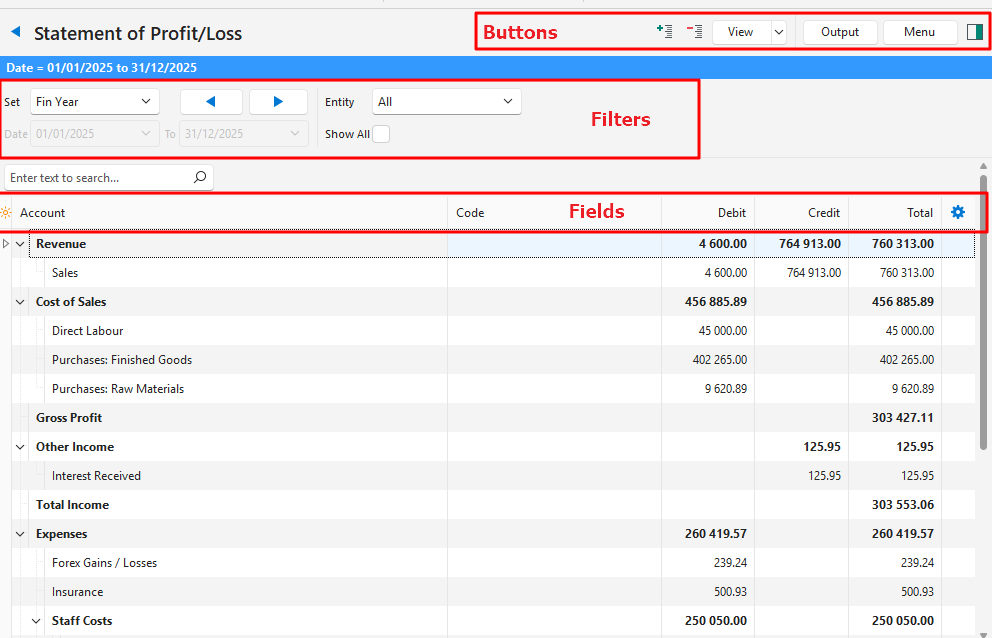
Buttons Explained
| Button | Description |
|---|---|
| + – | Expands the view to display all the sub-accounts or contracts the view to only show the main accounts. |
| View | Generates a list of entries as per the selected data filters. |
| Arrow on View Button | Reset Data Filter: Resets all the data filters. |
| Output | Prints, previews, or exports the selected report if Output Templates are added. Exports the current display in .xlsx format. |
| Menu | Views – Dashboard – Statement of Profit/Loss – Statement of Financial Position – Trial Balance Settings – User Access – Edit Accounting (Accounts, VAT Types, Currencies, Credit Terms, Bank Profiles) Layout |
Filters Explained
| Filter | Description |
|---|---|
| Set | Allows users to select a date from the dropdown list (e.g. No Date, Today, This year). |
| Arrows | Adjusts the Date in the direction of the arrow. |
| Date … to … | Allows users to set their own Dates (based on the selection under Set). |
| Entity | A dropdown list of Entities to select All or a specific Entity. |
| Show All | A checkbox. If checked all the accounts are displayed including those with zero balances. |
Fields Explained
| Field | Description |
|---|---|
| Field Chooser (*) | Allows users to add or remove columns. |
| ID | The system-generated number for the entry. |
| Account | The name of the Account. |
| Code | The Account Number or Code. |
| Debit | The total of Transactions that were Debited to the account in the selected period. This column is hidden by default. |
| Credit | The total of Transactions that were Credited to the account in the selected period. This column is hidden by default. |
| Total | The total movement for the selected period: – Cost of Sales and Expenses: The value represents the debits less credits. If the credits exceed the debits the number is negative. – Revenue and Other Income: The value represents the credits less debits. If the debits exceed the credits the number is negative. |
| Widget | A submenu, which can also be accessed by right clicking the entry, with the following function: – Open Detailed Ledger: Opens the ledger account. Only available if accounts are clicked (not headings or main accounts that have subaccounts). |
Learn More
- Financial Reporting Dashboard Interface: Explains the interface to the Financial Dashboard which displays problematic transactions and accrual account balances.
- Financial Reporting Dashboard Tutorials: These tutorials explain how to solve issues displayed on the Financial Dashboard and how to include Accrual accounts.
- How Financial Statements are Created: Explains how the transaction data is used to compile the financial statements.
- Statement of Financial Position Interface: Explains the Statement of Financial Position’s interface.
- Statement of Financial Position Tutorials: These tutorials explain how to view and filter the Statement of Financial Position.
- Statement of Profit or Loss Tutorials: These tutorials explain how to view and filter a Statement of Profit or Loss.
- Trial Balance Interface: Explains the Trial Balance interface.
- Trial Balance Tutorials: These tutorials explain how to display and filter the Trial Balance.