
Currency Tutorials
Overview
Module | Description |
| |
Estimates can only be done in the local currency. However, once you determine a local price you can copy the transaction to convert that price to the customer’s currency. | |
Items |
|
Organisation | Limited to one local (main) currency but can add multiple currencies for prices and transactions. |
| |
Rate of Exchange |
|
Transactions | A setting lets you choose which currencies may be used. |
How to Create a Currency
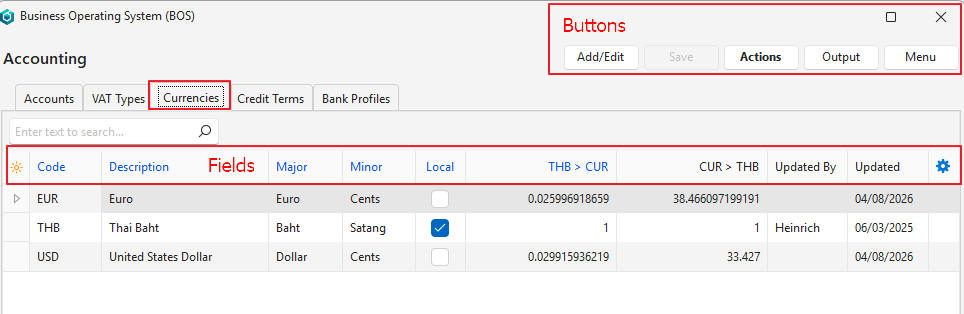
- Navigate to Currencies.
- Click Add/Edit (button).
- Click the top row and fill in the information as follows:
- Code = Type the recognised international currency code (e.g. ZAR, USD, THB).
- Description = Type the name of the currency (e.g. South African Rand, Thai Baht).
- Major = Type the official name of the notes (e.g. Rand, Baht).
- Minor = Type the official name of the coins (e.g. Cents, Satang).
- Local = A checkbox. If checked the currency is the Local Currency. Only one currency can be the Local Currency.
- Optionally, fill in the Exchange Rates, or update the currencies as described in Step 5:
- Local Currency > CUR = Type the Exchange Rate from the Local Currency to the new currency (e.g. 1 Euro = 37.003 THB).
- How many units of the Foreign Currency the Local Currency can buy.
- CUR > Local Currency = Type the Exchange Rate from the new currency to the Local Currency (e.g. 1 THB = 0.0270 Euro).
- How many units of the Local Currency one unit of the Foreign Currency can buy.
- Local Currency > CUR = Type the Exchange Rate from the Local Currency to the new currency (e.g. 1 Euro = 37.003 THB).
- Click Save (button).
- Click Actions (button) > Update Currencies to automatically fill in the Exchange Rates.
- Note: Updating the Currencies overwrites all the entered Exchange Rates.
- Note: Currencies are only updated if they have been Activated by QuickEasy.
How to Edit a Currency
- Navigate to Currencies.
- Click Add/Edit (button).
- Make any changes (see How to Create a Currency above).
- Click Save (button).
How to Change the Local Currency
- Navigate to Currencies.
- Click Actions (button) > Change Local Currency.
- Read and accept the disclaimer.
- Click the checkbox in the Local column to select a different Currency (Checkmark = Local currency).
- Click Save (button).
- Click Actions (button) > Update Currencies.
How to Update the Currencies
- This feature updates the Exchange Rates to the current exchange rates. The exchange rate for the Local Currency is always one.
- Currencies are automatically updated daily. You only need to follow these steps when you create a new currency.
- Navigate to Main Menu > Setup > Items (as an example).
- Click Menu (button) > Edit Currencies.
- Click Actions (button) > Update Currencies.
Learn More
- Chart of Accounts Interface: Explains the interface for creating a chart of accounts.
- Chart of Accounts Tutorials: These tutorials explain how to create and edit a chart of accounts.
- Currencies List View: Explains the list of currencies’ interface and related features.
- Currency Settings: Explains how to set the conversion method and how many decimal places to use for currencies.
- Ledger List Views: Explains the various interfaces for displaying ledger transactions.
- Ledger Tutorials and Troubleshooting: These tutorials explain how to display a ledger and transactions.
- Understanding the Chart of Accounts: Explains what the chart of accounts is and how it impacts the financial statements.