
Learning the Basic Functions of QuickEasy BOS
| Topic | Explanation |
|---|---|
| Glossary of Terms | Explains the terms commonly used in QuickEasy BOS. Glossary of Terms |
| General Settings | Explains the settings that can be customised: – Currency conversion, decimals, and using multiple currencies – Financial year – Maximum file size for attachments – Default messaging app – Number of decimals used in stock quantities – WooCommerce – Shopify General Settings |
| Layout | Explains the QuickEasy BOS Environment. Layout: Explains the various layout options. Popups: Explains what popups are and how they function. Grid Views: Explains what grid views are and the functions that can be used to customise displays. Grid View Tutorials: Step-by-step instructions for using the built-in grid context menus to filter and sort records. Saving and Restoring Layouts: Step-by-step instructions for saving and restoring grid layouts. Edit Views: Explains what Edit Views are. List Views: Explains what List Views are. Footers: Explains the information that is displayed in footers. Search Functions: Explains the built-in search features. |
| User Access | User Access is set and customised for every feature of QuickEasy BOS. If you are an admin user (manager or owner) you must grant access to yourself and to staff per module and set the level of access (e.g. view, edit, or delete records.) If you are not an admin user, and you cannot find certain features or you get an access denied message, you must ask an admin user to grant you the necessary access. Understanding User Access and Settings: Explains how user access works and describes the available settings. User Access Interface: Explains the fields, buttons, and additional features available when setting user access. User Access by User: Explains the fields, buttons, and additional features available when setting user access by user. User Access by Module: Explains the fields, buttons, and additional features available when setting user access by module. User Access Setup Tutorials: Step-by-step instructions for setting user access and assigning menus and languages. User Settings and Connections Tutorials: Step-by-step instructions for checking who is logged in and related features. User Access Tutorials: Step-by-step instructions for granting user access. |
| Languages | Only applicable if you work in a multi-language environment. The QuickEasy BOS interface is designed in English but can be accessed in most languages. If a new language is added, it is machine translated but you can edit these translations. Please contact us to activate the language and allocate it to your account. Languages: Explains the fields, buttons, and available features for editing the language dictionaries and translations. Language Tutorials: Step-by-step instructions for using the language module and customising translations. |
| Menus | Menus are customised and allocated to users. When new features are created (e.g. transaction types) they must first be added to a menu group. These menu groups are then added to menu templates. Users are assigned menu templates that consist of multiple menu groups. Menus Explained: Explains the various menus and how they fit together with examples. Menu Groups: Step-by-step instructions for creating and editing menu groups. Menu Templates: Step-by-step instructions for creating and editing menu templates. Recycle Bin: Certain records that are deleted are sent to the recycle bin from where they can be restored or permanently deleted. This topic explains the fields, buttons, and available features for the recycle bin and provides step-by-step instructions for using the recycle bin. |
| Statuses | All the transactions and records are managed by statuses. Default statuses are created, but in most cases, these statuses and the related settings can be changed. Transaction Example (statuses are in bold): – Pending: Just created, can be edited, does not affect anything yet. – Active: Waiting for a process or review step, might affect inventory and could be posted to the ledger. – Complete: The transaction is complete. It might affect inventory and will be posted to the ledger if it is an accounting transaction (i.e. not a sales or work order). Customer Records Example (statuses are in bold): – Prospect: A sales lead was received, or a quotation has been issued, but not yet accepted. – Suspended: The account is currently suspended for non-payment or similar reason. – Active: A customer in good standing. – Cancelled: No longer a customer. Statuses: Explains the fields, buttons, and available features for creating or editing statuses. Status Tutorials: Step-by-step instructions for creating or editing statuses. |
| Data Filters | Data filters provide a quick way to find or isolate certain records. Data Filters: Provides an overview of data filters. |
| Batch Updates | Batch Updates allow multiple records to be edited at once. This feature is available for most modules in QuickEasy BOS. Batch Updates: Provides an overview and step-by-step instructions for using batch updates. |
| Notes and Attachments | Notes can be attached to most records and transactions. The notes can be additional information received from customers or suppliers, or instructions to staff. Files and images can also be linked to most records and attachments. The attachments can include illustrations, artwork, contracts, or copies of certificates. This feature allows all the records relating to a matter to be kept in one place so that everyone has access to it. Attachments Module: Explains the fields, buttons, and additional features available when using the attachments’ module. Notes and Attachments Panel: Explains the fields, buttons, and additional features available when creating or editing notes and attachments. Notes and Attachments Tutorials: Step-by-step instructions for adding, editing, or deleting notes and attachments. |
| Documents can be emailed directly from QuickEasy BOS as attachments. Email Templates can be created for the subject and email body. Data tags are used to personalise the emails. Email List View: Explains the fields, buttons, and additional features available when viewing email folders. Email Edit View: Explains the fields, buttons, and additional features available when creating emails. Email Templates: Explains the fields, buttons, and additional features available when creating email templates. Lists all the available data fields. |
Speciality Features
| Topic | Explanation |
|---|---|
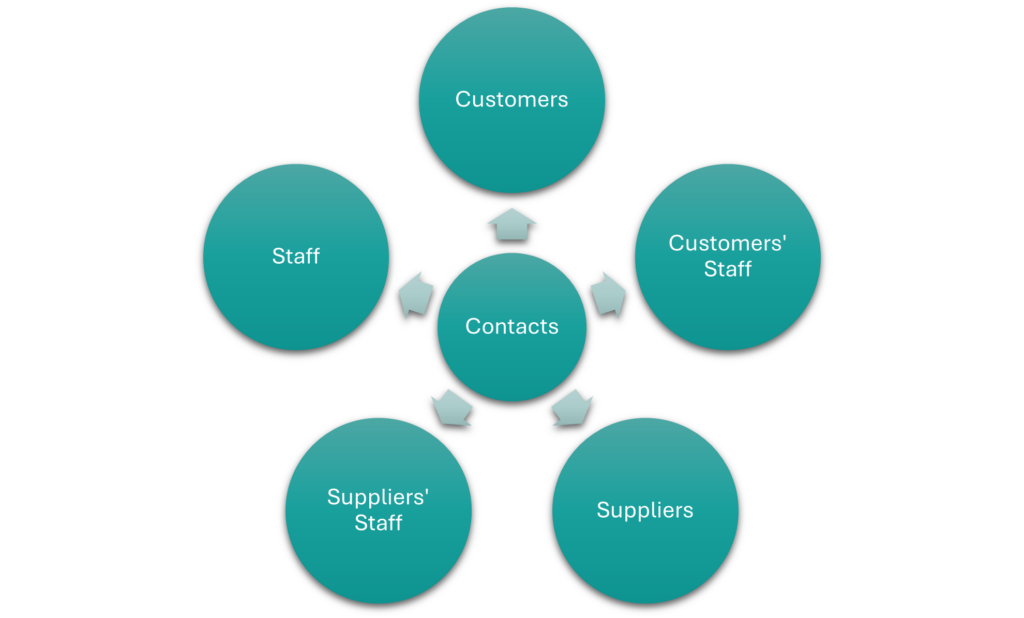
| Contacts | Contacts is a central database of all the customer, supplier, and staff records. Contacts Default View: Explains the fields, buttons, and available features for displaying a list of contacts. Contacts Addresses View: Explains the fields, buttons, and available features for displaying a list of contacts’ addresses. Contacts Edit View: Explains the fields, buttons, and available features for creating or editing contacts. Contacts Tutorials Creating and Editing: Step-by-step instructions for creating and editing contact records. Contacts Tutorials Viewing: Step-by-step instructions for using the available features when viewing a list of contacts. |
| Custom Reports | Allows you to extract the data you need, in a way that is meaningful to you. Custom Reports: Explains the fields, buttons, and available features for displaying custom reports. Edit Reports List and Edit Views: Explains the fields, buttons, and available features for creating or editing custom reports. Edit Reports Tutorials: Step-by-step instructions for creating custom reports. Edit Reports Edit SQL: Explains the fields, buttons, and available features for creating SQL queries. (A basic knowledge of SQL is required to use this feature.) Edit Reports Formatted Text: Examples of formatted text that can be used in custom reports. |
| Document Designers | The form designers can be used to generate and customise documents such as invoices, quotations, stock-counting sheets, and worksheets. Document Templates are linked using the Output Templates module. Output Templates Module: Explains the fields, buttons, and available features for viewing the output module. Output Template Tutorials: Step-by-step instructions for linking templates to modules. Form Designer Interface: Explains the commonly used fields, buttons, and available features for creating custom documents using the Reportbuilder. Form Designer – Reportbuilder Tutorials: Step-by-step instructions for creating templates. |
| Online Libraries | Allows specific information to be exported and imported between databases. Online Libraries: Lists the data that can be exported or imported and explains all the settings, fields, buttons, and features available when using the online library. |
| NCRs | Non-conformance reports are integrated with transactions and service tickets in QuickEasy BOS. Non-Conformance Reports (NCRs): Explains what NCRs are, how they are integrated in QuickEasy BOS, and provides step-by-step instructions on setting up and using NCR features. |
Learn More
- Learning Pathway for Accountants / Bookkeepers: Entities, currencies, transactions, ledger, financial statements, and VAT.
- Learning Pathway for Creditors’ Clerks: Supplier records, reports, and transactions.
- Learning Pathway for Customer Relations: Helpdesk, customer relations, service tickets, and contacts.
- Learning Pathway for Debtors’ Clerks: Customer records, reports, and transactions.
- Learning Pathway for Estimators: Items and estimating features.
- Learning Pathway for Human Resources: Contacts, service manager, and timekeeping.
- Learning Pathway for Production Managers: Production planning and related features.
- Learning Pathway for Project Managers: Project service tickets and related features.
- Learning Pathway for Sales Reps and Managers: Customer records and transactions, service manager for sales leads.