
Financial Reporting Dashboard Interface
- The dashboard displays transactions or accounts that need further processing.
- On the left a list of transactions that are either out of balance or have allocation errors is displayed.
- On the right, the accrual accounts that need to be reconciled are displayed. The accrual accounts that are shown are those for which the default Accrual was selected in the Chart of Accounts.
Navigation Example: Main Menu > Accounting > Financial Reporting > Menu (button) > Dashboard
Example
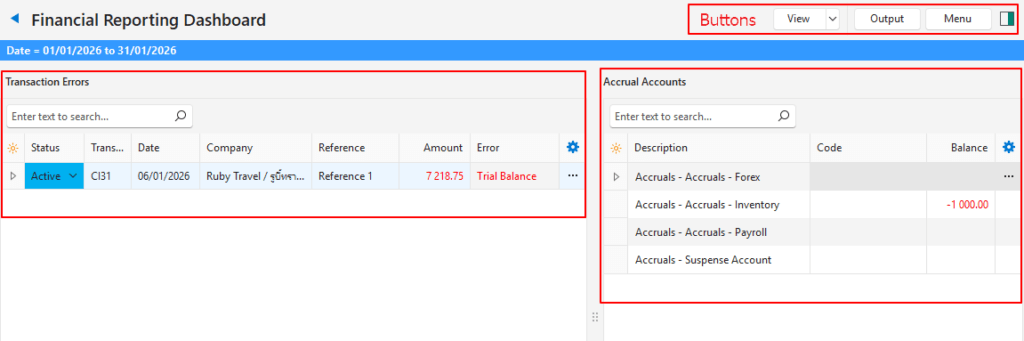
The transaction causing the problem: The account to be credited is blank. BOS does not know where to post the VAT exclusive amount. It does, however, know where to post the VAT and Item 1’s transaction.
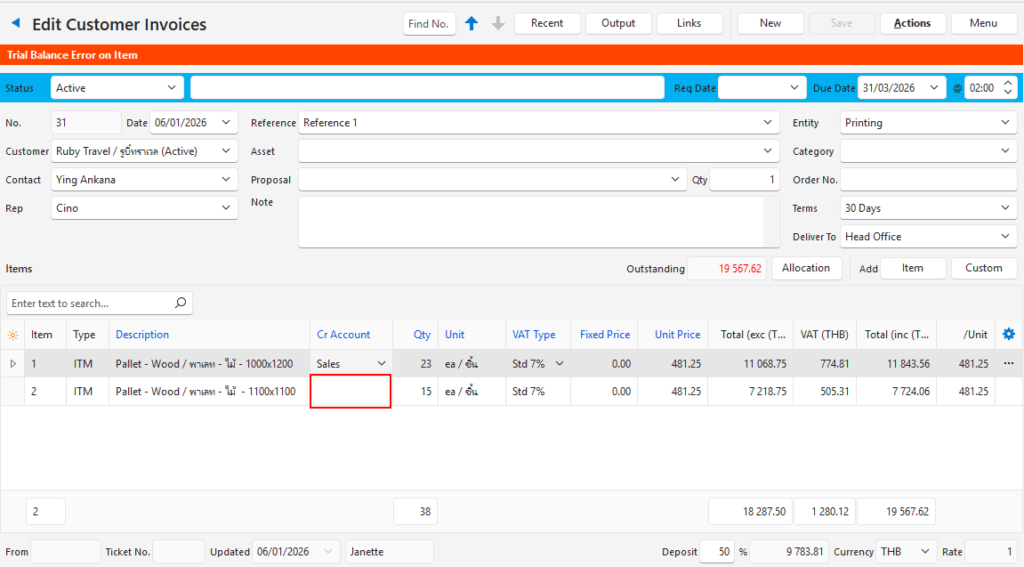
Buttons Explained
| Button | Description |
|---|---|
| View | Generates a list of entries as per the selected data filters. |
| Arrow on View Button | Arrow on View Button > Reset Data Filter |
| Output | Prints, previews, or exports the selected report if Output Templates are added. Exports the current display in .xlsx format. Select Transaction Errors or Accrual Accounts from the dropdown list. |
| Menu | Views – Dashboard – Statement of Profit/Loss – Statement of Financial Position – Trial Balance Settings – User Access – Edit Accounting (Accounts, VAT Types, Currencies, Credit Terms, Bank Profiles) Layout |
Transaction Errors: Fields Explained
| Field | Description |
|---|---|
| TransID | The system-generated number for the transaction. |
| Status | The status of the transaction. |
| Trans No. | The transaction number. |
| Date | The date of the transaction. |
| Company | The Customer or Supplier selected for the transaction. |
| Reference | The transaction’s reference. |
| Item | The sequence number for the item on the transaction. |
| Error Amount | The amount that cannot be posted to the ledger (e.g. the VAT exclusive amount on a line item). |
| Date Created | The date on which the entry was created. |
| Date Updated | The date on which the entry was updated. |
| Updated By | The User who last updated the entry. |
| Error | A description of the error (e.g. Trial Balance for an entry that is out of balance, or Allocation for an entry that is over-allocated). Transactions that are entered ahead of time are also listed here with Post-dated displayed as the error. |
| Widget | A submenu, which can also be accessed by right clicking the entry, with the following function: – Open Transaction: Opens the transaction. |
Accrual Accounts: Fields Explained
| Field | Description |
|---|---|
| ID | The system-generated number for the entry. |
| Description | The accrual account’s description. |
| Code | The accrual account’s code. |
| Balance | The balance of the accrual account. |
| Widget | A submenu, which can also be accessed by right clicking the entry, with the following function: – Open Detailed Ledger: Opens the detailed ledger for that account. |
Learn More
- Financial Reporting Dashboard Tutorials: These tutorials explain how to solve issues displayed on the Financial Dashboard and how to include Accrual accounts.
- How Financial Statements are Created: Explains how the transaction data is used to compile the financial statements.
- Statement of Financial Position Interface: Explains the Statement of Financial Position’s interface.
- Statement of Financial Position Tutorials: These tutorials explain how to view and filter the Statement of Financial Position.
- Statement of Profit or Loss Interface: Explains the Statement of Profit or Loss’s interface.
- Statement of Profit or Loss Tutorials: These tutorials explain how to view and filter a Statement of Profit or Loss.
- Trial Balance Interface: Explains the Trial Balance interface.
- Trial Balance Tutorials: These tutorials explain how to display and filter the Trial Balance.