
Bank Reconciliations
A bank reconciliation is a process that ensures all the bank entries are correctly captured by matching bank transactions to bank statement entries.
Before reconciling a bank account for the first time, the following setup steps must be completed:
- Add the Bank module to a menu.
- Set User Access for the bank module: … Bank > Menu (button) > Edit User Access.
- Create statuses for the bank entries:
Bank Reconciliations and Bank Imports share the same interface, settings, and set of statuses.
In the context of bank recons, the recon is treated as a bank transaction. The header has its own status and the transactions that are added to the reconciliation are treated as the items with item statuses.
Transactions are displayed if:
- One side of their entry is posted to the selected bank account.
- The transaction is in an Accounting status.
Bank Reconciliations List View
Buttons Explained
| Button | Description |
|---|---|
| View | Displays a list of bank recons or import entries. |
| Arrow on View button > Reset Data Filter | Resets the selected filters. |
| New | Creates a new Bank Import or Bank Reconciliation for the bank selected from the dropdown list. |
| Menu | Settings – Edit User Access – Edit Accounting (Accounts, VAT Types, Currencies, Credit Terms, Bank Profiles) – Edit Statuses (Bank Header) – Edit Statuses (Bank Item) Layout |
Filters Explained
| Filter | Description |
|---|---|
| Set | A selection of date options including No Date to display all the entries. |
| Date (radio button) | Works with the date. Displays entries that were created on that date (i.e. the date on which the recon or import was created). |
| Updated (radio button) | Works with the date. Displays entries that were updated on that date (i.e. the date on which the recon or import was updated). |
| Arrows | Adjusts the dates in the direction of the arrows. |
| Dates | Allows custom dates to be entered. |
| Account | A dropdown list of bank accounts for selection. |
| Status Groups | Checkboxes to filter the entries based on the status groups. If none of the boxes are checked, all the entries are displayed. |
Fields Explained
| Field | Description |
|---|---|
| Status | The status of the recon or import. |
| Bank No. | The system-generated number allocated to the entry. |
| Type | Whether the entry is an Import or Recon. |
| Account | The name of the bank account. |
| Start | The start date of the recon or import. After the first recon is created, this date is automatically set as the day after the previous recon ended. |
| End | The end date of the recon or import. |
| Bank Balance | The bank balance at the end of the period. |
| Ledger Balance | The ledger balance at the end of the period. |
| Variance | The difference between the bank and ledger balances. |
| Widget | A submenu with the following actions: – Edit: Opens the import or recon for editing. – Delete: Deletes the import or recon. |
Bank Reconciliations Edit View
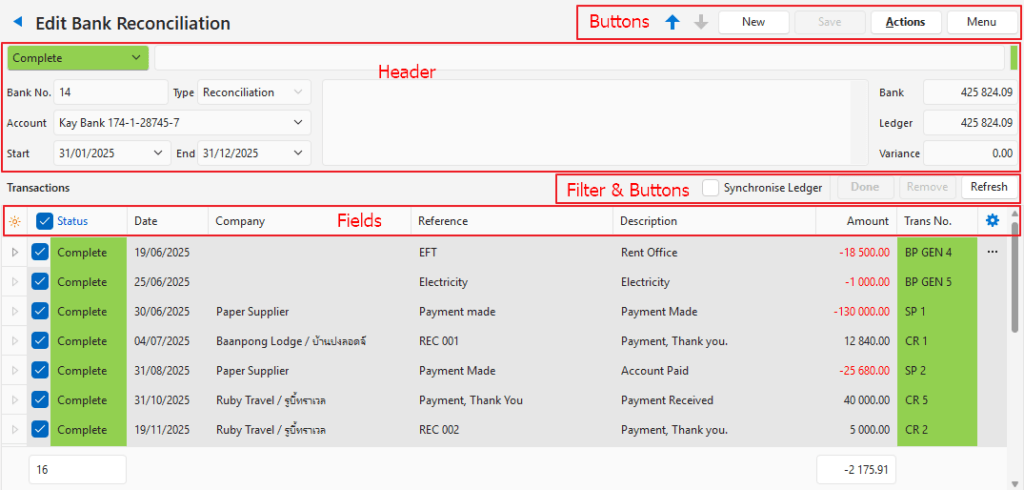
Buttons Explained
| Button | Description |
|---|---|
| Arrows | Navigates between bank reconciliations / imports. |
| New | Creates a new Bank Import or Bank Reconciliation as selected from the dropdown list. |
| Save | Saves any changes |
| Actions | Insert/Update Bank Transactions: Generates a list of transactions that were posted to the specific bank account. Delete Bank Reconciliation: Deletes the bank reconciliation. |
| Menu | Open Ledger: Opens the transaction in the ledger. Settings – Edit User Access – Edit Accounting (Accounts, VAT Types, Currencies, Credit Terms, Bank Profiles) – Edit Statuses (Bank Header) – Edit Statuses (Bank Item) Layout |
Fields Explained: Header
| Field | Description |
|---|---|
| Status | A dropdown list of statuses to select a header status. |
| Status Bar | An area to type a note. |
| Bank No. | The system-generated number allocated to the entry. |
| Type | Whether the entry is an Import or Reconciliation. |
| Account | A dropdown list of bank accounts to select one / Prefilled with the bank account selected. |
| Date Start | The start date of the recon or import. |
| Date End | The end date of the recon or import. |
| Note Field | A field to type a note. |
| Bank Balance | A field to enter the bank balance as per the bank statement. |
| Ledger Balance | The ledger balance at the end of the period. |
| Variance | The difference between the bank and ledger balances. |
Fields Explained: Transactions
| Button and Checkbox | Description |
|---|---|
| Synchronise Ledger | Automatically opens the clicked transaction on the right panel. |
| Done | Changes the status of all the selected entries to Complete. |
| Remove | Removes all the selected entries. These entries can be added again by clicking Actions (button) > Insert/Update Bank Transactions. |
| Refresh (button) | Refreshes the transactions with changes made. |
| Field | Description |
|---|---|
| ID | The system-generated number for the entry. |
| Status | The item’s status where item refers to the transaction (which is an item on a bank reconciliation). |
| Date | The date of the transaction. |
| Description | The transaction’s description. |
| Amount | The transaction amount. |
| Created | The date on which the entry was created. |
| Updated | The date on which the entry was last updated. |
| Updated By | The user who last updated the entry. |
| Trans No. | The original Transaction Type code and number. |
| Widget | A submenu with the following action: – Done: Sets the item’s status to Complete. – Open Ledger: Opens the transaction on the right panel. – Remove Item: Removes the transaction from the bank recon. This step is necessary if the transaction must be edited. |
Tutorials
How to Create a Bank Reconciliation
- Navigate to Bank.
- Note: The module is named Bank, however, it might be renamed on the menu (e.g. to Bank Recon or Bank Import). It can be added to any menu group (e.g. Accounting).
- Click New (button) > and click one of the bank accounts listed under Bank Reconciliation.
- Complete the following fields:
- Start = If this recon is the first bank recon, select a date from the calendar. If previous recons exist, this date is automatically filled in as the day after the previous recon ended.
- End = Select the end date from the calendar.
- Bank = Type the closing bank statement balance.
- Click Save (button).
- Click Actions (button) > Insert/Update Bank Transactions.
- Check each entry against the corresponding entry on the bank statement.
- If they match, check the checkbox.
- If the amounts differ:
- Right click the entry and click Open Ledger on the context menu.
- Edit the amount as needed.
- Note: Most likely you need to change the transaction’s status to allow editing and change it again afterwards to its previous status.
- If there are missing entries, enter them as you would any other similar entry (e.g. Bank Charges can be recorded as a Bank Payment).
- Return to the bank recon and click Actions (button) > Insert/Update Bank Transactions.
- Check the checkbox next to the entry you edited.
- Once the variance is zero:
- Click Done (button) to update all the checked entry’s statuses.
- Change the status of the Reconciliation in the header to Complete.
How to Change Entry (Item) Statuses to Complete
- From editing a bank reconciliation:
- For a single entry: Right click the entry and click Done on the context menu.
- For multiple entries: Check the checkboxes next to the entries, click Done (button) above the list of entries.
How to Change Entry (Item) Statuses to Pending
- Edit a bank reconciliation.
- Right click an entry and click Remove Item on the context menu.
- Click Actions (button) > Insert/Update Bank Transactions.
- The entry is added back with a Pending status.
Learn More
- Bank Profiles: Creating bank profiles for bank imports.
- Bank Imports: Importing entries from a bank account.