
Saving and Restoring Layouts
Grid views refer to the display of data in a tabular form using columns (fields) and rows (records).
The columns represent the various fields or attributes of the data, whereas the rows represent individual records or instances of the data.
Records in the grid are displayed by setting a data filter and clicking View (button) on the button bar at the top of the panel.
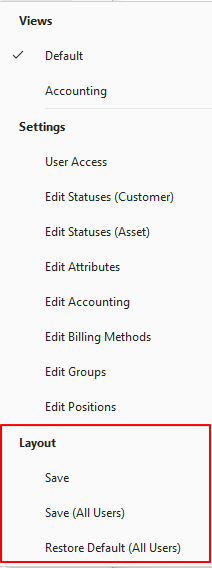
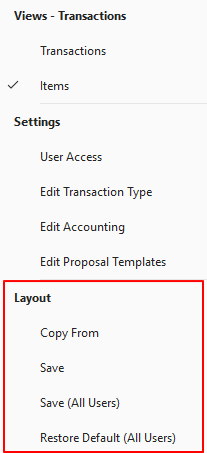
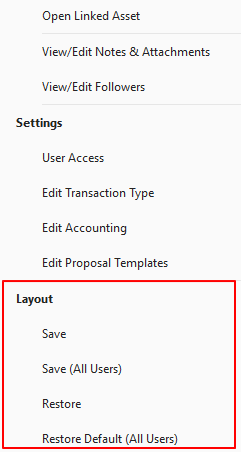
Most grid views include a Layout option on the Menu button:
Customer Records
Transaction List Views
Transaction Edit Views
How to Copy the Layout
This feature allows users to copy a saved layout from a different user.
- Display a list of entries (e.g. transactions).
- Click Menu (button) > Copy From.
- Click the user whose layout you want to use.
- Click Select (button).
- Confirm the copy on the popup.
How to Save the Grid Layout for Yourself
- Display a list of entries (e.g. transactions).
- Change the display as needed.
- Click Menu (button) > Save.
How to Save the Grid Layout for All Users
- Display a list of entries (e.g. transactions).
- Change the display as needed, including selecting or hiding columns.
- Click Menu (button) > Save (All Users).
How to Restore the Grid Layout
- Display a list of entries (e.g. transactions).
- Click Menu (button) > Restore Default (All Users).
- Note: A restart is required, and you are prompted to restart.
- Note: For transactions, users can also Restore any Saved layout only for themselves. This feature only works with layouts that were saved in that session. Once QuickEasy is restarted, the saved layouts are lost.
Learn More
- Edit Views: Explains what Edit Views are and provides some examples.
- Footers: Explains what information is displayed in transaction footers.
- Grid View Tutorials: These tutorials explain how to use the built-in context menu to group records.
- Grid Views: Explains what grid views are and the functions that can be used to customise displays.
- Layout: Explains the various layout options.
- List Views: Explains what List Views are.
- Popups: Explains what popups are and how they function.
- Search Functions: Explains the built-in search features.