
User Access by User
- You manage connected users, assign them languages and menu templates, and log them from the Users module.
- You can set user access for all users and modules from this module.
- Each user must have a role. There are three roles:
- Admin:
- Allows access to the users’ module.
- Can grant themselves access rights to all the modules.
- Users:
- Cannot access the users’ module.
- Only has the access rights assigned to them by an Admin user.
- PoS User:
- Forces the user to first clock in and open a point-of-sale session before working in QuickEasy BOS.
- Admin:
- For each user, you must create a separate contact, return to the users’ interface, and link the user to the contact.
- User access can also be set for a module from its menu button.
- You may only login to a database from one device at a time. However, you can login to the mobile and desktop app simultaneously.
- Logins are validated every five minutes. These checks will discontinue sessions if the user has been disabled or has multiple logins.
Navigation: Main Menu > Setup > Users > Actions (button) > View/Edit User Access by User
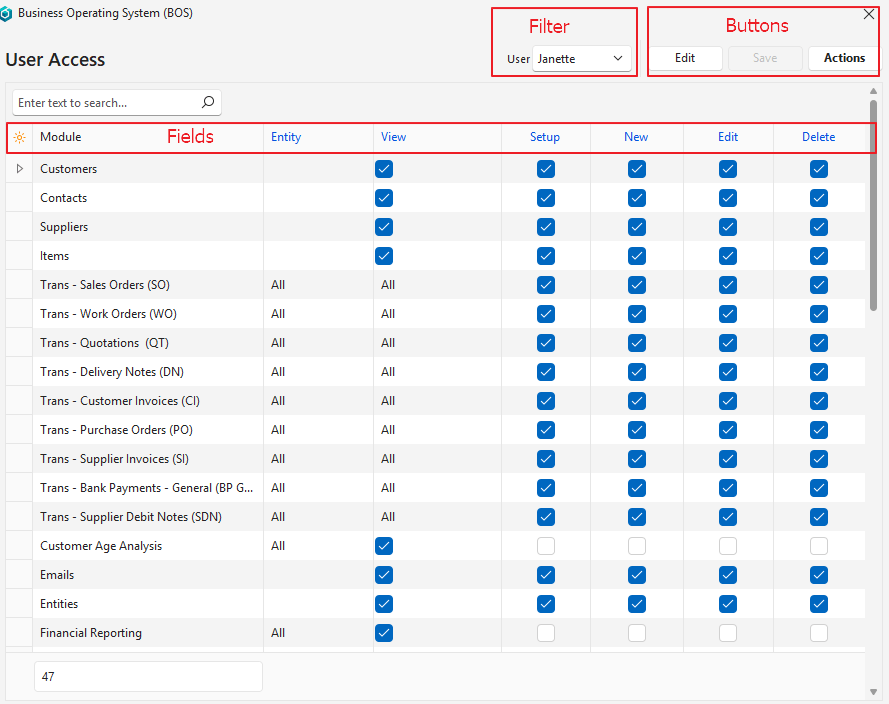
Buttons Explained
| Button | Description |
|---|---|
| Edit | Allows Users to edit the entry. |
| Save | Saves any changes. |
| Actions | Allows for changes to be made to multiple records that can be selected using Ctrl + Left Click. The options are: Batch Update: Allows all the selected fields to be updated according to the adjacent checkbox when Update (button) is clicked. The options are: – View: Grants All (checked) or None (unchecked) access. (Other view options must be set manually.) – Setup: Grants (checked) or revokes (unchecked) access. – New: Grants (checked) or revokes (unchecked) access. – Edit: Grants (checked) or revokes (unchecked) access. – Delete: Grants (checked) or revokes (unchecked) access. Copy Access from another User: A user can be selected from the dropdown list. The access rights are copied to the current user when Copy (button) is clicked. Add/Remove Modules: Opens an interface with Available and Selected sections. Access is granted to modules in the Selected section and removed from modules in the Available section. Modules are moved using the navigational arrows in the middle of the two sections. The changes are saved when the Save (button) is clicked. |
Filters Explained
| Filter | Description |
|---|---|
| User | Option to select a User from the dropdown list of available users. |
Fields Explained
| Field | Description |
|---|---|
| Field Chooser (*) | Allows users to add or remove columns. |
| ID | A system-generated number for the entry. |
| User ID | The user’s system-generated number. |
| Module | The module’s name. |
| Entity | Links users to all or specific entities. |
| View | Access to view the records. The options are: – None: If this option is selected, the other settings are void. – All: The user may view all the records. – Own (User): The user may view the records they created. – Own (Rep): The user may view the records where they are the assigned rep. |
| Setup | Users have access to the Settings. |
| New | Users may create new entries. However, copy rules supersede this permission. Users with permission to copy a service ticket or transaction may create new entries that way. |
| Edit | Users may edit existing Transactions. Users with rights to create new transactions must also have edit access. |
| Delete | Users may delete existing Transactions. |
| Created | The date on which the entry was created. |
| Updated | The date on which the entry was updated. |
| Updated By | The User who updated the entry. |
Learn More
- Understanding User Access and Settings: Explains how user access works and describes the available settings.
- User Access by Module: Explains the interface from which user access can be set for a specific module.
- User Access Interface: Explains the Users setup interface.
- User Access Setup Tutorials: These tutorials explain how to grant user access and how to allocate menu templates and languages.
- User Access Tutorials: These tutorials explain how to set and edit user access to the various modules.
- User Settings and Connections Tutorials: These tutorials explain how to set user settings and check for connected users.