
Email List View
- QuickEasy BOS includes features to send emails.
- Forms (e.g. Customer Invoices and Statements) can be emailed directly from the transactions or reports.
- The email subject lines, and content may be customised to include personalisation and other features.
- Once set up, documents can be emailed from the screens on which they are viewed by clicking Output (button). These emails are placed in the Outbox, from where they can be edited or sent.
- Emails is a menu option which can be included in any menu.
Email List View
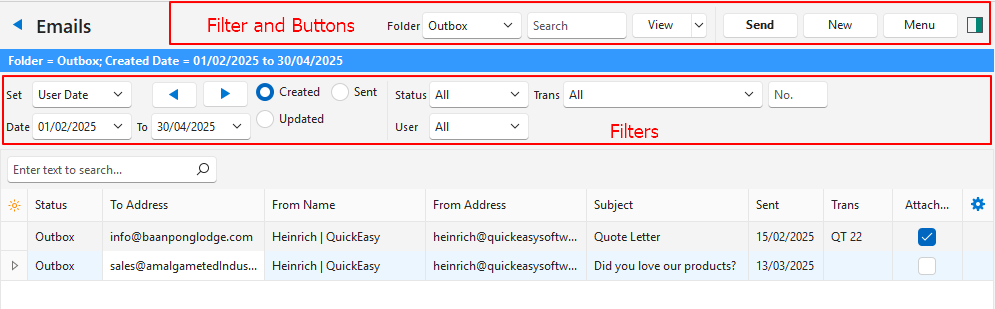
Buttons Explained
| Button | Description |
|---|---|
| Folder Dropdown List | Allows users to navigate to the various email folders: – Outbox – Sent – Templates – Failed – Inbox |
| Search | A search bar for users to search for a particular email. |
| View (button) | Generates a list of Emails as per the chosen filters. |
| View (button arrow) | Reset Data Filter: Resets the filters. |
| Send | Sends the emails that are in the Outbox. |
| New | Allows users to create a New Email. |
| Menu | View / Edit User Settings (admin access required) Layout |
Filters Explained
| Filter | Description |
|---|---|
| Set | Allows users to select a date option (e.g. Today, This Month) or select No Date to see all the emails. |
| ← → | Adjusts the date fields in the direction of the arrow. |
| Date | Provides for a start and end date to further refine the date selection. |
| Created | Radio button that works with the date field. Shows emails Created on the selected date. |
| Sent | Radio button that works with the date field. Shows emails Sent on the selected date. |
| Updated | Radio button that works with the date field. Shows emails Updated on the selected date. |
| Status | A dropdown list to select a specific Status (or All). |
| Trans | A dropdown list to select emails created from a specific Transaction Type (or All). |
| No. | Allows users to type specific document number (e.g. Quotation number) to find emails created for that document. |
| User | A dropdown list to select emails created by a specific User (or All). |
Fields Explained
| Field | Description |
|---|---|
| Field Chooser (*) | Allows users to add or remove columns. |
| ID | A system-generated number for the email. |
| Status | The Status of the email. |
| To Address | The Email Address of the person the email is sent to. |
| CC Address | The Email Address of the person the email must be copied to. |
| BCC Address | The Email Address of the person the email must be blind copied to (sent without exposing the recipient’s email address). |
| From Name | The User sending the email. |
| From Address | The User’s email address. |
| Subject | The email’s Subject. |
| Sent | The Date on which the email was sent. |
| Trans | The Transaction from which the email was generated. |
| Attachment | A checkbox, indicating whether the email contained an Attachment. |
| Updated By | The User who updated the email. |
| Created | The Date on which the email was created. |
| @ | The Time when the email was created. |
| Updated | The Date on which the email was updated. |
| @ | The Time when the email was updated. |
| Context Menu | Options to Edit or Delete the email. |
Learn More
- Email Edit View: Explains the interface from which emails can be created.
- Email Templates: Explains the interface from which email templates can be created. Lists all the available data fields.
- Form Designer – Reportbuilder Tutorials: These tutorials explain how to create or edit a template (form).
- Form Designer Interface: Explains the commonly used features for the Form Designer.
- Output Button: Explains the Output button that is available on most views.
- Output Template Tutorials: These tutorials explain how to add templates to transaction types and other modules.
- Output Templates Module: Explains the Output Templates interface.