
Item Summary
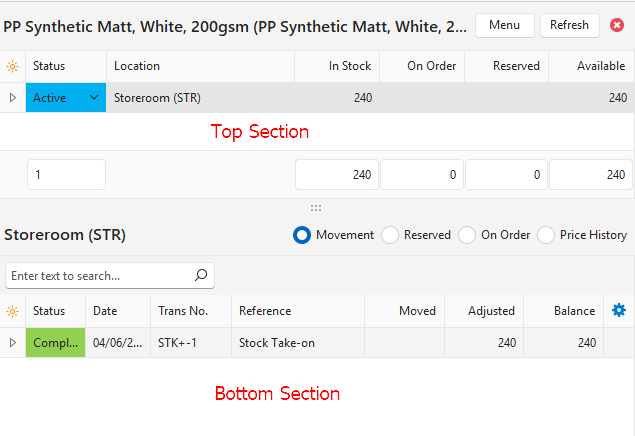
- An Item Summary displays the inventory levels and quantities under these headings: Movement, Reserved, and On Order. It is only applicable to items that were pre-created (not custom items).
- The summary opens on a separate panel on the right.
- There are options to view the summary from these modules:
- Items: List and Edit Views.
- Transactions: Edit and Items Views
- Transactions > Estimate > Costs (tab): Either a Material or Routing entry that is a pre-created item.
Item Summary Interface
Top Section: Displays the item’s Description, the item’s Code in parentheses and the item’s Base Unit.
Buttons Explained
| Button | Description |
|---|---|
| Menu | Opens in Items Module: Opens the item record. Refresh: Updates the display with any changes made. Layout |
| x | Closes the Item Summary. |
Item Stock Summary: Fields Explained
The top section shows a summary of the stock on hand, and related transactions. There is an entry for every location. If there is no stock on hand, there are no entries.
| Field | Description |
|---|---|
| ID | The system-generated number for the entry. |
| Status (Location) | The status of the Stock Location (i.e. the Entity‘s status). |
| Location | The location of the stock. |
| Min Qty | The Minimum Quantity that should be in stock as filled in on the item’s Inventory (tab). |
| In Stock | The quantity currently in stock. |
| On Order | The quantity that has been Ordered but not yet received. |
| Reserved | The quantity Reserved. |
| Available | The quantity Available. |
| Unit Price | The Unit Price of the stock. |
| Value | The value of the stock on hand (Unit Price x Qty). |
| Created | The date on which the entry was created. |
| Updated | The date on which the entry was updated. |
| Updated By | The User who last updated the entry. |
Location Summary
- The bottom section displays a summary of the transactions that affected inventory, per location.
- By default, it shows the first location. Click a location on the top section to switch.
Filters Explained (Radio Buttons)
| Radio Buttons | Description |
|---|---|
| Movement | Displays all the stock movement transactions (e.g. Issued, Received). |
| Reserved | Displays all the transactions that have reserved the stock item (e.g. Sales Orders). |
| On Order | Displays all the transactions that have ordered the stock item (e.g. Purchase or Work Orders). |
| Price History | Displays all the transactions or entries that affected the Inventory Price (e.g. changes to the price on the item’s inventory tab). |
Movement Fields Explained
This tab displays the transactions that changed the quantity in stock.
| Field | Description |
|---|---|
| ID | The system-generated number for the entry. |
| Trans Item ID | The system-generated number for the Transaction Item. |
| Trans ID | The system-generated number for the Transaction. |
| Status | The Status of the transaction. |
| Date | The Date of the transaction. |
| From | The Source transaction. |
| Trans No. | The transaction Number. |
| Reference | The transaction reference. |
| Description | The transaction description. |
| Unit Price | The Unit Price on the transaction. |
| Moved | The quantity of stock that was Moved. |
| Adjusted | The quantity of stock that was Adjusted. |
| Balance | The quantity of Stock on Hand. |
| Created | The date on which the entry was created. |
| Updated | The date on which the entry was updated. |
| Updated By | The User who last updated the entry. |
| Widget | A submenu, which can also be accessed by right clicking the entry, with the following function: – Open Transaction: Opens the original transaction. |
Reserved Fields Explained
This tab displays the transactions that reserve the stock (e.g. Sales Orders).
| Field | Description |
|---|---|
| ID | The system-generated number for the entry. |
| Trans Item ID | The system-generated number for the Transaction Item. |
| Trans ID | The system-generated number for the Transaction. |
| Status | The Status of the transaction. |
| Date | The date of the transaction. |
| From | The Source transaction. |
| Trans No. | The Transaction Number. |
| Reference | The transaction reference. |
| Description | The transaction description. |
| Unit Price | The Unit Price on the transaction. |
| Reserved | The quantity of stock that is Reserved. |
| Issued | The quantity of stock that was Issued. |
| Total | The total stock that is either reserved or issued. |
| Created | The date on which the entry was created. |
| Updated | The date on which the entry was updated. |
| Updated By | The User who last updated the entry. |
| Widget | A submenu, which can also be accessed by right clicking the entry, with the following function: – Open Transaction: Opens the original transaction. |
On Order Fields Explained
This tab lists the transactions that order the stock item (e.g. Purchase and Work Orders).
| Field | Description |
|---|---|
| ID | The system-generated number for the entry. |
| Trans Item ID | The system-generated number for the Transaction Item. |
| Trans ID | The system-generated number for the Transaction. |
| Status | The Status of the transaction. |
| Date | The date of the transaction. |
| From | The Source transaction. |
| Trans No. | The Transaction Number. |
| Reference | The transaction reference. |
| Description | The transaction description. |
| Unit Price | The Unit Price on the transaction. |
| On Order | The quantity that has been Ordered. |
| Received | The quantity that has been Received. |
| Total | The Quantity Outstanding. |
| Created | The date on which the entry was created. |
| Updated | The date on which the entry was updated. |
| Updated By | The User who last updated the entry. |
| Widget | A submenu, which can also be accessed by right clicking the entry, with the following function: – Open Transaction: Opens the original transaction. |
Price History Fields Explained
This tab shows changes to the Inventory Price and only if an inventory price is entered on the item’s Inventory tab. It does not show changes to cost, supplier, or sell prices.
| Field | Description |
|---|---|
| ID | The system-generated number for the entry. |
| Item Stock ID | The system-generated number for the stock entry. |
| Updated | The date on which the entry was updated. |
| Updated By | The User who last updated the entry. |
| Unit Price | The Unit Price after the price was edited. |
Item Summary Tutorials
How to Display an Item Summary
- Navigate to Items (Main Menu > Setup > Items > Menu (button) > Default).
- Right click the applicable item and select View Item Summary from the context menu.
- Note: Alternatively, right click an item on a transaction and select the option from the context menu.
How to View Transactions that Changed the Quantity in Stock
- Display an Item Summary.
- Select a Location from the top section by clicking the applicable line.
- Click Movement (radio button) on the bottom section to display a list of transactions.
- Right click a transaction and click Open Transaction on the context menu to view the actual transaction.
How to View Transactions Used to Order Stock
- Display an Item Summary.
- Select a Location from the top section by clicking the applicable line.
- Click On Order (radio button) on the bottom section to display a list of transactions.
- Right click a transaction and click Open Transaction on the context menu to view the actual transaction.
How to View Transactions Used to Reserve Stock
- Display an Item Summary.
- Select a Location from the top section by clicking the applicable line.
- Click Reserved (radio button) on the bottom section to display a list of transactions.
- Right click a transaction and click Open Transaction on the context menu to view the actual transaction.
How to View Transactions for a Different Location
- Display an Item Summary.
- Select a Location from the top section by clicking the applicable line.
- The bottom section will change to show transactions for the new location.
- Click the radio buttons as needed.
How to View Inventory Price Changes
- Display an Item Summary.
- Select a Location from the top section by clicking the applicable line.
- Click Price History (radio button) on the bottom section.
- Note: If Price History is blank, no inventory prices have been entered for the item yet.
Learn More
- Item Extension Types: Explains the types of items that are available.
- Item Prices Explained: Explains the various prices and how they are calculated and applied to transactions.
- Item Creation and Editing Interface: Explains the interface from which items are created.
- Item Creation and Editing Tutorials: These tutorials explain how to create items.
- Item List Views Interface: Explains the various interfaces from which a list of items can be viewed.
- Item List Views Tutorials: These tutorials explain the various reports (List Views) and functions available when viewing item lists.
- Item Categories: Explains what categories are, the interface, and how to use them.
- Item Attributes: Explains the item attributes that are available, their purpose, and how to use them.
- Item: Print Costing Example: An example of an item that has a costing for a print project.
- Inventory Terms and Information: Explains the inventory terms and settings used.
- Inventory and Transaction Types: Explains how inventory integrates with transactions and how the Resolve function is used.
- Inventory Recording Methods: Explains inventory recording methods like the perpetual and periodic methods.
- Inventory Replenishment Report: Explains the interface for inventory replenishment.
- Inventory Replenishment Tutorials: Explains how to activate and use the inventory-replenishment features.