
Timekeeping List View
- A timekeeping system is a tool or method used to record, track, and manage the time that employees work.
- This system ensures accurate calculation of work hours, overtime, and attendance.
- The data collected is used for payroll, compliance with labour laws, performance tracking, and related functions.
- In QuickEasy BOS, the Timekeeping module can be used to track both Work and Travel.
- Timekeeping can be recorded from the desktop or Mobile App.
- When timekeeping records are started or stopped on the desktop app, the following rules apply:
- Projects: Timekeeping records are linked to the Resource on the project, not the logged in user if the user and Resource differ.
- Production: Timekeeping records are linked to the Operator, not the logged in user if the user and Operator differ.
Navigation Example: Main Menu > Operations > Timekeeping
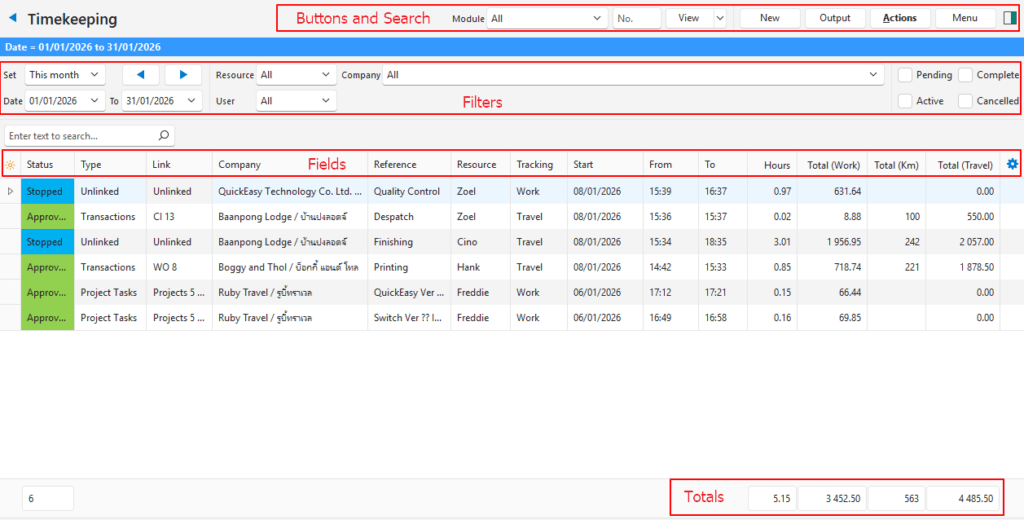
Buttons Explained
| Button | Description |
|---|---|
| View | Generates a list of entries as per the selected data filters. |
| Arrow on View Button | Includes additional view filters, and an option to reset the filters. Today This Month Pending Active Pending & Active ____________________ Reset Data Filter |
| New | Creates a New Timekeeping entry. |
| Output | Prints, previews, or exports the selected report if Output Templates are added. Allows the display to be exported in .xlsx, .csv, or .htm format. |
| Actions | Batch Update: Updates all the selected records when Update (button) is clicked and the action is confirmed. The options are: – Status: Changes the status to the one selected from the dropdown list. – Reference: Changes the reference to the one typed in the adjacent block. – Rate (Work): Changes the rate to the one typed in the adjacent block. – Rate (Travel): Changes the rate to the one typed in the adjacent block. – SM No.: Provides a dropdown list of Service Types with a field to enter a number. Links the ticket to the input Service Ticket number. – Trans No.: Links the record to the transaction selected from the dropdown list and the number typed in. Only links records that are already linked to transactions (i.e. cannot link an Unlinked record). Show Notes: Displays the timekeeping notes below the records. |
| Menu | Settings – User Access – Edit General Settings – Edit User Settings – Edit Statuses Layout |
Filters Explained
If any filters are active, they are displayed in a blue bar at the top of the screen.
| Filter | Description |
|---|---|
| Set | A dropdown list with date options (e.g. No Date, Today, This Year). |
| Navigational Arrows | Adjusts the Date in the direction of the arrow. |
| Date … to … | Allows users to select or type in their own dates. |
| Resource | A dropdown list to select All or a specific Resource. |
| Company | A dropdown list to select All or a specific Customer or Supplier account. |
| User | A dropdown list to select All or a specific User. |
| Status options | Checkboxes. Only entries with the checked statuses are displayed. If no boxes are checked, all the entries are displayed. |
Fields Explained
| Field | Description |
|---|---|
| Field Chooser (*) | Allows users to add or remove columns. |
| ID | The system-generated number for the entry. |
| Trans ID | The system-generated number for the linked Transaction. |
| Contact ID (Entity) | The system-generated number for the linked Entity. |
| Contact ID (Resource) | The system-generated number for the linked Contact selected as the Resource. |
| Status | The current Status of the entry. |
| Status Note | Allows users to type in a Note or instruction for that Status. |
| Type | The Type of timekeeping record which can be Unlinked, Transaction, Project Tasks, or Production Tasks. |
| Link | The code, number, and task description of the linked document. |
| Trans No. | The linked Transaction Type’s Code and Transaction Number. |
| Project Task No. | The linked Project Task’s ID Number. |
| Production Task No. | The linked Production Task’s ID Number. |
| Company | The name of the Customer or Supplier. |
| Reference | The reference typed in or selected for the timekeeping record. |
| Rate (Work) | The hourly rate for Work. |
| Rate (Km) | The rate per kilometre for Travel. |
| Resource | The Resource linked to the timekeeping record. |
| Account (Sales) | The General Ledger Account used to invoice customers for time (mostly used in service industries). |
| Tracking | A description of the Type of activity that was tracked (e.g. Work, Travel). |
| Date Start | The Start Date of the timekeeping record. |
| Time Start | The Start Time of the timekeeping record. |
| Time End | The End Time of the timekeeping record. |
| Travel Start | The Start Time of travelling if applicable. |
| Travel End | The End Time of travelling if applicable. |
| Odometer Start | The Start Odometer reading. |
| Odometer End | The End Odometer reading. |
| Hrs | The duration of the timekeeping record in Hours. |
| Total (Work) | The Total Time worked. If an hourly cost is filled in for the person under Staff Attributes, the rate is auto filled on the timekeeping record and used in the calculation. |
| Total (Km) | The Total Distance travelled in kilometres. |
| Total (Travel) | The Total Time travelled. |
| Created | The date on which the entry was created. |
| Updated | The date on which the entry was updated. |
| Updated By | The User who last updated the entry. |
| Sign (Start) | A checkbox to indicate if the start record was signed. |
| Sign (Stop) | A checkbox to indicate if the stop record was signed. |
| Widget | A submenu, which can also be accessed by right clicking the entry, with the following functions: – View/Edit Notes & Attachments: Displays any notes and attachments for the selected timekeeping record. – View Geolocation on Google Maps: Applicable to open timekeeping records for travel only. If enabled, shows the location of the employee. – Open Transaction: Applicable to timekeeping records that are linked to transactions. Opens the transaction. – Edit: Allows the timekeeping record to be edited. – Delete Ctrl+Del: Deletes the timekeeping record. |
Learn More
- Mobile App Timekeeping Interface: Explains the interface that is used to record timekeeping on the mobile app.
- Mobile App Timekeeping Tutorials: These tutorials explain how to use the timekeeping and related functions on the mobile app.
- Timekeeping Edit View: Explains the interface from which timekeeping records are captured.
- Timekeeping Settings: Explains the available timekeeping settings and how to apply them.
- Timekeeping Statuses Tutorials: These tutorials explain how to create and edit statuses for timekeeping.
- Timekeeping Tutorials: These tutorials explain how to use the timekeeping features.
- Timekeeping User Access Tutorials: These tutorials explain how to manage user access to timekeeping records.