
Custom Attributes
When capturing records, transactions, or tickets you might want to capture information that QuickEasy BOS doesn’t automatically include. You can achieve this by using Attributes. There are pre-created sets of Attributes for specific modules which are listed under System when you add attributes.
Unique attributes can also be created (e.g. to add information such as a supplier’s BEE rating). These attributes are named Custom Attributes.
Lookup lists may be created for certain attributes which allow users to select an option instead of typing it. Lookup lists are automatically alphabetised. Lookup lists are created from the attributes interface (e.g. Main Menu > Setup > Attributes or Menu (button) > Edit Attributes).
Custom attributes can be added to:
- Assets
- Contacts (including staff, customers, and suppliers)
- Items
- Service Types
- Transactions: A general Transaction Type setting allows you to select the applicable attributes for each transaction.
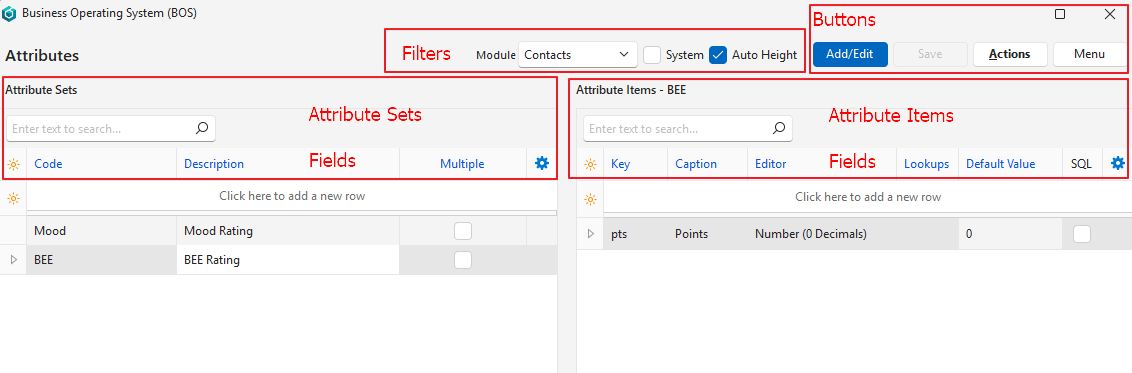
Interface
Buttons Explained
Button | Description |
Recent | A dropdown list of recently viewed records for quick access to those records. The button is supressed if there are no recent items. |
Add/Edit | Used to add or edit entries. |
Save | Saves any changes. |
Actions | Update Attributes on Modules: Applies changes made to lookup lists and attribute items to the attributes already added to modules. |
Menu |
Filters Explained
Button | Description |
Module | A dropdown list of modules for selection. |
System (checkbox) | If checked only system entries are displayed. System entries cannot be edited. |
Auto Height (checkbox) | If checked automatically adjusts the row height to fit all the entries. Click Save (button) if the row is not being adjusted. |
Attribute Sets: Fields Explained
Field | Description |
Field Chooser (*) | Used to add or remove columns. |
ID | The system-generated number allocated to the entry. |
Code | A field to enter a brief description or code. |
Description | A field to enter a description. |
Multiple (Add Multiple) | A checkbox. If checked the attribute can be added more than once (e.g. if a supplier has multiple bank accounts). |
Module | The module selected for the custom attribute. |
Type | The type of attribute set. |
Created | The date on which the attirbute set was created. |
Updated | The date on which the attribute set was last updated. |
Updated By | The user who last updated the attribute set. |
Attribute Items: Fields Explained
Field | Description |
Field Chooser (*) | Used to add or remove columns. |
ID | The system-generated number allocated to the entry. |
Order ID | The sequence number allocated to the item within the attribute set. |
Key | The name for the index field. If the field is not completed, the ID field is used in the format a_number. |
Caption | The caption that is displayed |
Editor | The editing options for the field. The options are:
|
Lookups | If combox was selected under Editor, lookup lists can be created by typing in the entries (press Enter between entries). |
Default Value | A field to enter a default value for the attribute. |
Created | The date on which the attirbute item was created. |
Updated | The date on which the attribute item was last updated. |
Updated By | The user who last updated the attribute item. |
SQL | Checkbox. If SQL is created, the box is automatically checked. |

| A context menu with these options:
|
Tutorials
How to Create Custom Attributes
- Navigate to Edit Attributes (e.g. Main Menu > Setup > Attributes).
- Click Add/Edit (button).
- Module = Select one of these options from the dropdown list:
- All
- Contacts
- Customers
- Suppliers
- Items
- Assets
- Transactions
- Services
- Create an Attribute Set (top row left) as follows:
- Code = Type an abbreviation of the description.
- Description = Type a description for the group.
- Multiple = Check the checkbox if the attribute set can be added more than once to the same record.
- Add Attribute Items to the set. Click the set on the right and complete the fields in the attributes section as follows:
- Key = Type a descriptive key (lower case, no spaces). This key makes finding the attribute easier when creating custom actions or reports.
- Caption = Type a descriptive heading for the attribute (e.g. BEE Rating).
- Editor = Select what type of answer the user must provide from these options:
- Text: Any text can be typed.
- Number (0 Decimals): Only an integer can be typed.
- Number (2 Decimals): A number with 2 decimals can be typed.
- Number (4 Decimals): A number with 4 decimals can be typed.
- Combobox (Fixed): An answer must be selected from a lookup list.
- Combobox (Edit): An answer may be selected from a lookup list or typed in the block.
- Checkbox (Y/N): A checkbox. Checked for yes, left unchecked for no.
- Lookup SQL: A fixed lookup list is created using an SQL query (which must be added afterwards).
- Date: Opens a calendar to select a date.
- Lookups = If Combobox (Fixed) or Combobox (Edit) is selected, type the expected answers in the field provided – one entry per line.
- Note: Check or uncheck the Auto Height checkbox to display or hide the full lookup list.
- Note: In certain circumstances the system allows you to create lookup lists without first selecting Combobox, but the lookup lists do not work until you select Combobox in the editor column.
- Repeat Step 4 to add additional attribute items to the set (optional).
- Click Save (button).
How to Edit a Custom Attribute
- Navigate to Edit Attributes (e.g. Main Menu > Setup > Contacts > Menu (button) > Edit Attributes).
- Click Add/Edit (button).
- Edit the fields as needed.
- Note: Check or uncheck the Auto Height checkbox to display or hide the full lookup list.
- Click Save (button).
How to Delete a Custom Attribute Item
- Navigate to Edit Attributes (e.g. Main Menu > Setup > Contacts > Menu (button) > Edit Attributes).
- Right click an attribute item on the right-hand section and click Delete on the context menu.
- Confirm the deletion.
How to Delete a Custom Attribute Set
- All the custom attributes on the right must first be removed from the set before it can be deleted (see previous heading).
- Sets must be removed from the records to which they were added (e.g. contacts, transactions) before they can be deleted.
- Navigate to Edit Attributes (e.g. Main Menu > Setup > Contacts > Menu (button) > Edit Attributes).
- On the left in Sets section, right click a set and click Delete on the context menu.
- Confirm the deletion.
How to Add Attributes to a Contact
Fixed attribute sets are displayed under System. Custom attributes are displayed under Custom.
- Navigate to Contacts (Main Menu > Setup > Contacts).
- Right click the contact you want to edit and select Edit Contact from the context menu.
- Click Edit (button) on the top row if it is not blue.
- Click Attributes (tab).
- On the right side, click Attributes (button) next to Add/Remove.
- Move your mouse over Add and click the Attribute Group you want to add.
- The set is added and the necessary information can be provided in the Value column.
- Repeat Steps 5-7 to add more attribute groups.
- Click Save (button) on the top row.
How to Remove Attributes from a Contact
System attributes cannot currently be removed.
- Navigate to Contacts (Main Menu > Setup > Contacts).
- Right click the contact you want to edit and select Edit Contact from the context menu.
- Click Edit (button) on the top row if it is not blue.
- Click Attributes (tab).
- On the right side, click Attributes (button) next to Add/Remove.
- Move your mouse over Remove and click the Attribute Group you want to remove.
- Confirm the deletion on the popup.
- Repeat Steps 5-7 to remove more custom attribute groups.
- Click Save (button) on the top row.
How to Update Modules when Attributes are Edited
- Navigate to Edit Attributes (e.g. Main Menu > Setup > Contacts > Menu (button) > Edit Attributes).
- Click Actions (button) > Update Attributes on Modules.
- The attributes are updated and a confirmation message is displayed.
How to Add or Edit an Attribute on a Service Ticket
- From editing a ticket: click Menu (button) > View/Edit Attributes.
- On the popup:
- Click Add (button) and select one of the available attributes.
- Enter the required information in the Value column.
- Click Save (button).
How to Add an Attribute to a Transaction
If an attribute set is selected using the Transaction Type Setting: General > Default – Attribute Sets, it is automatically displayed.
- From editing a transaction: click Menu (button) > View/Edit Attributes.
- On the popup:
- Click Add (button) and select one of the available attributes.
- Enter the required information in the Value column.
- Click Save (button).
How to Edit an Attribute on a Transaction
Attributes can be edited if the transaction can be edited.
- From editing a transaction: click Menu (button) > View/Edit Attributes.
- On the popup:
- Enter the required information in the Value column.
- Click Save (button).
Learn More
- Attribute Sets Entities: An explanation of the attribute sets available to entities.
- Attribute Sets Persons: An explanation of the attribute sets available to persons.