
Customer Records List and Edit Views
Customers are often referred to as Debtors or Accounts Receivable. They represent individuals or businesses that buy goods or services from you.
All the relevant Customer information can be entered in QuickEasy BOS, including contact details, addresses, registration information, and credit terms.
There are two Views:
- List View displays a list of Customers with names and key information.
- Edit View is where you add or edit Customer information.
Navigation: Main Menu > Setup > Customers
List View: Default
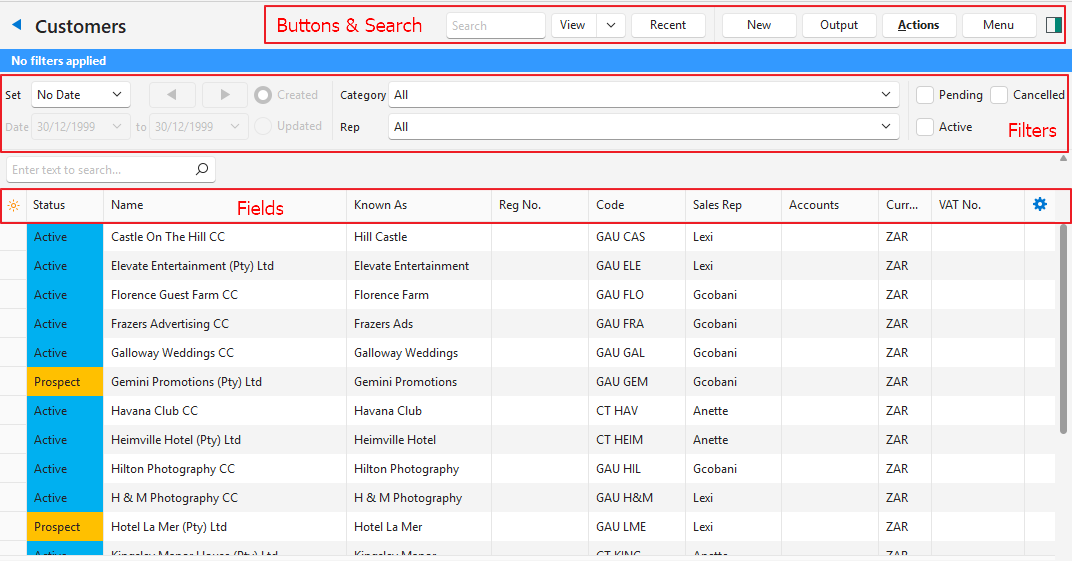
Buttons Explained
| Button | Description |
|---|---|
| View | Generates a list of entries as per the selected data filters. |
| Arrow on View Button | Reset Data Filter: Resets all the data filters. |
| Recent | A dropdown list of recently viewed records for quick-access to those records.The button is supressed if there are no recent items. |
| New | Creates a new customer record. |
| Output | Prints, previews, or exports the selected report if Output Templates are added. Allows the display to be exported in .xlsx, .csv, or .htm format. |
| Actions | Allows for changes to be made to multiple records that can be selected using Ctrl Left Click. The options are: – Batch Update: Category: Adds or removes the selected category. Currency: Changes the currency to the one selected from the dropdown list. Sales Rep: Changes the sales rep to the one selected from the dropdown list. Status: Changes the status to the one selected from the dropdown list. – Format: Formats the description so each word starts with an uppercase letter, and the rest is in lowercase. |
| Menu | Views – Default – Accounting Settings – User Access – Edit Statuses (Customer) – Edit Statuses (Asset) – Edit Attributes – Edit Accounting (Accounts, VAT Types, Currencies, Credit Terms, Bank Profiles) – Edit Billing Methods – Edit Categories – Edit Positions – Edit Price Lists Layout |
Filters Explained
| Filter | Description |
|---|---|
| Set | A dropdown list with date options (e.g. No Date, Today, This Year). |
| Navigational Arrows | Adjusts the Date in the direction of the arrow. |
| Date … to … | Used to customise the dates. |
| Created Radio Button | When selected, only displays records created during the selected period. |
| Updated Radio Button | When selected, only displays records updated during the selected period. |
| Category | A dropdown list to select a category. |
| Rep | A dropdown list to select a rep. |
| Status | Checkboxes. Only entries with the checked statuses are displayed. If no boxes are checked, all the entries are displayed. |
Fields Explained
| Field | Description |
|---|---|
| Field Chooser (*) | Allows users to add or remove columns. |
| ID | The system-generated number for the entry. |
| Status | The current status of the entry. |
| Name | The customer’s Registered Name. |
| Known As | The customer’s Trade Name. |
| Reg No. | The customer’s Registration Number. |
| Code | The customer’s code. |
| Categories | The categories that the customer is in. |
| Sales Rep | The selected Representative for the customer. |
| Accounts | The Contact Person for accounts. |
| Currency | The customer’s currency. |
| VAT No. | The customer’s VAT Registration Number. |
| Created | The date on which the entry was created. |
| Updated | The date on which the entry was updated. |
| Updated By | The User who last updated the entry. |
| Language | The customer’s language. |
| Widget | A submenu, which can also be accessed by right clicking the entry, with the following functions: – View/Edit Notes & Attachments: Opens any notes or attachments on the right. – Edit Contact: Opens the Edit Contact form (i.e. allows the customer record to be edited). |
List View: Accounting
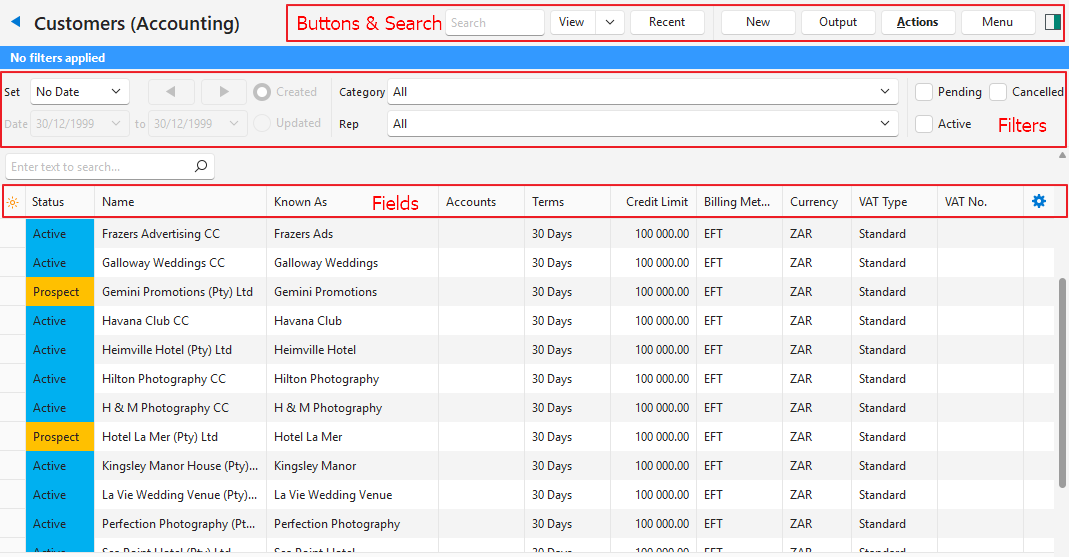
Buttons Explained
| Button | Description |
|---|---|
| View | Generates a list of entries as per the selected data filters. |
| Arrow on View Button | Reset Data Filter: Resets all the data filters. |
| Recent | A dropdown list of recently viewed records for quick access to those records. The button is supressed if there are no recent items. |
| New | Creates a new customer record. |
| Output | Prints, previews, or exports the selected report if Output Templates are added. Allows the display to be exported in .xlsx, .csv, or .htm format. |
| Actions | Batch Update: Updates all the selected records. The options are: – Billing Method – Credit Limit – Credit Terms – Currency – Price List – Status – VAT Type – Withholding Tax (WHT) – Account |
| Menu | Views – Default – Accounting Settings – User Access – Edit Statuses (Customer) – Edit Statuses (Asset) – Edit Attributes – Edit Accounting (Accounts, VAT Types, Currencies, Credit Terms, Bank Profiles) – Edit Billing Methods – Edit Categories – Edit Positions – Edit Price Lists Layout |
Filters Explained
| Filter | Description |
|---|---|
| Set | A dropdown list with date options (e.g. No Date, Today, This Year). |
| Navigational Arrows | Adjusts the Date in the direction of the arrow. |
| Date … to … | Used to customise the dates. |
| Created (radio button) | When selected, only displays records created during the selected period. |
| Updated (radio button) | When selected, only displays records updated during the selected period. |
| Category | A dropdown list allowing users to display All or a specific Category’s entries. |
| Rep | A dropdown list of Reps for users to select all or a specific rep. |
| Status | Checkboxes. Only entries with the checked statuses are displayed. If no boxes are checked, all the entries are displayed. |
Fields Explained
| Field | Description |
|---|---|
| Field Chooser (*) | Allows users to add or remove columns. |
| ID | The system-generated number for the entry. |
| Status | The current Status of the entry. |
| Name | The customer’s Registered Name. |
| Known As | The customer’s Trade Name. |
| Reg No. | The customer’s Registration Number. |
| Accounts | The Contact Person for accounts. |
| Terms | The customer’s Terms (e.g. 30 Days, COD) |
| Credit Limit | The customer’s Credit Limit. |
| Billing Method | The customer’s Billing Method (e.g. EFT, Debit Order) |
| Price List | The Price List allocated to the customer. |
| Currency | The customer’s Currency. |
| VAT Type | The VAT Type selected for the customer |
| VAT No. | The customer’s VAT Registration Number. |
| Language | The customer’s language. |
| WHT Account | The customer’s withholding tax account. |
| Branch Code | The customer’s branch code for tax purposes. |
| Created | The date on which the entry was created. |
| Updated | The date on which the entry was updated. |
| Updated By | The User who last updated the entry. |
| Widget | A submenu, which can also be accessed by right clicking the entry, with the following functions: – View/Edit Notes & Attachments: Opens any notes or attachments on the right. – Edit Contact: Opens the Edit Contact form (i.e. allows the customer record to be edited). |
Edit View
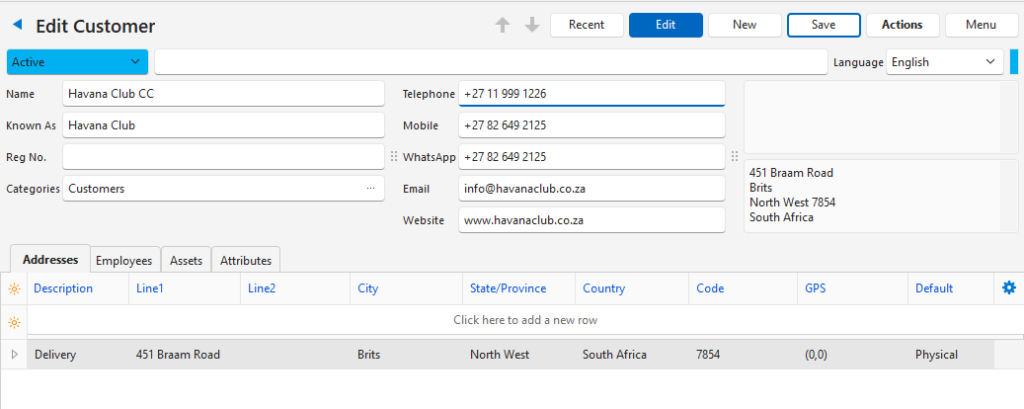
Buttons Explained
| Button | Description |
|---|---|
| Recent | A dropdown list of recently viewed records for quick access to those records. The button is supressed if there are no recent items. |
| Edit | Allows the record to be edited. |
| New | Creates a new customer record. |
| Actions | Refresh Lookups Delete Contact |
| Menu | View/Edit Notes & Attachments Settings – User Access – Edit Statuses (Customer) – Edit Statuses (Asset) – Edit Attributes – Edit Accounting (Accounts, VAT Types, Currencies, Credit Terms, Bank Profiles) – Edit Billing Methods – Edit Categories – Edit Positions – Edit Price Lists – Edit Address Lookup Lists Layout |
- The Customer interface differs from the Contacts interface in these respects:
- The form shows Edit Customer as the title.
- The Customer Attributes are already added.
- The VAT and Currency Attributes are already added.
Learn More
- Customer Age Analysis and Ledger Tutorials: These tutorials explain how to display the Customer Age Analysis and Customer Ledger and how to send Customer Statements.
- Customer Age Analysis and Statements: Explains the Customer Age Analysis interface an provides a sample Customer Statement.
- Customer Detailed Ledger: Explains the Customer Detailed Ledger interface.
- Customer Records Tutorials: These tutorials explain how to display customer lists and how to create, edit, and delete customer records.
- Contacts Addresses View: Explains the interface for viewing a list of contacts with address details.
- Contacts Default View: Explains the default display of a list of contacts.
- Contacts Edit View: Explains the interface from which contacts are created.
- Contacts Tutorials Creating and Editing: These tutorials explain how to create and edit contacts.
- Contacts Tutorials Viewing: These tutorials explain the different views and related functions that are available for contacts.
- Billing Methods: Explains the billing methods’ interface and how to create and edit billing methods.
- Contact Categories: Explains what groups are and how to use them.
- Credit Terms: Explains the interface for credit terms and provides tutorials on how to create them.
- Positions: These tutorials explain how to create, edit, and delete job positions.
- Price Lists: Explains how price lists work and provides tutorials on using price lists.