
BOS Document Designer Tutorials
The BOS Document Designer is a flexible designer that allows organisations to create and customise their own forms such as invoices and quotations. These forms can be output in JSON, HTML or PDF. The output is generated through a separate app that runs on AWS. The desktop app creates the JSON and sends it to the Document Creator, which parses it and returns a PDF or an HTML file. If the Document Creator app is unavailable, an Invalid JSON error is returned.
Document Designer can link to transactions or proposals.
Documents are designed by stacking bands on top of each other from the top down within a group. Bands can be dragged to reorder them, or to move them to a different group. Certain bands do not work with HTML because they rely on pages (e.g. Page Footer).
Two open-source fonts are supported with three styles each:
- Roboto Light, Regular, and Bold
- Roboto Serif, Light, Regular, and Bold
If the text includes Thai characters, the fonts are substituted with these fonts:
- Roboto Serif > Noto Sans Thai Looped
- Roboto > Noto Sans Thai
Navigation: Main Menu > Setup > Form Designer > BOS Document Designer
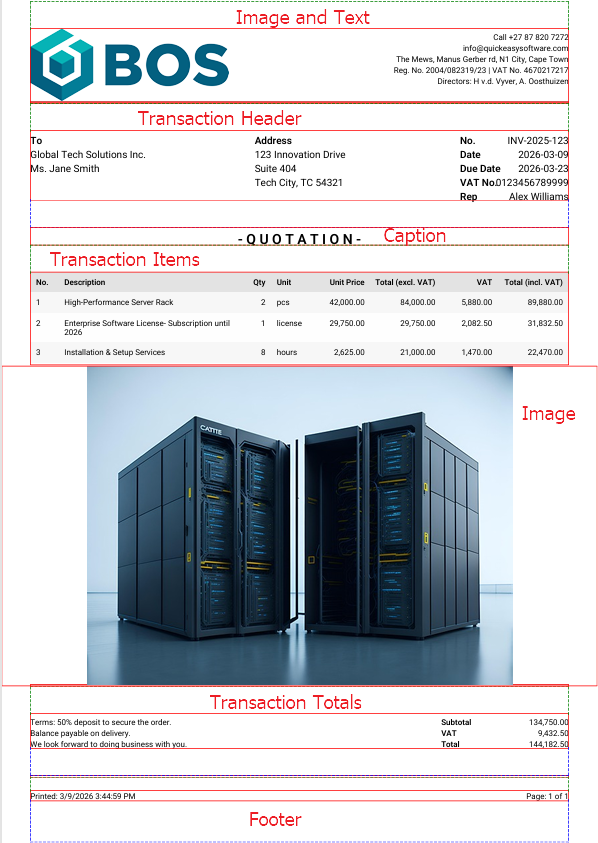
How to Design a Document
- The design is flexible.
- You can move bands around and edit them as often as you like.
- For purposes of this tutorial, all three groups are used. However, you can insert all the fields into the body group and only use that group.
- See the BOS Document Designer Interface article for examples of how groups can be used.
- Navigate to the Document Designer.
- Click New (button).
- Complete the header fields as follows:
- Description = Type a description for the document (e.g. Quotation).
- Code = Type a brief description for the document (e.g. QT).
- Page Size – Depth x Width (mm) = Type the size of the page in mm in the blocks below.
- Note: Popular page sizes:
- A3: 420 mm x 297 mm
- A4: 297 mm x 210 mm
- A5: 210 mm x 148 mm
- Note: Popular page sizes:
- Click Group (button) > Header.
- Accept the default to show the header on all the pages on the left (i.e. no changes are needed).
- Right click Header and click the following fields on the context menu:
- Image and Text
- Line
- Transaction Header
- Caption
- Line
- Accept the defaults for the lines and complete the other entries by following the links.
- Click Group (button) > Body.
- Accept the defaults next to Body on the left (i.e. Start New Page = unchecked, Keep Together = checked).
- Right click Body and click the following fields on the context menu:
- Transaction Items
- Image
- Line
- Accept the defaults for the lines and complete the other entries by following the links.
- Click Group (button) > Footer.
- Right click Footer and click the following fields on the context menu:
- Accept the defaults for the lines and complete the other entries as explained below.
- Click Save (button).
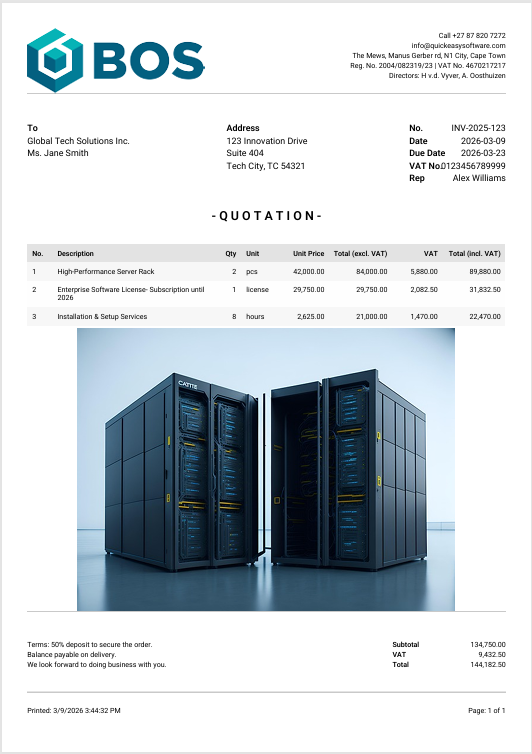
- Click Actions (button) > PDF to preview the document.
- Make any changes as needed.
How to Complete: Image and Text
1. Caption
- Visible = Uncheck the checkbox.
- Accept the defaults for the other fields.
2. Image
- Image URL = Paste the URL from your logo in the Value column (e.g. copy the link from the Attachments module).
- Placement = Select Left from the dropdown list.
- Width (mm) = 70
- Height (mm) = 70
3. Text
- Content = Click the pencil and type or paste all the company information.
- Note: See the screenshot for an example. The information was taken from the Entity‘s Output tab and pasted in the block provided.
- Alignment = Select Right from the dropdown list.
- Font Name = Select Roboto – Regular from the dropdown list.
- Font Size = 8
- Line Height (em) = 1.4
4. Layout
- Column Gap = 50
- Note: This gap is the space between the image and the text.
5. Margins
- Top (mm) = 10
- Note: This margin represents blank space at the top of the page and is necessary to compensate for the printable area of printers (e.g. if your customer wants to print the document).
- Bottom (mm) = 0
- Left (mm) = 10
- Right (mm) = 10
6. Data Binding
- Leave the fields blank. For purposes of this example, the header does not change, therefore, this section is not completed.
How to Complete: Transaction Header
1. Text
- Label – Number = No.
- Label – Date = Date
- Label – Due Date = Look at the applicable Transaction or Transaction Type to see what this caption is used for. Type an appropriate caption. (In this example, it was left blank.)
- Label – VAT No. = VAT No.
- Label – Rep = Rep
- Font Name = Select Roboto Regular from the dropdown list.
- Font Size = 10
- Line Height (em) = 1.4
2. Margins
- Top (mm) = 10
- Bottom (mm) = 0
- Left (mm) = 10
- Right (mm) = 10
How to Complete: Caption
1. Caption
- Content =
- Click the pencil and type QUOTATION on the note editor.
- Alternatively use a data field (e.g. Quotation for [transaction_reference]) to display more information.
- Click Save (button) on the popup.
- Note: You can type any variation of the name (e.g. Q U O T A T I O N, ~~ Quotation ~~).
- Note: The available data fields are listed on the left. Double-click an entry to add it.
- Alignment = Select Center from the dropdown list.
- Font Name = Select Roboto – Bold from the dropdown list.
- Font Size = 14 (or any other value if you want the text larger or smaller (e.g. 12 or 16).
2. Margins
- Top (mm) = 0
- Note: In this example, the margin is set by the preceding Transaction Header field.
- Bottom (mm) = 0
- Note: In this example, the margin is set by the Transaction Items field that follows.
- Left (mm) = 10
- Right (mm) = 10
3. Data Binding
- Test – Item (ID): Leave blank.
- Test = Transaction (ID): If any data fields were selected under 1. Content, type the ID of any quotation in this field that has the applicable fields filled in. It does not matter which one you choose, because the ID is only used to generate a sample for testing purposes.
How to Complete: Transaction Items
01. Column – Item No.
- Label = No.
- Alignment = Select Left from the dropdown list.
- Visible = Check the checkbox.
- Width (mm) = 10
02. Column – Description
- Label = Description
- Alignment = Select Left from the dropdown list.
- Visible = Check the checkbox.
- Width (mm) = 63
03. Column – Quantity
- Label = Qty
- Alignment = Select Right from the dropdown list.
- Visible = Check the checkbox.
- Width (mm) = 12
04. Column – Unit
- Label = Unit
- Alignment = Select Left from the dropdown list.
- Visible = Check the checkbox.
- Width (mm) = 15
05. Column – Unit Price
- Label = Unit Price
- Alignment = Select Right from the dropdown list.
- Visible = Check the checkbox.
- Width (mm) = 20
06. Column – Total Exc
- Label = Total (excl. VAT)
- Alignment = Select Right from the dropdown list.
- Visible = Check the checkbox.
- Width (mm) = 25
07. Column – VAT
- Label = VAT
- Alignment = Select Right from the dropdown list.
- Visible = Check the checkbox.
- Width (mm) = 20
08. Column – Total Inc
- Label = Total (incl. VAT)
- Alignment = Select Right from the dropdown list.
- Visible = Check the checkbox.
- Width (mm) = 25
09. Text
- Font Name = Select Roboto – Regular from the dropdown list.
- Font Size = 8
10. Margins
- Top (mm) = 10
- Bottom (mm) = 0
- Left (mm) = 10
- Right (mm) = 10
How to Complete: Image
1. Caption
- Visible = Uncheck the checkbox (unless you want to display a caption).
- Accept the defaults for the other fields.
2. Image
- Image URL = Leave blank.
- Note: Any URL entered here appears on every document. We want customised images so will enter that in Section 5: Data Binding.
- Placement = Select Center from the dropdown list.
- Width = 150
- Height = 150
- Notes: This setting assumes the images are square.
- Change the ratios for rectangular images (e.g. 150 x 100).
- As far as possible, the BOS Document Designer retains image ratios regardless of the settings entered here.
- If the layout is distorted, reduce the height number.
3. Margins
- Top (mm) = 0
- Bottom (mm) = 10
- Left (mm) = 0
- Right (mm) = 0
5. Data Binding
- Item (ID) = Enter the ID of any item. This ID is only used to preview the document and tweak the layout.
- To find an item’s ID, navigate to Items’ List View.
- Click View (button) if the list is not populated.
- Click the Field Chooser (*) and click the checkbox next to ID.
- Type part of the name of the item you want in the search block.
- Find the item and note the number that is displayed in the ID column.
- Attachment (Name) = Select the name that contains the image you want to display from the dropdown list.
How to Complete: Transaction Totals
1. Column – Left
- Text = Type any text you want to display to your customer. See the screenshot below for an example.
- Width (mm) = 60
- Note: You can increase the width if there is no centre text.
2. Column – Center
- Text = Type any text you want to display to your customer or leave it blank for no text.
3. Column – Right
- Label – Subtotal = Subtotal
- Label – VAT = VAT
- Label – Total = Total
- Width (mm) = 45
- Label Width (mm) = 20
4. Text
- Font Name = Select Roboto – Regular from the dropdown list.
- Font Size = 8
- Line Height (em) = 1.4
5. Margins
- Top (mm) = 10
- Bottom (mm) = 10
- Left (mm) = 10
- Right (mm) = 10
How to Complete: Page Footer
1. Column – Left
- Left = Select Date Printed from the dropdown list to display the date and time that the document was created.
- Custom Text = Leave blank.
2. Column – Center
- Center = Select Custom Text from the dropdown list.
- Custom Text = Type any text you want to display, else leave the field blank.
3. Column – Right
- Right = Select Page Set from the dropdown list to display the number of pages.
- Custom Text = Leave blank.
4. Text
- Font Name = Select Roboto – Regular from the dropdown list.
- Font Size = 8
5. Margins
- Top (mm) = 5
- Bottom (mm) = 15
- Note: This margin represents blank space at the bottom of the page and is necessary to compensate for the printable area of basic printers (e.g. if your customer wants to print the document).
- Left (mm) = 10
- Right (mm) = 10
Learn More
- BOS Document Designer Interface: Explains the interface from which custom documents (e.g. quotations and invoices) can be designed.
- Email Edit View: Explains the interface from which emails can be created.
- Email List View: Explains the interface that lists all the emails that have been created.
- Email Templates: Explains the interface from which email templates can be created. Lists all the available data fields.
- Form Designer – Reportbuilder Tutorials: These tutorials explain how to create or edit a template (form).
- Form Designer Interface: Explains the commonly used features for the Form Designer.
- Output Button: Explains the Output button that is available on most views.
- Output Template Tutorials: These tutorials explain how to add templates to transaction types and other modules.
- Output Templates Module: Explains the Output Templates interface.

