BOS Document Designer Interface
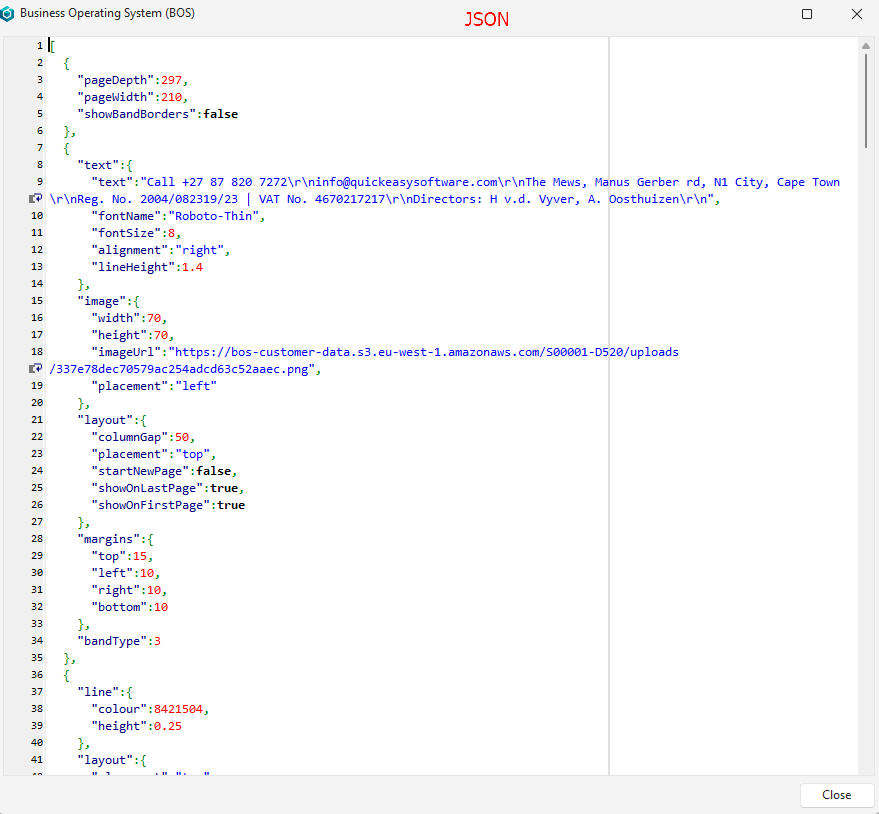
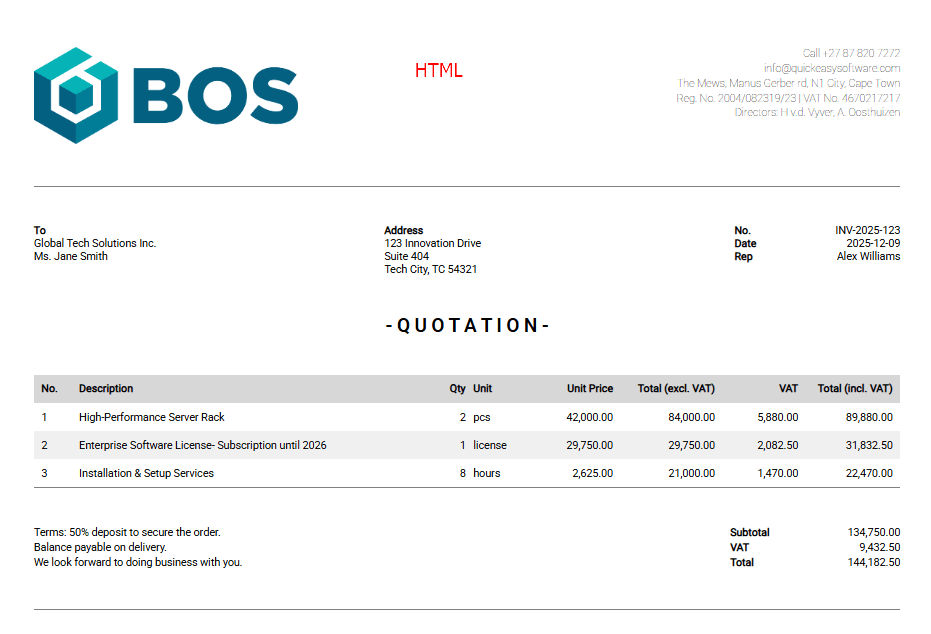
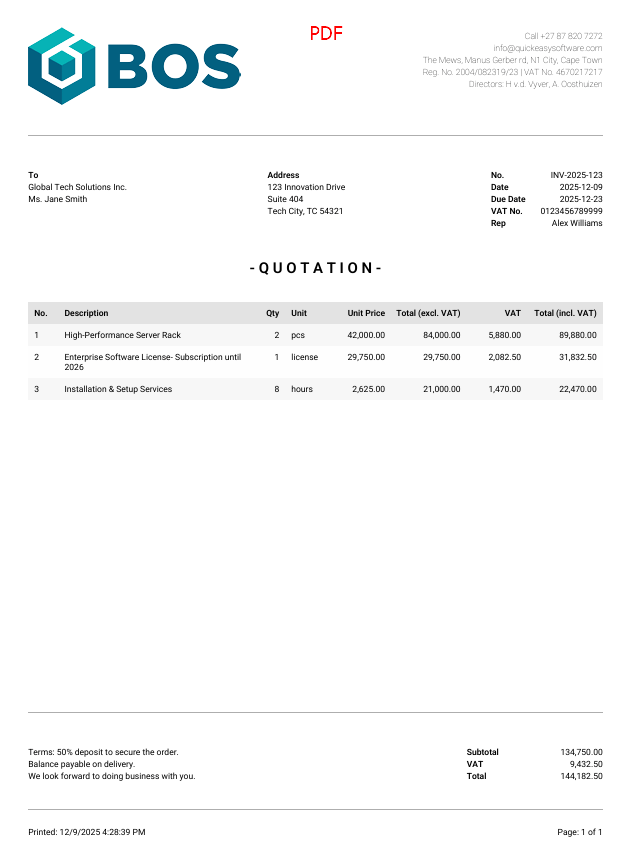
The BOS Document Designer is a flexible designer that allows organisations to create and customise their own forms such as invoices and quotations. These forms can be output in JSON, HTML or PDF.
Documents are designed by stacking bands on top of each other from the top down. Certain bands do not work with HTML because they rely on pages (e.g. Page Footer).
Two open-source fonts are supported with three styles each:
- Roboto – Light, Regular, Bold
- Roboto Serif – Light, Regular, Bold
If the text includes Thai characters, the fonts are substituted with these fonts:
- Roboto > Noto Sans Thai
- Roboto Serif > Noto Sans Thai Looped
Navigation: Main Menu > Setup > Form Designer > BOS Document Designer
List View

Buttons Explained
| Button | Description |
|---|---|
| Refresh | Updates the display. |
| New | Creates a new document template. |
| Menu | Layout |
Fields Explained
| Field | Description |
|---|---|
| Field Chooser (*) | Allows columns to be added or removed. |
| ID | The system-generated number allocated to the entry. |
| Code | The brief description of the document. |
| Description | The document’s description. |
| Page Depth (mm) | The length of the page in mm. |
| Page Width (mm) | The width of the page in mm. |
| Created | The date on which the document was created. |
| Updated | The date on which the document was updated. |
| Updated By | The user who last updated the document. |
| Widget | A submenu with the following options: – Copy – Edit – Delete |
Edit View
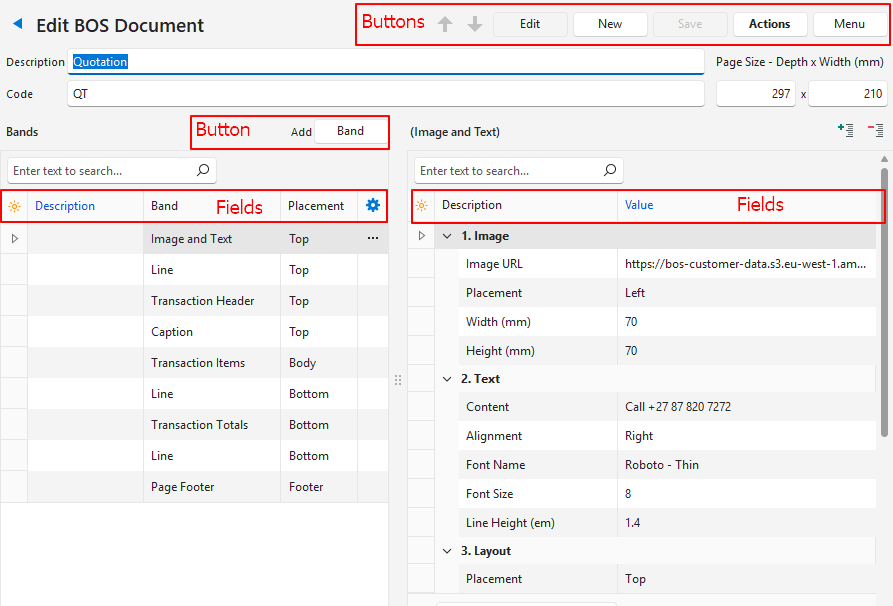
Buttons Explained
| Button | Description |
|---|---|
| Arrows | Navigates between documents. |
| Edit | Allows the entries to be edited. |
| New | Creates a new document. |
| Save | Saves any changes. |
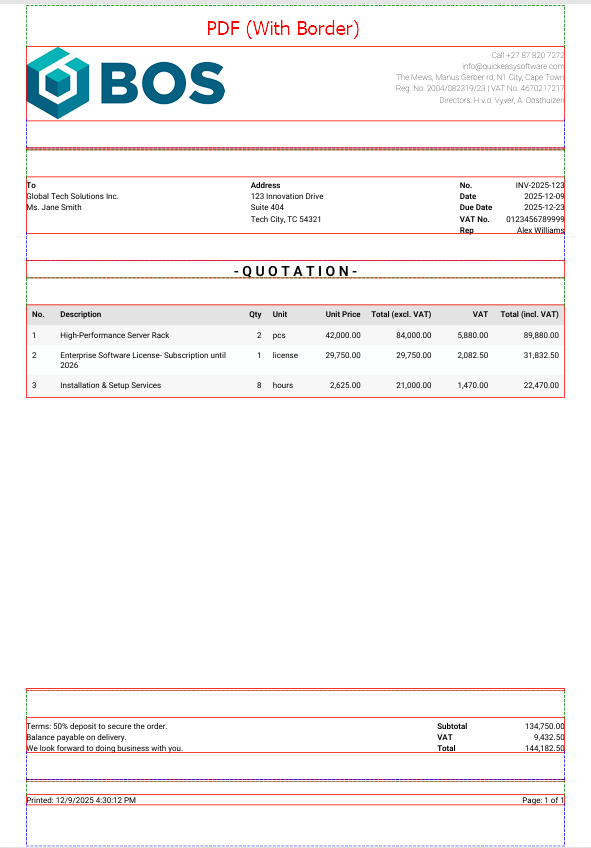
| Actions | Copy Template: Copies the template to create a new one. Delete Template: Deletes the template. Preview – JSON: Displays a JSON preview. – HTML: Displays an HTML preview. – PDF: Displays a PDF preview. – PDF (With Border): Displays a PDF preview and draws lines to include the various fields’ borders. |
| Menu | Layout |
Header Explained
| Field | Description |
|---|---|
| Description | Type a name for the document. |
| Code | Type a brief description for the document. |
| Page Size – Depth (mm) | Type the depth (length) of the page. |
| Page Size – Width (mm) | Type the width of the page. |
Bands Fields Explained
| Field | Description |
|---|---|
| Band (button next to Add) | Adds a new band as selected from this list: – Image – Caption – Text – Line – Image and Text – Attributes/Specification – Transaction Header – Transaction Items – Transaction Totals – Page Footer |
| Field Chooser (*) | Allows columns to be added or removed. |
| ID | The system-generated number for the entry. |
| Order ID | The system-generated number for the order of the entry. |
| Description | Type the description. The description is the only editable field in this section. |
| Band | The name of the band that was added. |
| Created | The date on which the entry was created. |
| Updated | The date on which the entry was updated. |
| Updated By | The user who lasted updated the entry. |
| Placement | The placement of the entry which can be selected for certain bands but is fixed for others. |
| Widget | A submenu with the following options: – Move Up – Move Down – Delete |
Selected Bands Field Explained
| Field | Description |
|---|---|
| + – (buttons) | Expands or collapses the display under the respective headings. |
| Field Chooser (*) | Allows columns to be added or removed. |
| ID | The system-generated number for the entry. |
| Description | The names of the fields that must be completed. The descriptions are divided into blocks which change depending on the selected band. (See below.) |
| Value | The values that must be typed in, checked, or selected. |
Selected Band Options: Caption
The caption field is used for a large heading (e.g. QUOTATION).
| Field | Description |
|---|---|
| 1. Caption | |
| Content | Click the pencil to open a notepad where text can be entered. |
| Alignment | Select an alignment from this list: – Left – Centre – Right |
| Font Name | Select a font from this list: – Roboto – Thin – Roboto – Regular – Roboto – Bold – Roboto Serif – Thin – Roboto Serif – Regular – Roboto Serif – Bold Examples of these fonts can be seen here. |
| Font Size | Type the font size (e.g. 14). |
| 2. Layout | |
| Placement | Select a placement from this list: – Top – Bottom – Header – Footer |
| Start New Page | Check the checkbox to start a new page. |
| Show on First Page | Check the checkbox to display the caption on the first page. |
| Show on Last Page | Check the checkbox to display the caption on the last page. |
| 3. Margins | |
| Top (mm) | Type a number for the top margin. |
| Bottom (mm) | Type a number for the bottom margin. |
| Left (mm) | Type a number for the left margin. |
| Right (mm) | Type a number for the right margin. |
Selected Band Options: Line
A horizontal line that is used to separate sections.
| Field | Description |
|---|---|
| 1. Line | |
| Colour | Click the colour block to display an arrow. Click the arrow to select a colour for the line. |
| Height | Type the height of the line in mm (e.g. 0.25). |
| 2. Layout | |
| Placement | Select a placement from this list: – Top – Bottom |
| 3. Margins | |
| Top (mm) | Type a number for the top margin. |
| Bottom (mm) | Type a number for the bottom margin. |
| Left (mm) | Type a number for the left margin. |
| Right (mm) | Type a number for the right margin. |
Selected Band Options: Transaction Header
The transaction header includes the customer or supplier’s details and other relevant information such as the name of the rep.
| Field | Description |
|---|---|
| 1. Text | |
| Label – Number | Type a label for the number field (e.g. No.). |
| Label – Date | Type a label for the date field (e.g. Date). |
| Label – Due Date | Type a label for the due date (e.g. Due Date). This field can be customised and might not be used as a due date. Check the transaction for the correct caption. |
| Label – VAT No. | Type a label for the VAT registration number (e.g. VAT No.) |
| Label – Rep | Type a label for the rep field (e.g. Rep). The field displays the rep’s code (short name). |
| Font Name | Select a font from this list: – Roboto – Thin – Roboto – Regular – Roboto – Bold – Roboto Serif – Thin – Roboto Serif – Regular – Roboto Serif – Bold |
| Font Size | Type the font size (e.g. 8). |
| Line Height (em) | Type the line height in em quadrant. (e.g. 1.4). The em unit is the height of the font in nominal points or inches. |
| 2. Layout | |
| Placement | The placement is fixed to Top. |
| Start New Page | Check the checkbox to start a new page. |
| 3. Margins | |
| Top (mm) | Type a number for the top margin. |
| Bottom (mm) | Type a number for the bottom margin. |
| Left (mm) | Type a number for the left margin. |
| Right (mm) | Type a number for the right margin. |
Selected Band Options: Transaction Items
This band is for the details of the transaction (e.g. the line items on a quotation).
| Field | Description |
|---|---|
| 01. Column – Item No. | |
| Label | Type a label for the number field (e.g. No.). |
| Alignment | Select an alignment from this list: – Left – Centre – Right |
| Visible | Check the checkbox to display the field. |
| Width (mm) | Type the width in mm. |
| 02. Column – Description | |
| Label | Type a label for the description (e.g. Description). |
| Alignment | Select an alignment from this list: – Left – Centre – Right |
| Visible | Check the checkbox to display the field. |
| Width (mm) | Enter the width in mm. |
| 03. Column – Quantity | |
| Label | Type a caption for the quantity (e.g. Qty). |
| Alignment | Select an alignment from this list: – Left – Centre – Right |
| Visible | Check the checkbox to display the field. |
| Width (mm) | Type the width in mm. |
| 04. Column – Unit | |
| Label | Type a label for the unit (e.g. Unit). |
| Alignment | Select an alignment from this list: – Left – Centre – Right |
| Visible | Check the checkbox to display the field. |
| Width (mm) | Type the width in mm. |
| 05. Column – Unit Price | |
| Label | Type a label for the unit price (e.g. Unit Price). |
| Alignment | Select an alignment from this list: – Left – Centre – Right |
| Visible | Check the checkbox to display the field. |
| Width (mm) | Type the width in mm. |
| 06. Column – Total Exc | |
| Label | Type a label for the VAT exclusive total (e.g. Total (excl. VAT)). |
| Alignment | Select an alignment from this list: – Left – Centre – Right |
| Visible | Check the checkbox to display the field. |
| Width (mm) | Type the width in mm. |
| 07. Column – VAT | |
| Label | Type a label for the VAT amount (e.g. VAT). |
| Alignment | Select an alignment from this list: – Left – Centre – Right |
| Visible | Check the checkbox to display the field. |
| Width (mm) | Type the width in mm. |
| 08. Column – Total Inc | |
| Label | Type a label for the unit price (e.g. Unit Price). |
| Alignment | Select an alignment from this list: – Left – Centre – Right |
| Visible | Check the checkbox to display the field. |
| Width (mm) | Type the width in mm. |
| 09. Text | |
| Font Name | Select a font from this list: – Roboto – Thin – Roboto – Regular – Roboto – Bold – Roboto Serif – Thin – Roboto Serif – Regular – Roboto Serif – Bold |
| Font Size | Type the font size (e.g. 8). |
| 10. Layout | |
| Placement | The placement is fixed to Body. |
| Start New Page | Check the checkbox to start a new page for the transaction items. |
| 11. Margins | |
| Top (mm) | Type a number for the top margin. |
| Bottom (mm) | Type a number for the bottom margin. |
| Left (mm) | Type a number for the left margin. |
| Right (mm) | Type a number for the right margin. |
Selected Band Options: Transaction Totals
This section is for the totals (sum of all the transaction item totals).
| Field | Description |
|---|---|
| 1. Column – Left | |
| Text | Click the field then click the pencil to open a notepad where text can be entered. |
| With (mm) | Type the width for the field in mm. |
| 2. Column – Centre | |
| Text | Click the field then click the pencil to open a notepad where text can be entered. |
| 3. Column – Right | Type the font size (e.g. 8). |
| Label – Subtotal | Type a label for the subtotal (e.g. Subtotal). |
| Label – VAT | Type a label for the VAT amount (e.g. VAT). |
| Label – Total | Type a label for the total (e.g. Total). |
| Width (mm) | Type the width for the entry in mm. |
| Label Width (mm) | Type the width for the label in mm. |
| 4. Text | |
| Font Name | Select a font from this dropdown list: – Roboto – Thin – Roboto – Regular – Roboto – Bold – Roboto Serif – Thin – Roboto Serif – Regular – Roboto Serif – Bold |
| Font Size | Type the font size (e.g. 8). |
| Line Height (em) | Type the line height in em quadrant. (e.g. 1.4). |
| 5. Layout | |
| Placement | Select Top or Bottom as the placement. |
| Start New Page | Check the checkbox to start a new page. |
| 6. Margins | |
| Top (mm) | Type a number for the top margin. |
| Bottom (mm) | Type a number for the bottom margin. |
| Left (mm) | Type a number for the left margin. |
| Right (mm) | Type a number for the right margin. |
Selected Band Options: Page Footer
This section is for information to place in the footer such as the date printed.
| Field | Description |
|---|---|
| 1. Column – Left | |
| Left | Select what data should be displayed from this list: – Page Set – Date Printed – Custom Text |
| Custom Text | Type the custom text if that option was selected. |
| 2. Column – Centre | |
| Centre | Select what data should be displayed from this list: – Page Set – Date Printed – Custom Text |
| Custom Text | Type the custom text if that option was selected. |
| 3. Column – Right | |
| Right | Select what data should be displayed from this list: – Page Set – Date Printed – Custom Text |
| Custom Text | Type the custom text if that option was selected. |
| 4. Text | |
| Font Name | Select a font from this list: – Roboto – Thin – Roboto – Regular – Roboto – Bold – Roboto Serif – Thin – Roboto Serif – Regular – Roboto Serif – Bold |
| Font Size | Type the font size (e.g. 8). |
| 5. Layout | |
| Placement | The placement is fixed to Footer. |
| Show on First Page | Check the checkbox to display the footer on the first page. |
| Show on Last Page | Check the checkbox to display the footer on the last page. |
| 6. Margins | |
| Top (mm) | Type a number for the top margin. |
| Bottom (mm) | Type a number for the bottom margin. |
| Left (mm) | Type a number for the left margin. |
| Right (mm) | Type a number for the right margin. |
Selected Band Options: Image
This band allows an image to be included.
| Field | Description |
|---|---|
| 1. Image | |
| Image URL | Type or paste an URL. |
| Placement | Select a placement from this list: – Top – Centre – Bottom |
| Width (mm) | Type the image width in mm. |
| Height (mm) | Type the image height in mm. |
| 2. Layout | |
| Placement | Select a placement from this list: – Top – Bottom – Header – Footer – Background |
| Start New Page | Check the checkbox to start a new page. |
| Show on First Page | Checkbox. If checked, the image is displayed on the first page. |
| Show on Last Page | Checkbox. If checked, the image is displayed on the last page. |
| 3. Margins | |
| Top (mm) | Type a number for the top margin. |
| Bottom (mm) | Type a number for the bottom margin. |
| Left (mm) | Type a number for the left margin. |
| Right (mm) | Type a number for the right margin. |
Selected Band Options: Text
This band allows text to be included.
| Field | Description |
|---|---|
| 1. Text | |
| Content | Click the pencil to type or paste the text. |
| Alignment | Select the alignment form this list: – Left – Centre – Right – Justify |
| Font Name | Select the font from this list: – Roboto – Thin – Roboto – Regular – Roboto – Bold – Roboto Serif – Thin – Roboto Serif – Regular – Roboto Serif – Bold |
| Font Size | Type the font size (e.g. 8). |
| Line Height (em) | Type the line height in em. |
| 2. Layout | |
| Placement | Select a placement from this list: – Top – Bottom – Header – Footer – Body |
| Start New Page | Check the checkbox to start a new page. |
| Show on First Page | Checkbox. If checked, the text is displayed on the first page. |
| Show on Last Page | Checkbox. If checked, the text is displayed on the last page. |
| Columns | Type the number of columns. |
| Column Gap | Type a number for the space between columns. |
| 3. Margins | |
| Top (mm) | Type a number for the top margin. |
| Bottom (mm) | Type a number for the bottom margin. |
| Left (mm) | Type a number for the left margin. |
| Right (mm) | Type a number for the right margin. |
Selected Band Options: Image and Text
This band can be used to insert a header such as the company name and logo.
| Field | Description |
|---|---|
| 1. Image | |
| Image URL | Type or paste an URL. |
| Placement | Select a placement from this list: – Left – Right |
| Width (mm) | Type the image width in mm. |
| Height (mm) | Type the image height in mm. |
| 2. Text | |
| Content | Click the pencil to type or paste the text. |
| Alignment | Select the text’s alignment form this list: – Left – Centre – Right – Justify |
| Font Name | Select the font from this list: – Roboto – Thin – Roboto – Regular – Roboto – Bold – Roboto Serif – Thin – Roboto Serif – Regular – Roboto Serif – Bold |
| Font Size | Type the font size (e.g. 8) |
| Line Height (em) | Type the line height in em. |
| 3. Layout | |
| Placement | Select a placement from this list: – Top – Bottom – Header – Footer – Body |
| Start New Page | Check the checkbox to start a new page. |
| Show on First Page | Checkbox. If checked, the text and image are displayed on the first page. |
| Show on Last Page | Checkbox. If checked, the text and image are displayed on the last page. |
| Column Gap | Type a number for the space between columns. |
| 4. Margins | |
| Top (mm) | Type a number for the top margin. |
| Bottom (mm) | Type a number for the bottom margin. |
| Left (mm) | Type a number for the left margin. |
| Right (mm) | Type a number for the right margin. |
Preview Examples