
Point of Sale Setup Tutorials
Point of Sale (PoS) is a digital system that enables businesses to complete sales transactions efficiently and accurately. It typically combines hardware—such as a register, barcode scanner, or card reader—with software that records sales, processes payments, and manages inventory. Modern POS systems such as QuickEasy BOS go beyond simple transactions by offering features like real-time reporting, customer management, and integration with accounting tools.
The PoS module is QuickEasy BOS provides for multiple tills and users. The system can also be used to manage stock transfers from one till or branch to another.
Setup Steps
- Create an Entity for each PoS till.
- Set up the PoS Environment: Settings.
- Set up the PoS Environment: Users.
- Set up the PoS Environment: Statuses.
- Set User Access.
- Set the Transaction settings.
- Add Point of Sale (PoS) to a menu group.
- Add Sign Out (PoS) to the applicable menu templates.
Step 1 Create an Entity
- The costs and hours worked are for you to see what the PoS costs you. The information is not currently used elsewhere.
- If inventory is transferred between branches, a Stock Location should be created at the same level as the till and linked to the same direct parent (e.g. if the till is linked to Bangkok branch, the stock location must also be linked to Bangkok branch).
- Ideally you should have one stock location and one till for every branch that uses these features.
- Navigate to Entities (e.g. Main Menu > Setup > Entities).
- Click New (button) and click Till (PoS) on the dropdown list.
- Complete the header as follows:
- Name = Type a Name for the entity (e.g. Till Head Office).
- Code = Type a Code for the entity (abbreviated name).
- Parent = Select a Parent from the dropdown list of entities.
- Note: A Till (PoS) can be linked to a branch or department that is linked to a registered entity, or directly to a registered entity.
- Hours/week = Type how many Hours per Week the till typically operates.
- Monthly Cost =
- Enter the Monthly Cost (e.g. maintenance cost) of the till.
- If staff are added and the monthly cost field is blank, the staff costs are automatically transferred to the monthly cost field.
- Weeks/Annum = Type how many Weeks in a Year the till typically operates excluding holidays.
- Hourly Rate =
- If Steps 3d to 3f are filled in this rate is calculated.
- Alternatively click the checkbox next to Override and enter a rate.
- Override checkbox = Check the block to allow the Hourly Rate to be edited. Leave it unchecked to use the calculated rate.
- Optionally add Staff and Assets (see Entities Tutorials Creating and Editing for detailed instructions).
- Note: Currently there is no link between staff added to a till and those that may use that till’s PoS. Staff’s access is determined by user-access settings.
Step 2 Setup the PoS Environment: Settings
- Navigate to Point of Sale (e.g. Main Menu > Setup > Point of Sale (PoS)).
- Click Edit (button) if it is not blue.
- Click Settings (tab) although it should already be open.
- Click Settings (button) next to Add.
- Select all the settings on the list.
- Click Add/Update (button).
- Enter the values for each of the settings as follows:
- Cash Accounts =
- Click Edit in the value column.
- Move the cash accounts from the Available to the Selected section to add them. (Move the cash accounts from the Selected to the Available section to remove them.)
- Click Save (button).
- Default Customer – Assign to all Customer Docs by default = Click the arrow in the Value column and select the default customer (e.g. Cash Sales).
- Denominations = Enter all the notes your currency is available in (e.g. 200, 100, 50). Use decimal numbers for the denominations such as coins below 1 (e.g. 0.5, 0.2, 0.1).
- Sales Accounts =
- Click Edit in the value column.
- Move the applicable sales accounts from the Available to the Selected section to add them. (Move the accounts from the Selected to the Available section to remove them.)
- Click Save (button).
- Select Transaction Types available for quick creation on the PoS Dashboard =
- Move the Transaction Types users will use to capture transactions from the Available to the Selected section.
- Select which Transaction Types show in the PoS Session history (Transactions Tab) =
- Move the applicable Transaction Types from the Available to the Selected section.
- Exclude Transaction Types you do not want PoS users to see.
- Excluded Transaction Types can still be viewed from the general menu.
- Cash Accounts =
- Click Save (button) unless it is greyed out.
- Continue with Step 3.3 (see below).
Step 3 Setup the PoS Environment: Users
All the users created for the organisation are displayed. Users must be linked to a Contact for PoS purposes.
- Navigate to Point of Sale (e.g. Main Menu > Setup > Point of Sale (PoS)).
- Click Edit (button) if it is not blue.
- Click Users (tab).
- Contact = Select a contact if one is not already allocated.
- Pin No. = Type a pin number consisting of numbers and capital letters.
- Note: If the user is going to log in by scanning a barcode, you can right click the username and click Generate PIN No. on the context menu to generate a 12-digit number. However, if the user must type the pin in each time, we recommend you do not exceed 5 digits.
- Click Save (button) unless it is greyed out.
Step 4 Setup the PoS Environment: Statuses
- Navigate to Point of Sale (e.g. Main Menu > Setup > Point of Sale (PoS)).
- Click Edit (button) if it is not blue.
- Click Statuses (PoS Sessions) (tab).
- Click Add Default Statuses (button).
- Edit the statuses if required.
- Click Save (button) unless it is greyed out.
- Continue with Step 5.
Step 5 Set User Access
Users who must first clock into PoS before they can start their work should be assigned the role of PoS User in the Users’ module.
- After editing the settings as per Steps 2 to 4, click Menu (button) > Edit User Access
- Click Actions (button) > Add/Remove Users.
- Move the users you want to grant access to from the Available to the Selected section.
- Click Save (button).
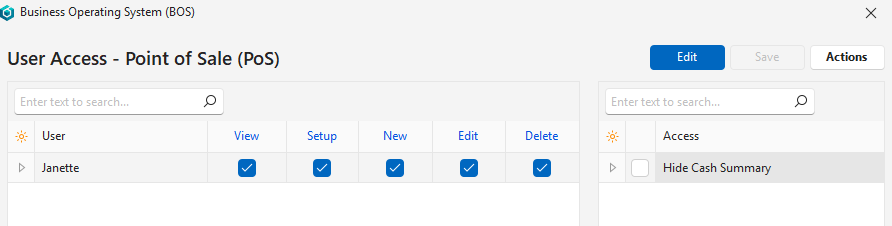
- Allocate access as follows, either individually or from Actions (button) > Batch Update:
- View: Check the checkbox to allow the user to view the PoS records.
- Setup: Check the checkbox to allow the user to change the setups (as explained on this page).
- New: Check the checkbox to allow the user to create new PoS records.
- Edit: Check the checkbox to allow the user to edit / capture PoS records.
- Delete: Check the checkbox to allow the user to delete PoS records.
- On the right, check the checkboxes to allow or block access to specific features (e.g. Hide Cash Summary).
- Click Save (button) unless it is greyed out.
Step 6 Activate the Transaction Type Settings
- Any Transaction Type can potentially be used in PoS.
- Only transactions that post to the Sales and Cash accounts as defined in Step 2 are shown on the summary pages (if activated as per Step 2) or included in the expected cash.
- Only transactions that allow items or custom items to be added appear on the PoS dashboard.
- If the same sales account is used for credit and cash sales, PoS isolates the cash sales (those recorded through PoS) and displays only the cash sales on the dashboard.
- Navigate to Transaction Types (e.g. Main Menu > Setup > Transaction Types).
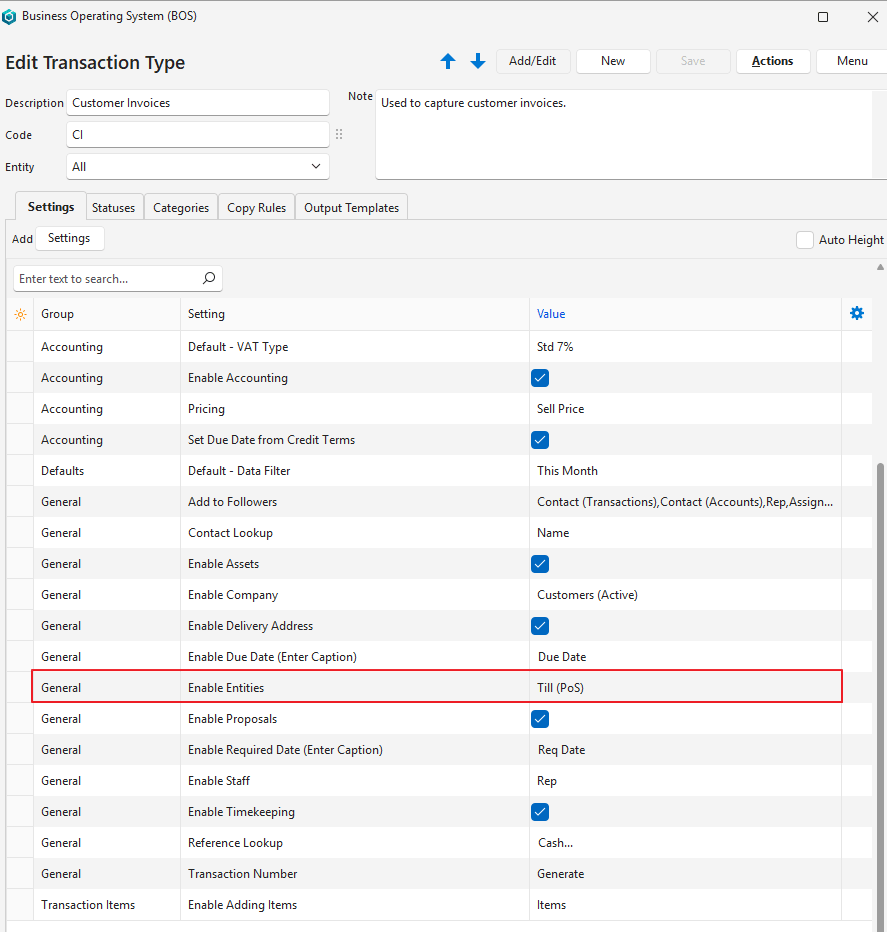
- For each Transaction Type you want to link to PoS add the following setting on the Settings tab:
- General > Enable Entities and select Till (PoS) in the Value column.
Step 7 Add Point of Sale (PoS) to a Menu Group
This option displays a summary of the active tills.
- Navigate to Menus (e.g. Main Menu > Setup > Menus).
- Double click an applicable menu group or create a new one.
- Click Edit (button) if it is not blue.
- Select Point of Sale (PoS) from the dropdown list next to Module.
- Check the checkbox next to Tile Menu to display it on a tile menu (optional).
- Check the checkbox next to Begin Group to draw a line before it on the menu (optional).
- Close the popup using the X in the corner.
Step 8 Add PoS to the Menu Templates
The button Sign Out (PoS) opens the main interface from which the tills and cash are managed.
- Navigate to Menus (e.g. Main Menu > Setup > Menus).
- For each of the applicable Menu Templates:
- Double click the Menu Template to edit it.
- Click Edit (button) on the top row if it is not blue.
- Click Fixed Item (above the line items) > Sign Out (PoS).
- Check the checkbox in Begin Group to draw a line before the entry (optional).
- Click Save (button) unless it is greyed out.
- Close the Edit Menu Template popup.
- Right click the applicable Menu Template and click Preview on the context menu if you changed your own menu template. Other users will see the entry after they restart BOS.
Learn More
- Point of Sale Setup Interface: Explains the point-of-sale setup interface.
- Using Point of Sale Interface: Explains the point-of-sale interface.
- Using Point of Sale Tutorials: These tutorials explain how to use the point-of-sale interface.
- Point of Sale Reports: Explains the point-of-sale summary interface.