
Output Button
- Output refers to the output of data (reports and templates) from QuickEasy BOS.
- Forms are created and saved as templates, which are then linked to each transaction (e.g. Customer Invoices) or module (e.g. Customer Age Analysis).
- Forms are generated when Output (button) is clicked and an output option is selected.
- Forms or templates can be customised.
- Every time a template is selected from Output, the latest data is fetched and recalculated which may cause a slight delay. It could also result in the Output not matching what is on your screen (e.g. if someone else changed the transaction).
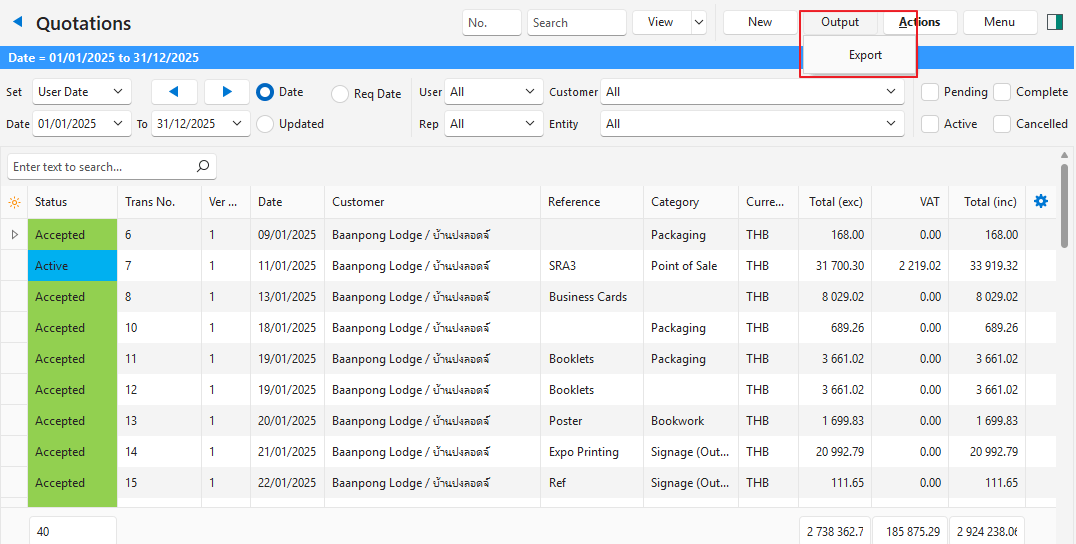
- Lists such as Transaction Lists, Items, Customers or Suppliers can also be exported from the Output button.
| Button | Description |
|---|---|
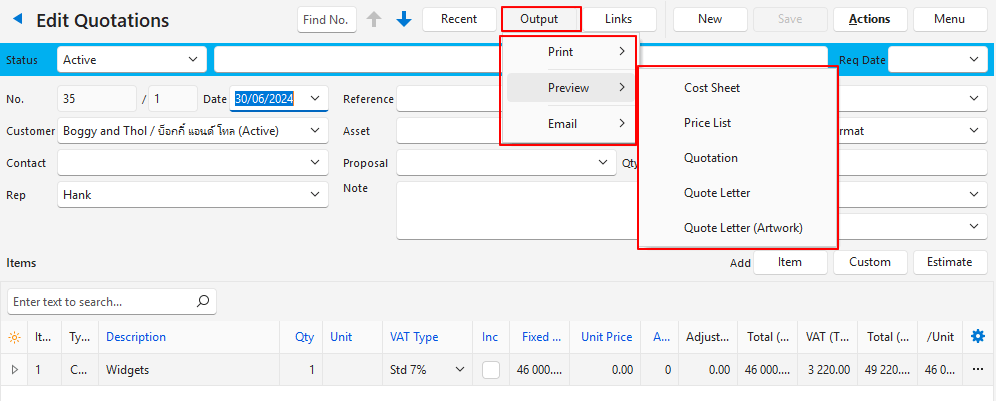
| Output > Print | Opens the default printer and prints the selected Output. |
| Output > Preview | Displays the selected Output. Once displayed, additional options are available including: – Print: Users can choose a printer, including a .pdf printer. – Export to File (save): Users can choose a save location for the report in .pdf format. |
| Output > Email | The email interface is opened with the selected Output attached in .pdf format. |
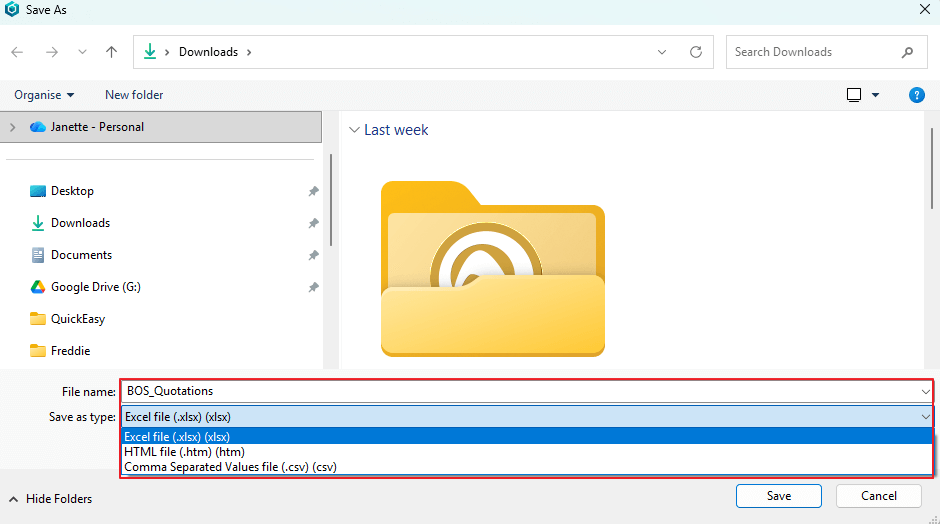
| Export | Mostly applicable to List Views. Opens the file browser and allows users to select one of these options: – Excel file (.xlsx) – HTML file (.htm) – Comma Separated Values file (.csv) |

