
- Home
- Knowledge Base
- What's New
- June 2026 Updates
June 2026 Updates
Ver 1.0.86
Enhancements
Customers/Suppliers: Batch Update functionality was added for:
Default View
- Status
- Rep
- Category
- Currency
Accounting View
- Status
- Currency
- VAT Type
- WHT Account
- Billing Method
- Credit Limit
- Credit Terms
Transaction Enhancements
- A Default column was added to the Output Transaction Type setup.
- When Default is checked, the Output button on Transactions changes to a button with a dropdown arrow.
- Clicking the button executes the Default template while clicking the dropdown arrow will open the Output menu.
- Only one Output template can be set to Default.
- You can only set a template to Default if it has one output option: Print OR Email.
Add Item Popup: The Search string is now cleared when View (button) is clicked. If the search returns only one Item, the item is auto added. (Enables adding item with a barcode scanner.)
Transaction Types Enhancements
The Note field was updated to a TEXT field – no limit to size. You can now edit the Note in an editor from Actions (button) > View/Edit Note.
A Warning was added: Invalid Status Group used in Copy Rules, Output: This message is displayed when a non-existent Status Group is assigned to Copy Rule or Output Setting.
PoS Enhancements
Output functionality was added to the PoS Edit View. Data Pipelines include:
- pos_session – contains the PoS Session header fields
- pos_entity – contains details of the linked Entity (Till)
- pos_cash_opening
- pos_cash_closing
- pos_bank
- pos_transactions
This User Setting was changed to be in the negative: Hide Cash Summary – Default = No.
Fixes
- The Main Menu is no longer hidden for PoS Users. (The Sign Out button is on the Main Menu.)
- Fixed: PoS Edit view – When you navigated back to the Dashboard with the back button, the Save button wasn’t executed if it was enabled.
- Fixed: The PoS User Setting to ‘Show Cash Summary’ was also hiding the Opening Cash Count.
- Fixed: The PoS User Setting to ‘Hide Opening Cash…’ was removed.
- Fixed: When a Local currency transaction was copied to a Customer Currency Transaction, the Currency was not updated to the Customer Currency.
- This PoS functionality (from Ver. 1.0.85) was removed in favour of using the transaction Status to set transactions to read-only:
- Transactions linked to PoS Session are now set to read-only if the PoS Session is in a Complete or Cancelled Status.
Ver 1.0.85
Enhancements
Transaction Types: The following warnings were added:
- Inventory Resolve is enabled, but no status is set to trigger an Inventory update.
- Accounting is enabled, but no status is set to trigger an Accounting update.
Dual Lists: A double-click can now be used to move items on a Dual List control.
Point of Sale (PoS) Enhancements
- Transactions/PoS Module: The Till Session No. and Session No. captions have been renamed to PoS No.
- The PoS Dashboard is now opened maximised by default.
- When a PoS User logs in, the PoS Dashboard is now opened by default (i.e. the Open PoS menu item is executed).
- A fixed menu item Cash Drawer was added to the Menu. This allows you to open a Cash Drawer from any module.
General Settings have been added/updated in the PoS Settings module.
- [Created] Select which transaction types show in the POS session history (Transactions Tab): This setting allows you to exclude transactions like GI that expose cost prices. If no transactions are selected, the tab is hidden.
- [Renamed] Select transaction types available for quick creation on the PoS Dashboard
A User Setting was added:
- View Opening Cash when Till is Open. Y/N: Applies to a PoS Session which is in the default Open Status. (Removed see V1.0.86)
Transactions linked to PoS Session are now set to read-only if the PoS Session is in a Complete or Cancelled Status. Reminder: Click Transaction Edit view > Menu (button) > Transaction Info to see why a transaction is read-only. (Removed see V1.0.86)
Fixes
- Fixed: When a user’s email was updated in BOS Tools, an error was returned when the user logged into the application.
- Fixed: CAA/SAA: The Output on the Detailed Ledger was showing incorrect transactions if the Ageing was linked to a different Customer/Supplier.
- Fixed: The Transaction warning: ‘Transaction is not in an Inventory Status’ is no longer displayed when a Transaction Resolve is set to ‘Reserve’ or ‘On Order’ and the Transaction is in a Complete Status. Warnings are no longer displayed on Cancelled Transactions.
- Fixed: You were able to edit the Parent setting on Registered Entities. It now defaults to N/A when the record is updated.
- Fixed: Contacts – The List View > Filter Panel was hidden. The filter bar was not cleared/updated when you navigate between Views.
- Fixed: Output: The checkbox for Subject and body were not unchecked when you cleared the template. (Checking for blanks instead of empty string.)
- Fixed: Transaction Types / Service Types: The Save Grid functionality was applied per type which made it appear like it was not working.
- Fixed: The Parent column in the Entity List view was not refreshing correctly.
- Fixed: Ledger – the ‘No.’ column was sorting as text and not numerically.
Ver 1.0.84
Enhancements
Menus: Bank and Tax Reconciliations have now been added to the default Accounting menu.
Transactions > Items: The From field now displays the Trans Type and No. (e.g. QT 232).
Transaction: A warning, Transaction is not in an Inventory Status is now displayed when:
- One or more items have Resolve = Reserve or On Order and the Status is Complete, Cancelled, or not in an Inventory Status.
- One or more items have Resolve = Issue or Receive and the Status is neither cancelled nor an Inventory Status.
CAA/SAA: A warning is now displayed when you try to View Transactions/Ledger without first selecting a customer or supplier.
Item Enhancements
The Inventory setting was removed in favour of supporting the Fixed Locations model: if an Inventory Location is added to an Item, it becomes an Inventory Item.
List View: The Inventory column now lists the Location Codes linked to an Item. (Useful for Batch Updates.)
The Menu button was added to the modal (drilldown) View. Menu Items include:
- Open in Items Module: Closes the modal view and opens the Item in the richer Docked View.
- Layout…
Item Summary: A function was added to Menu (Button) > Open in Items Module. The Refresh button has also been moved to the Menu.
Inventory – Replenishment Enhancements
All the editable columns are now read-only (Min Qty, Stock Price, Order Qty) because we do not always display the base quantity to which those fields are linked.
The Min Qty and Order Qty are now calculated by default, converted for the selected Unit and rounded according to the General Setting for decimals used in stock quantities. If On Order is less than zero, it reverts to zero.
Data Filters
- Replenish options are:
- Units: The Unit filter was removed
- Status: The Status filter was removed. Only items in an Active Status Group are displayed.
Columns
- Unit Price: Price linked to the selected Unit.
Fixes
- Fixed: Allocation: You were prompted to allocate the From transaction even when the ‘From’ transaction was the same Type.
- Fixed: Settings: An error was returned when too many users were assigned to a Copy rule.
- Add/Update settings: An incorrect message ‘grid is empty’ was sometimes displayed.
When the grid is empty, you still receive the error ‘Please select at least one setting.’ - Fixed: Transaction – Information: The Read-only notes were not displaying correctly.
- Fixed: PoS: User Access was not updated correctly when a PoS user signed in. The ‘Cash not equal to Expected’ warning was updated and the confirmation warning on Done (button) was removed:
- Pending: Warn about Opening Balance
- Open/Complete: Warn about Open and Closing balance
- Fixed: PoS: When the Cash Drawer was clicked, an error message about Cash balances was returned.
- Fixed: Tax Reconciliation: The end date was not calculated correctly based on the VAT frequency setting. The caption for Add [Items] was renamed to Add [Transactions]. Captions for Recon have been changed from ‘From’ & ‘To’ to ‘Start’ and ‘End’ – same as the Import.
- Fixed: Error message when adding duplicate Currency and VAT attribute group.
- Fixed: Bank: Delete confirmation on Items renamed to ‘Delete’ (from ‘Delete Bank’)
- Fixed: Chart of Accounts: you were able to assign a Bank Profile to an account which had a blank default.
- Fixed: Items > Set Default values: You were unable to set a default Resolve.
- Fixed: Replenishment: When an Item was dragged to a Transfer Order, the ‘Location To’ was assigned instead of the ‘Location From’. The On Order filter was not working correctly. The Replenishment module was not updating the Recent Menu.
- Fixed: Transactions: The default Location setting was overriding the Location when a Transaction was copied.
Versions 1.0.82 and 1.0.83
Enhancements
Users: When you add User Settings, the user email address is now automatically assigned.
Accounts: A Default Bank & Accrual was added. This default enables an account to serve as both a bank (e.g. In PoS) and an Accrual account which is displayed in the Financial Reporting Dashboard. For example, Credit Card Receipts.
Transaction Types: A Copy Rule Warning was added: Execute is set to Pay but Items are not set to Amt (inc).
Changelogs: A General Setting > Remove Changelogs older than X months (0=Retain all Logs) was added – Default = 3 months. The delete query is executed when users log in to the application.
Inventory – Replenishment: A new replenishment type Transfer was added. This type supports scenarios such as stores replenishing their stock by transferring stock from a central warehouse. Applies to Material Items (including ASM) that are linked to Inventory and have a Cost Price.
Tax Recon: An Editable column was added to Status grid view and enabled in transactions.
Transaction Enhancements
A function Menu (button) > View Transaction Info was added. The information displayed is the Transaction ID and the reasons for being Read-only.
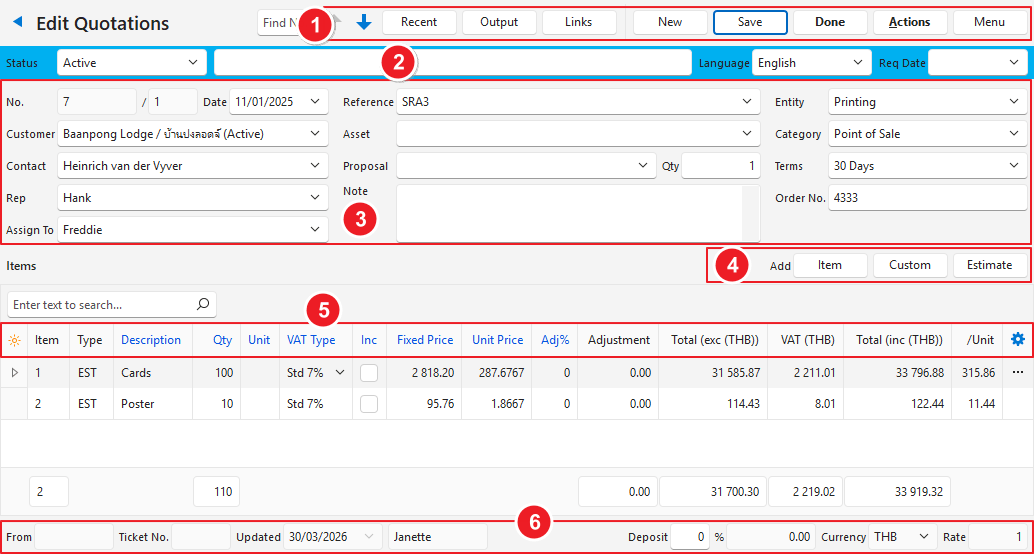
An error is no longer returned when you click the Done button and the following conditions are met:
- The only error is that transaction is not in an accounting status.
- The default = Complete status is flagged as an accounting status.
Point of Sale (PoS) Enhancements
When a PoS Session is in the Open status, the Qty caption on the Opening Count is now coloured black to indicate it is no longer editable.
A PoS Setting was added to the PoS Setup Module: Show Transactions in the Dashboard which allows you to explicitly select the transactions to display in the Create Transactions menu group. You can only select Transactions where Enable Entity = Till (PoS). Transfer Receive transactions are also excluded by Trans type Setting: Enable Transfer Receive = True.
An Actions button was added to the Pos Session edit window:
- Refresh
- Delete PoS Session
A red Warning bar now warns you that the expected Cash does not match the counted Cash.
User Access now works as follows:
- View: Y/N – Allows you to View a PoS Session.
- New: Allows you to create a new PoS Session.
- Edit: Allows you update the PoS Session and the Cash Counts.
- Delete: Allows you to delete a PoS Session.
An additional panel was added to extend the Y/N User Settings. So far it contains:
- View Cash Summary – Y/N
Bank Enhancements
- The Done button is now placed above the grid and applies to multi-selected Items.
- The Status > Active filter was removed.
- The Refresh button now refreshes the Header summary and Items.
- Synchronise functionality was added.
- A Bank transaction can now be deleted despite containing items if you have Delete access.
- When you create a Bank Import, you are now prompted to select a Bank Account. After which the Upload and Import function for the linked Bank Profile is automatically executed.
- You now can remove items from a Bank Recon by clicking Remove (button) or using the right-click context menu.
- Add/Update Items now adds new Items, updates existing Items, and removes Items that no longer belong. (Previously all Items were removed and then new items added from scratch).
- Company and Reference columns were added.
Fixes
- Fixed: Several minor bugs on the Bank module were resolved.
- Bank Fixes:
- The Header Summaries were not calculating or updating correctly.
- Synchronisation/Open in Ledger was not showing transactions in Edit View if only one transaction was located.
- Changelogs: The ID column was removed, and the details reformatted to save space.
- Fixed a few minor bugs related to how transactions open left or right in a dual panel (layout).
Ver 1.0.81
Enhancements
Transaction Types > Settings: The Search on the Add/Edit Settings Dialog is now copied to the Settings grid when the dialog is closed.
Changelogs were added to the Transaction module. You can open the Changelog from:
- Transaction List View – Menu (button) > View Changelog – Default filter = Today.
- Transaction Edit View – Menu (button) > View Changelog – Default filter = No Date, Linked to Transaction.
- Main Menu > Help > View Changelog: You can open the Changelog from the fixed Help menu – Default filter = Today.
Transactions: An additional Entity field was added to the Items view – Entity, Entity (Reg). Reg = Registered.
Ledger: Entity and Entity (Reg) fields were added to all the views.
CAA/SAA: Entity and Entity (Reg) fields were added to the ledger and transaction views.
Bank Import Enhancements
Master Data
A Country Code was added to the Bank Profile code (e.g. [ZA] for South Africa, [TH] for Thailand).
The Bank Account is now verified by checking that the Account lookup CONTAINS the bank account number.
Error Messages were added to the import procedure:
- Incorrect character set
- Incorrect lookup
- Zero records returned.
Inventory – Replenishment Enhancements
The following columns were added:
- Last Order (e.g. PO3343), highlighted in the transaction’s status colour. The last order can be a Purchase Order, Work Order or a Transfer Order.
- Last Order Date: Hidden by default.
A context (right-click and popup) menu was added with the following Actions:
- Open Linked Item
- Open Last Order
Withholding Tax Enhancements (Thailand)
BOS now fully supports the Thailand Withholding Tax (WHT) model. You can set the WHT % and amount on Invoices and use an action on the Payment transaction to calculate the WHT due for a Payment. Note: You must send your suppliers a certificate when WHT is deducted.
Customers/Suppliers: The customer and supplier attributes set includes a field to select the WHT account applicable to them. The accounts differ if they are individuals, companies, or government agencies.
Transaction Settings > Accounting – Enable Withholding Tax: Options are:
- N/A (Default)
- Invoice: Select for Customer and Supplier Invoices.
- Payment: Select for Customer and Supplier Payments.
Invoice Transactions: The WHT% and WHT (amount) is displayed in Transaction Items with Batch Update functionality. This is a manual process.
Payment Transactions: An Action > Calculate Withholding Tax (WHT) is added to the dropdown menu of the Allocation menu as well as the Actions button dropdown menu on the Allocations form. This action calculates the WHT on all the Invoices that are allocated in full and adds it to the Payment Transaction. The WHT amount is deducted from the Payment item.
Tax Reconciliation (New Module)
This module is used to reconcile the tax due for a selected period. It is a standalone module which does not directly update Accounting.
When a Transaction Item is linked to a Tax Recon, the Transaction becomes read-only (Note. We don’t have a notification on the Transaction to indicate why it is read-only yet.)
The following tax Types are supported:
- WHT Payable: Reconciles the amounts you withheld that are payable monthly. (The WHT Account is Credited with the amounts withheld, debited with the payment.)
- WHT Offset: Reconciles the amounts deducted from your invoices over the financial year which can be deducted from taxable income. (WHT Account is Debited),
- VAT: Standard Invoiced-based model.
Note: The WHT Types are enabled if a Transaction Type has a linked Enable WHT setting.
If WHT is not enabled, the module name reverts to VAT Reconciliation.
General Settings > Accounting
- Exclude Transaction Types from VAT Reconciliation: Select one or more transaction types.
- VAT Reporting Frequency (Months): Enter the number of months.
Menu: Add Tax Reconciliation to a Menu Group.
Other Settings: List View > Menu (button)
- Edit User Access
- Edit Statuses – Default = Pending, Complete, Cancelled. Note set Default = Complete to enable the Done button.
List View
Data Filter
- Start/End Date: Default = This Year
- Entity: Select from Registered Entities or select All
- Tax Type: Select All, VAT, WHT Payment, WHT Offset
- Status: Filter by Status Group – Pending, Complete, Cancelled
Output: Export to .xlsx
Edit View
- Click the New button and select VAT or WHT (if applicable).
Header
- Select an Entity and click Save.
- The Start and End Date is calculated from the VAT frequency setting and the last Recon of the same Type if one exists. WHT frequency is always 1 month.
Output: You can load different templates for WHT and VAT.
Add Items: This function opens a list of Transaction Items which match the Date Period and Tax Type.
Add Items Filters
- Zero-VAT: Shows items with 0 VAT like Exempt or Zero-rated.
- Out-of-Period: Shows items dated before the Start Date that have not been added to a VAT Recon.
Data Pipelines
The following Data Pipelines were added:
- tax_recon_header
- tax_recon_items
- tax_recon_entity
- tax_recon_sum_accounts
- tax_recon_sum_transactions
Fixes
- Fixed: Inventory Replenishment: The ‘On Order’ filter was not working correctly. The ‘Cost Price’ was blank.
- Fixed: Items > Add Cost Price: The ‘Price From’ field was assigned to Costing when the Item was not an Assembly or a Costing.
- Fixed: Items > Pricing: The ‘Price From’ lookup was not refreshing after, say, a Sell Price was added to a new item.
- Fixed: Items > Batch Update > Categories: The lookup displayed Groups as well as Categories – Items can only link to the Categories that don’t have child items.
- Fixed: Work Order > Edit View: When you selected Materials, Tasks or Outwork, the corresponding Views were not filtered to show items for the selected transaction only.
- Fixed: Transactions > Proposals: The Output did not support the Transaction Language.
- Fixed: PoS: The Create Transaction group was enabled even when PoS was in a Pending Status. Wordwrap was added for tiles in the Create Transaction group.
- Fixed: Transactions: The Entity Filter was not working on the selected Entity.
- Fixed: Some button captions were being translated back to English from a second language instead of using the native English caption.
- Transaction Types > Output – ‘Document Designer’ is no longer an Output option.
Ver 1.0.80
Enhancements
Look and Feel: The Status bar was modified to show colour in the Status field and a small rectangle on the right of the bar. This change is not just for aesthetics; it simplifies how the layout control works.
Items Enhancements
The Assembly (ASM) type now also supports Fixed Cost / Fixed Price. For example, you can create a costing for 1 Each: The Fixed Cost/Unit Cost is updated from the Costing, and the Fixed Sell/Unit Sell is updated from the Cost Price. When this item is added to a transaction that uses the sell price, the quantity effectively determines the Unit Price.
The List View > Action > Add Sell Price was updated so that you can add Sell Price by Currency – The Action will only add 1 Sell Price per Currency. You can select from Currencies in the database. Reminder: Cost Price is locked to the local Currency.
Inventory Summary: The Replenish filter was removed. This report now only allows you to check current stock and update Min Qty and Unit Price. A new Replenishment report was created (see below)
Attachments – IMAGE was added to the Name lookup list.
Point of Sale (PoS) Enhancements
You now can Clock Out all Users without ending a PoS session. For example, when a small shop has one staff member and they close the shop for lunch.
Functionality was added to open a Cash Drawer. Edit PoS. A Cash Drawer button was added to open the cash drawer.
(Tech Note: This functionality is hard-coded and tested on an Epson ™-T88V slip printer. The Cash Drawer is linked to the printer with an RJ11 cable and the command to open the Cash Drawer is sent via the printer. The Printer can also open the Cash Drawer when a print command is received – this is set up in Windows > Devices > [Select Printer]. If this functionality does not work on other printers, we will add settings to user-define the command.)
Inventory Replenishment (New Functionality)
This functionality is enabled using Transaction Setting > Inventory > Enable Inventory Replenishment. The options are:
- N/A (Default)
- Produce: The Transaction is used to produce Stock e.g. Work Order
- Purchase: The Transaction is used to purchase Stock e.g. Purchase Order
A new Inventory – Replenishment module was created which you can optionally add to the Menu or open using an action from the Produce/Purchase module.
The Unit Price column in Inventory modules was renamed to Stock Price.
Inventory – Replenishment (Module)
This module displays Items that are due for replenishment as follows.
- Min Qty – Available Qty – On Order Qty > 0
Items can be dragged from this module and dropped on a Purchase Order or a Work Order module. The Order Qty is assigned to the Purchase/Produce transaction. The Receiving Transaction must be in an editable Status.
Reminder: Inventory is linked to the Base Unit. The Convert Qty is used to display Inventory in other Units.
Data Filters:
- Category: Item Category
- Location: Inventory Location
- Replenish: Select from:
- Produce: Assembly (ASM) Items with a Cost Price are selected. The Unit is locked to Costing.
- Purchase: Material Items with a Supplier Price are selected. Includes all Material types, including ASM (e.g. some items can be purchased or produced). All the Supplier Prices linked to the Item are displayed. Unit filter is locked to Purchase.
- Unit – Select from:
- All
- Base: Base Unit only – reminder: Only 1 Base Unit allowed per Item
- Purchase: Units linked to Supplier Price
- Costing: Costing Unit only – reminder: Only 1 Base Unit allowed per Item
- Status: Item Status
- Supplier: Applicable when Replenishment = Purchase.
- On Order: When checked Items that were replenished but are still On Order are displayed.
Actions:
- Batch Update: Min Qty, Order Qty, Stock Price.
- Update Order Qty: Min Qty – Available Qty (Includes On Order)
- Note: You can execute this action on multiple selected records and then edit the column afterwards.
Editable Columns:
- Min Qty
- Order Qty
- Stock Price
Inventory – Replenishment (Produce Transaction – e.g. Work Order)
Actions > View Items Due for Replenishment = Produce: This Action opens the Inventory Replenishment module and sets the filters to:
- Replenish = Produce
- Unit = Costing
Inventory – Replenishment (Purchase Transaction – e.g. Purchase Order)
Actions > View Items Due for Replenishment = Purchase: This Action opens the Inventory Replenishment module and sets the filters to:
- Replenish = Purchase
- Unit = Purchase
- Supplier = Supplier on Transaction
Fixes
- Fixed: Timekeeping – you couldn’t clear the Start or End Time because it reverted to zero instead of null.
- Fixed: Service Types – An error was returned when you Output a Project.
- Fixed: Items > Substrates – You could change the Base Unit on a substrate Item (e.g. after adding a new unit).
- Fixed: Items > Pricing – The Actions to Add Cost/Sell Prices was displayed in the Pricing module.
- Fixed: Items – You could update the Inventory setting on a translation. Reminder: Translations should only allow text fields to be edited.
- Fixed: Transactions – If the Status > Editing setting = Edit Status Only, you could edit the transaction Status even if your User Access did not allow editing.
- Optimisation: Items – Queries were modified so Items open faster, especially when you are not in the same region as the database.