
Contact Categories
You can create an unlimited number of Categories for Contacts, Customers, and Suppliers. The same set of categories is used for contacts, customers, and suppliers but prefixes can be used if different categories are needed. For example, categories can be created to identify the type of Customer or Supplier (e.g. retail or wholesale) or can be specific (e.g. Customer-Hotels, Customer-Lodges, Customer-Bed & Breakfasts, Customer-Backpackers). Multiple categories can be added to contacts, customers, and suppliers.
Navigation: Main Menu > Setup > Customers/Contacts/Suppliers > Menu (button) > Edit Categories
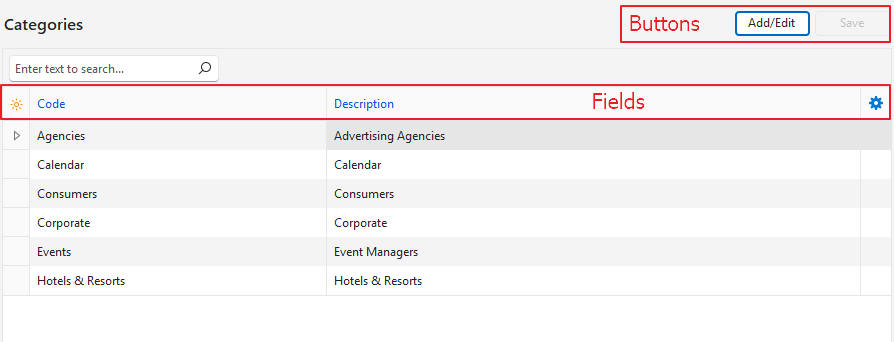
How to Create a Category
- Navigate to Edit Categories
- Click Add/Edit (button).
- Click anywhere in the top row where it shows: Click here to add a new row.
- Code = Type a descriptive abbreviation for the category (e.g. Ad Agencies).
- Description = Type a description for the category (e.g. Advertising Agencies).
- Click Save (button).
How to Edit a Category
- Navigate to Edit Categories.
- Click Add/Edit (button).
- Edit the records by overtyping the existing data.
- Click Save (button).
How to Delete a Category
- Navigate to Edit Categories.
- Click Add/Edit (button).
- Right click and entry and click Delete on the context menu.
- Confirm the deletion on the popup.
How to Assign Categories
The same procedure applies to customers and suppliers. Categories can be allocated from the respective modules or from contacts.
- Double-click a Contact on the list of contacts.
- Click Edit (button) on the top row if it is not greyed out.
- Click the ellipses (…) next to Categories in the header.
- Using the arrow keys in the middle, move all the Categories you want to allocate from the Available to the Selected section.
- Note: To remove a category, move the category from the Selected section to the Available section.
- Click Save (button).
- Note: To discard your changes, close the popup with the X in the corner.
Learn More
- Contacts Addresses View: Explains the interface for viewing a list of contacts with address details.
- Contacts Default View: Explains the default display of a list of contacts.
- Contacts Edit View: Explains the interface from which contacts are created.
- Contacts Tutorials Creating and Editing: These tutorials explain how to create and edit contacts.
- Contacts Tutorials Viewing: These tutorials explain the different views and related functions that are available for contacts.
- Customer Records List and Edit Views: Explains the interface to view a list of customers and to create customer records.
- Customer Records Tutorials: These tutorials explain how to display customer lists and how to create, edit, and delete customer records.
- Supplier Records List and Edit Views: Explains the interfaces from which supplier records are displayed and created.
- Supplier Records Tutorials: These tutorials explain how to display supplier lists, and how to create and edit supplier records.
- Billing Methods: Explains the billing methods’ interface and how to create and edit billing methods.
- Credit Terms: Explains the interface for credit terms and provides tutorials on how to create them.
- Positions: These tutorials explain how to create, edit, and delete job positions.