
Chart of Accounts Interface
QuickEasy BOS has a fully integrated accounting system. For each Transaction Type, users can select if the transactions must also be posted to the Ledger (affect Accounting).
The Chart of Accounts is divided into two sections:
- Statement of Profit or Loss: Includes Income and Expense accounts. The corresponding report shows the organisation’s profitability.
- Statement of Financial Position: Includes Assets, Liabilities, Investments, and Equity. The corresponding report shows the organisation’s financial worth and solvency.
The Accounting Setup menu option includes tabs to setup VAT Types, Currencies, and Credit Terms.
Navigation: Main Menu > Setup > Accounting > Accounts (tab)
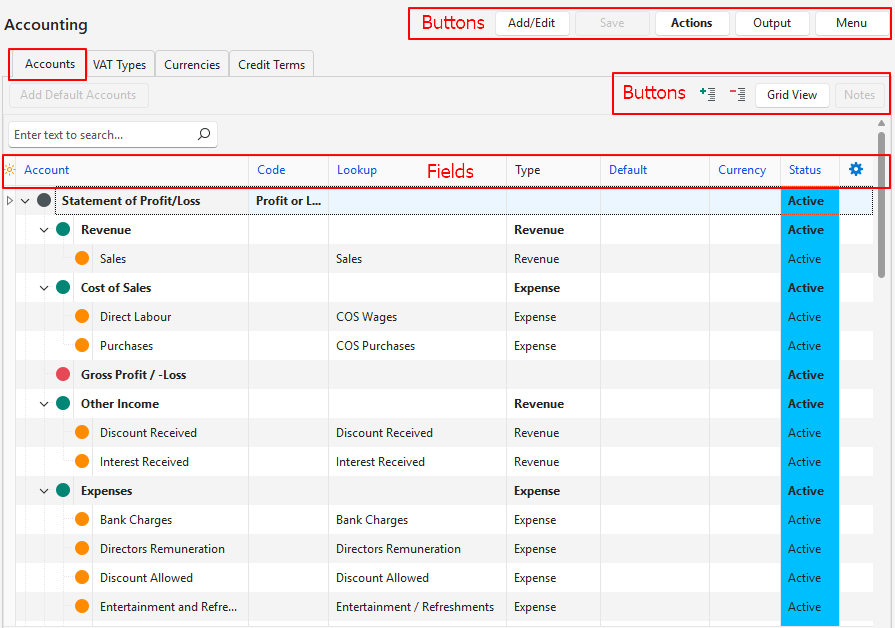
Buttons Explained
| Button | Description |
|---|---|
| Add/Edit | Allows Users to edit the entries or add new entries. |
| Save | Saves any changes. |
| Actions | Allows for changes to be made to multiple records that can be selected using Ctrl + Left Click. The options are: – Rebuild Accounting Report: Rebuilds the accounting report. This feature resets the financial reports and recreates them to include the new accounts. – Order Alphabetically: Sorts the accounts alphabetically within their categories or main accounts. – Generate Account Codes: Generates account numbers. – Generate Account Lookups: Generates account lookups for all the lowest level accounts. These lookups can be edited. Lookup lists are used in Transactions to help users find the account. – Refresh Lookups: Updates all the lookup lists. |
| Output | Export (.xlsx): Exports the chart of accounts in .xlsx format. |
| Menu | Layout |
| Add Default Account | Creates the main categories (e.g. Sales, Assets, Expenses) needed for a Chart of Accounts. The button is removed once the accounts are created. |
| Grid View / Tree View | Toggles between the Grid (spreadsheet format) and Tree Views (accounts are embedded beneath their applicable Financial Statements). + – Icons collapse or expand the Tree View. |
| Notes | A toggle that displays or hides account notes. |
Fields Explained: Grid View
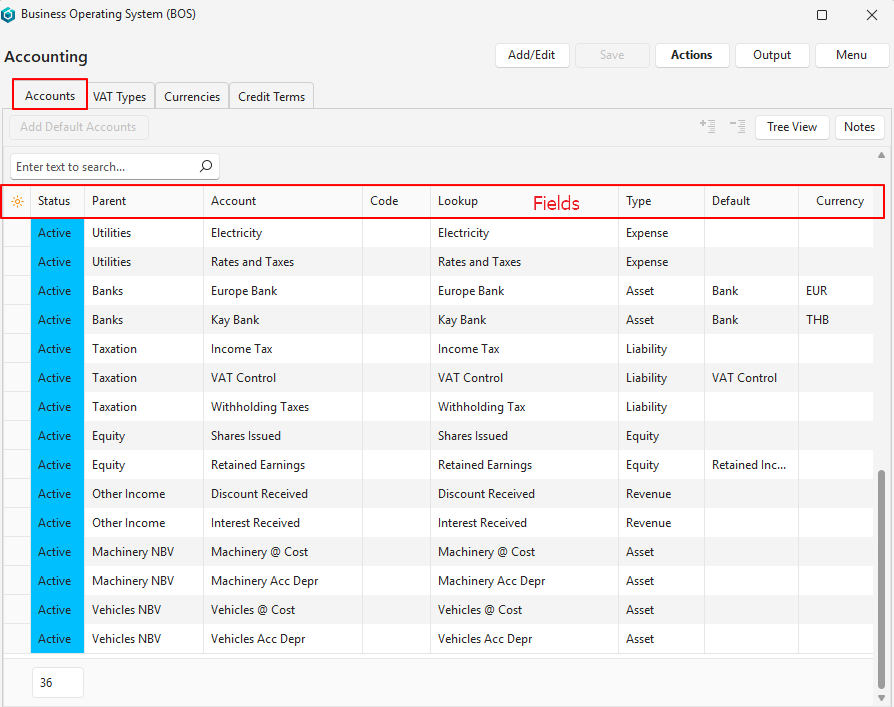
| Field | Description |
|---|---|
| Field Chooser (*) | Allows users to add or remove columns. |
| ID | The system-generated number for the entry. |
| Status | The current Status of the entry. |
| Parent | The parent Financial Statement (Statement of Profit/Loss or Statement of Financial Position). |
| Account | The Account Name. |
| Code | The Account Number. |
| Lookup | The account’s Lookup name (i.e. the name typed when using the account in a transaction). Warning: If a lookup is not entered, the account cannot be selected when creating transactions. |
| Type | The Type of account (e.g. Asset, Expense). |
| Order ID | The order in which the account will displayed on the applicable financial statement in its group. |
| Default | Allows users to specify if the account is the default for one of these accounts: – Retained Income – VAT Control – Payables – Receivables – Bank |
| Currency | Allows users to specify a Currency for bank accounts only. |
| Created | The date on which the entry was created. |
| Updated | The date on which the entry was updated. |
| Updated By | The User who last updated the entry. |
| Level | A number indicating the nesting level (e.g. Statement of Financial Position > Assets > Current Assets > Bank is level 4). |
Fields Explained: Tree View
Fields marked in Blue in BOS are editable.
| Field | Description |
|---|---|
| Field Chooser (*) | Allows users to add or remove columns. |
| ID | Expanded system-generated numbers that are numbered and colour-coded according to their levels. |
| Account | The Account Name. |
| Code | The Account Number. Using an account number is optional but can be useful for bank imports if the numbers are used as reference numbers when making or receiving payments. |
| Report | A code indicating its report section (e.g. Summary, Section). |
| Lookup | A field to type alternative names for the account to be used in Transactions. Warning: If a lookup is not entered, the account cannot be selected when creating transactions. |
| Type | The Type of account (e.g. Asset, Expense). |
| Default | Allows users to specify if the account is the default for one of these accounts: – Retained Income – VAT Control – Payables – Receivables – Bank – Accrual |
| Currency | Allows users to specify a Currency for the account. |
| ParentID | The system-generated number for the account’s Parent. |
| Status | The current Status of the entry. |
| Order ID | The system-generated number for the account’s order in its section |
| Level | The account’s level number (Sections are Level 1, Main Accounts are Level 2, Sub Accounts are Level 3). |
| Note | A field to enter a note about the account. |
| Widget | A submenu that can also be accessed by right clicking the entry. The options differ depending on whether you clicked a Heading, an account on the Statement of Profit/Loss, or an account on the Statement of Financial Position. Statement of Profit/Loss: – Add Section > Revenue: Adds an additional Revenue section. Expense: Adds an additional Expense section. – Add Summary: Adds a sub-total. It will automatically add and subtract all the accounts above it. – Generate Account Lookup: Generates a lookup list only for that account which can be edited. Lookup lists are limited to the final accounts. (Lookup lists are necessary but can be entered manually.) – Nest Under: Creates the account as a sub-account of the selected account. Only applicable to accounts on the lowest levels. Once the account is used in a transaction, its nesting cannot be changed. – Move Up: Moves the account one line higher. – Move Down: Moves the account one line lower. – Delete: Deletes the account if there are no entries in the account. Statement of Financial Position: – Add Section > Asset: Adds an additional Asset section (e.g. Fixed Assets or Current Assets). Liability: Adds an additional Liability section (e.g. Long-term Liabilities or Current Liabilities). Equity: Adds an additional Equity section (e.g. Ordinary Shareholding, Preference Shareholding). – Add Summary: Adds a sub-total. It will automatically add and subtract all the accounts above it. – Add Account: Adds an account to the selected section or account. – Generate Account Lookup: Generates a lookup list only for that account. Lookup lists should be limited to the transaction accounts (i.e. not the headings). Lookup lists can be automatically generated, edited, or entered manually. – Nest Under: Creates the account as a sub-account of the selected account. Once the account is used in a transaction, its nesting cannot be changed. – Move Up: Moves the account one line higher. – Move Down: Moves the account one line lower. – Delete: Deletes the account if there are no entries in the account. |
How VAT is Treated
The VAT exclusive amounts are shown on reports, except for these accounts, where the VAT inclusive totals are shown:
- Receivables (the total of all customer accounts)
- Payables (the total of all supplier accounts)
- Bank Accounts
The VAT Control account records the VAT portion of transactions where VAT Input or Output categories were used:
- VAT Input + = Debits VAT Control Account.
- VAT Input – = Debits VAT Control Account with a negative amount.
- VAT Output + = Credits VAT Control Account.
- VAT Output – = Credits VAT Control account with a negative amount.
- VAT Payment = Debits the VAT Control Account (Cr Bank). Use VAT Type: VAT 100%.
- VAT Refund Received = Credits the VAT Control Account (Dr Bank). Use VAT Type: VAT 100%.
Once payment has been made, the account should be zero. For example, if the balance of the account at the end of July was a credit of 21 550.20, a payment of 21 550.20 must be made, and that payment will debit the account to bring it to zero (excluding transactions that have happened during August).
Warnings
Warnings are displayed at the top of the screen, highlighted in orange, when information is incomplete. Warnings are refreshed when Save (button) is clicked.
- Mandatory Account Defaults not assigned: These defaults must be assigned:
- Bank: Specifies if the account is a bank account. Allows a currency to be allocated to the account.
- VAT Control: The account to which the VAT portion of all transactions are posted.
- Receivables: Totals all the customer accounts on the financial reports.
- Payables: Totals all the supplier accounts on the financial reports.
- Retained Income: Posts the profit or loss to the Statement of Financial Position as calculated on the Statement of Profit/Loss.
- Note: Warnings can be ignored (e.g. if the organisation is not registered for VAT, it does not need a VAT Control account).
- Note: There is no warning for the default: Accrual because using that feature is optional. Accrual accounts are displayed on the Financial Dashboard to highlight entries that potentially affect the financial statements.
- Bank: A Currency has not been assigned to the bank account. Applicable if multiple currencies are used. Bank accounts must be allocated a specific currency.
- Duplicates: Duplicate names, codes, or lookups in the same group.
- Blank Names or Lookups.

