
User Access by Module
- You manage connected users, assign them languages and menu templates, and log them from the Users module.
- You can set user access for all users and modules from this module.
- Each user must have a role. There are three roles:
- Admin:
- Allows access to the users’ module.
- Can grant themselves access rights to all the modules.
- Users:
- Cannot access the users’ module.
- Only has the access rights assigned to them by an Admin user.
- PoS User:
- Forces the user to first clock in and open a point-of-sale session before working in QuickEasy BOS.
- Admin:
- For each user, you must create a separate contact, return to the users’ interface, and link the user to the contact.
- User access can also be set for a module from its menu button.
- You may only login to a database from one device at a time. However, you can login to the mobile and desktop app simultaneously.
- Logins are validated every five minutes. These checks will discontinue sessions if the user has been disabled or has multiple logins.
Navigation: Main Menu > Setup > Users > Actions (button) > View/Edit User Access by Module
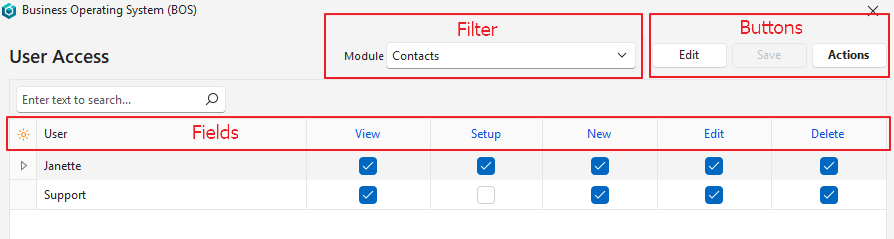
Buttons Explained
| Button | Description |
|---|---|
| Edit | Allows Users to edit the entry. |
| Save | Saves any changes. |
| Actions | Allows changes to be made to multiple records. Records can be selected using Ctrl Left Click. The options are: Batch Update: Allows all the selected fields to be updated according to the adjacent checkbox when Update (button) is clicked. The options are: – View: Grants All (checked) or None (unchecked) access. (Other view options must be set manually.) – Setup: Grants (checked) or revokes (unchecked) access. – New: Grants (checked) or revokes (unchecked) access. – Edit: Grants (checked) or revokes (unchecked) access. – Delete: Grants (checked) or revokes (unchecked) access. Copy Users from another Module: Copies the users’ rights from the selected Module when Save (button) is clicked. Add/Remove Users: Opens an interface with Available and Selected sections. Users can be moved to and from the selected section to add or remove them when Save (button) is clicked. |
Filters Explained
| Filter | Description |
|---|---|
| Module | Option to select a Module from the dropdown list of available modules. |
Fields Explained
| Field | Description |
|---|---|
| Field Chooser (*) | Allows users to add or remove columns. |
| ID | A system-generated number for the entry. |
| User ID | The user’s system-generated number. |
| User | The User’s name. |
| Filter Caption | This field is only available if the selected module is a Transaction. A field for users to type a filter caption. User access uses SQL to restrict users from viewing certain transactions. The Filter Caption is displayed in the Filter dialogue when View (button) is clicked. Right-click to edit the SQL. |
| Entity | This field is only available if the selected module is a Transaction. Links users to all or specific entities. |
| View | Access to view the records. The options are: – None: If this option is selected, the other settings are void. – All: The user may view all the records. – Own (User): The user may view the records they created. – Own (Rep): The user may view the records where they are the assigned rep. |
| Setup | Users have access to the Settings. |
| New | Users may create new Transactions. However, copying transactions has its own rules. Users without New permission but with copy permission can create new transactions by copying existing transactions. |
| Edit | Users may edit existing Transactions. Users with rights to create new transactions must also have edit access. |
| Delete | Users may delete existing Transactions. |
| Created | The date on which the entry was created. |
| Updated | The date on which the entry was updated. |
| Updated By | The User who updated the entry. |
| Widget | A submenu, which can also be accessed by right clicking the entry, with the following function: – View / Edit Filter SQL: Only appears if the selected module is a Transaction. |
Learn More
- Understanding User Access and Settings: Explains how user access works and describes the available settings.
- User Access by User: Explains the interface from which a user’s access can be set for all the modules.
- User Access Interface: Explains the Users setup interface.
- User Access Setup Tutorials: These tutorials explain how to grant user access and how to allocate menu templates and languages.
- User Access Tutorials: These tutorials explain how to set and edit user access to the various modules.
- User Settings and Connections Tutorials: These tutorials explain how to set user settings and check for connected users.