
Currencies List View
Overview
Module | Description |
Customers |
|
Estimating | Estimates can only be done in the local currency. However, once you determine a local price you can copy the transaction to convert that price to the customer’s currency. |
Items |
|
Organisation | Limited to one local (main) currency but can add multiple currencies for prices and transactions. |
Suppliers |
|
Rate of Exchange |
|
Transactions | A setting lets you choose which currencies may be used. |
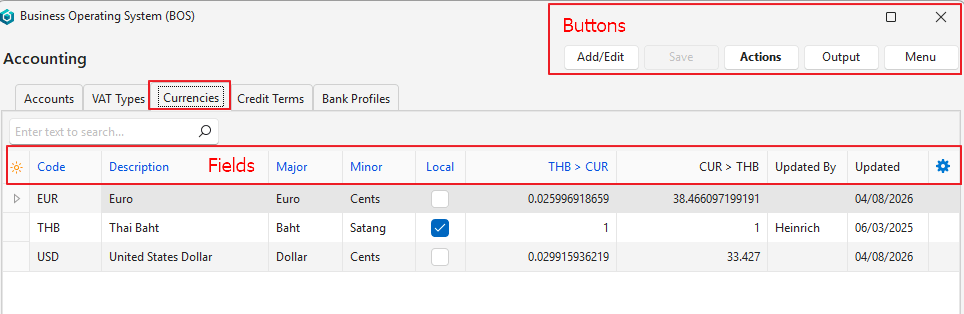
Navigation: Main Menu > Setup > Accounting > Currencies (tab)
Buttons Explained
| Button | Description |
|---|---|
| Add/Edit | Allows users to edit the currencies or add a new currency. |
| Save | Saves any changes. |
| Actions | Options to: Change Local Currency: Select a different currency as the local currency. Update Currency: Updates the Exchange Rates (applicable if a new currency was created). |
| Output | Allows the display to be exported in .xlsx, .csv, or .htm format. |
| Menu | Layout |
Fields Explained
| Field | Description |
|---|---|
| Top Row | When Add/Edit (button) is clicked, the top row of the table becomes editable for users to add a new currency. |
| ID | A system-generated number for the currency. |
| Code | The internationally recognised code for the currency (e.g. EUR). |
| Description | The currency’s description (e.g. Euro). |
| Major | The name of the notes or major currency (e.g. Euros). This name is used to type out the amounts in words on forms such as invoices. |
| Minor | The name of the coins or minor currency (e.g. Cents). This name is used to type out the amounts in words. This name is used to type out the amounts in words on forms such as invoices. |
| Local | A checkbox. The Local Currency should be checked. All other Currencies should be unchecked. |
| Local Currency > CUR | The amount of Foreign Currency that one unit of the Local Currency can buy. |
| CUR > Local Currency | The amount of Local Currency that one unit of the Foreign Currency can buy. |
| Created | The date on which the currency was created. |
| @ (Time Created) | The time on which the currency was created. |
| Updated | The date on which the currency was last updated. |
| Updated By | The User who last updated the currency. The field is blank if the currency was automatically updated. |
| @ (Time Updated) | The time that the currency was last updated. |
| Widget | A submenu that can also be accessed by right clicking an entry. Allows the currency to be deleted if it has not yet been used. |
Learn More
- Chart of Accounts Interface: Explains the interface for creating a chart of accounts.
- Chart of Accounts Tutorials: These tutorials explain how to create and edit a chart of accounts.
- Currency Settings: Explains how to set the conversion method and how many decimal places to use for currencies.
- Currency Tutorials: These tutorials explain how to setup currencies.
- Ledger List Views: Explains the various interfaces for displaying ledger transactions.
- Ledger Tutorials and Troubleshooting: These tutorials explain how to display a ledger and transactions.
- Understanding the Chart of Accounts: Explains what the chart of accounts is and how it impacts the financial statements.