
WHT Tutorials
In QuickEasy BOS, the Withholding Tax (WHT) features were created to comply with WHT legislation in Thailand and other countries.
It provides for WHT deducted from both customer and supplier invoices. It also provides a reconciliation to help you pay over the correct amounts to the relevant tax authorities.
For more information on WHT in Thailand see the schedule from the Thailand Revenue Department. QuickEasy BOS provides the system to calculate WHT but does not tell you what percentage to deduct because we do not know upfront what services you or your suppliers offer.
How to Process WHT on Customer Receipts
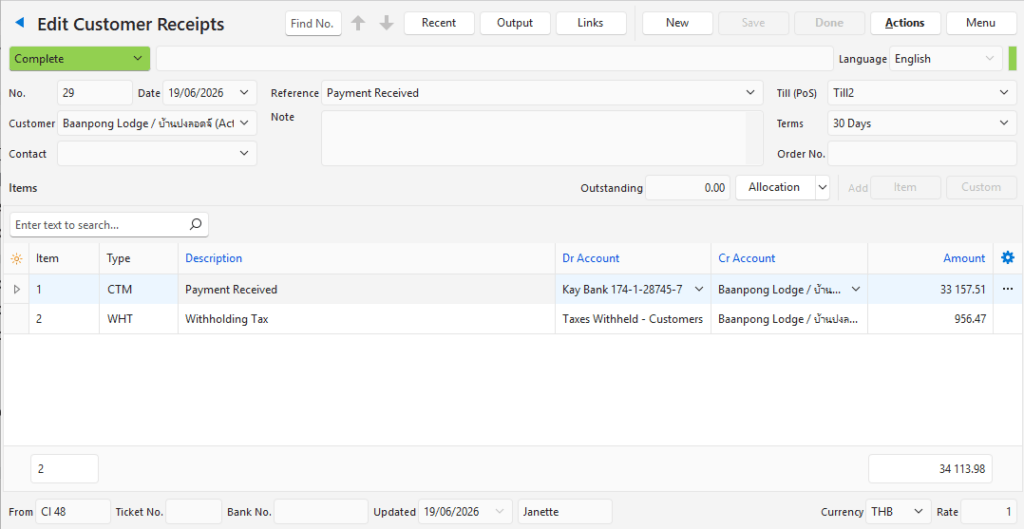
For this process to work, a WHT percentage must be entered on the Customer Invoice. On the invoice itself, nothing is processed. It is only when the receipt is captured, that the amount on the invoice is deducted from the payment and posted to the WHT offset account.
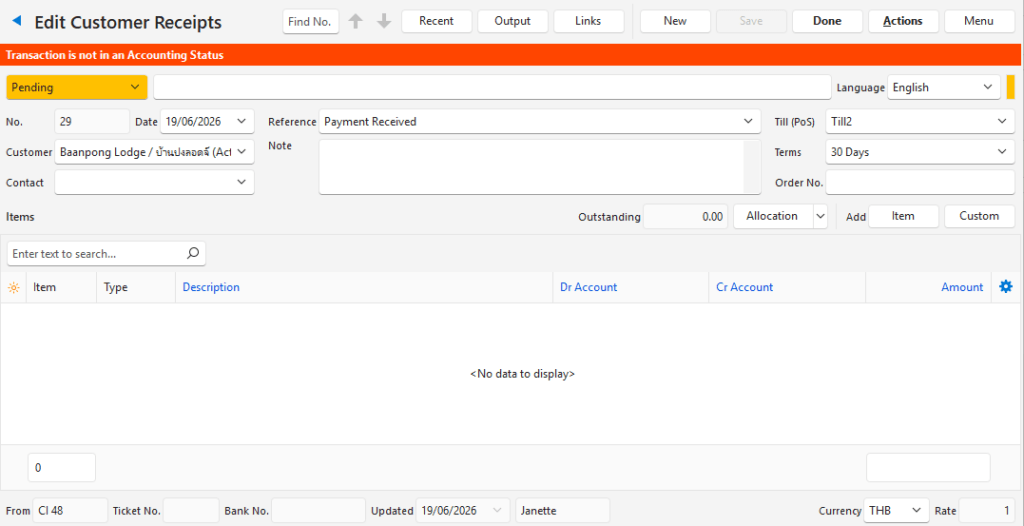
- Create a Customer Receipts.
- Enter the header details (e.g. select a customer, enter a reference).
- Click Save (button).
- Click Allocation (button).
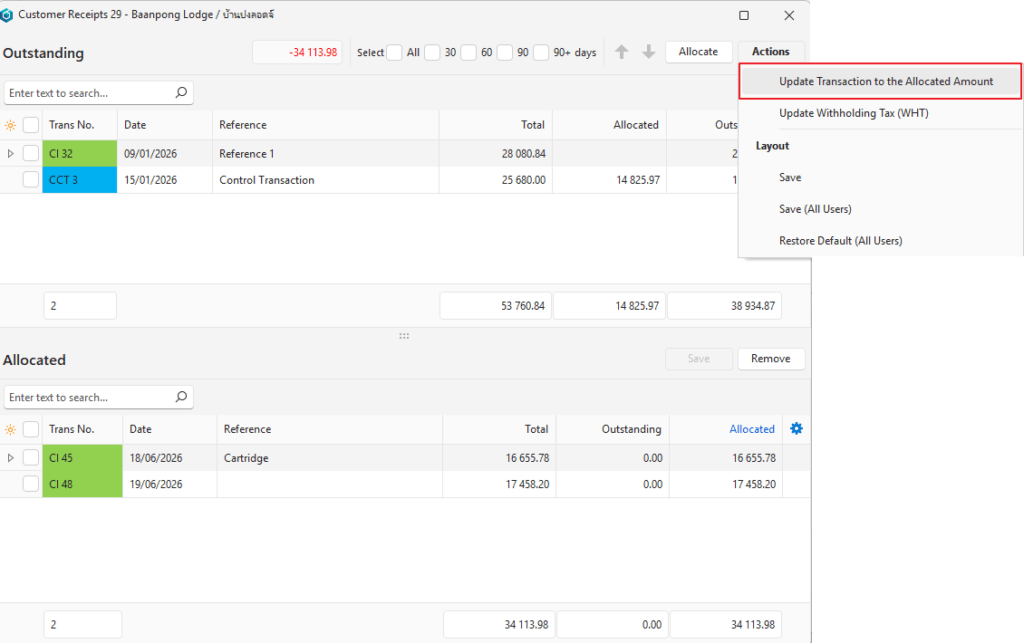
- Click the invoices that were paid.
- Click Allocate (button).
- Click Actions (button) > Update Transaction to the Allocated Amount and confirm the update.
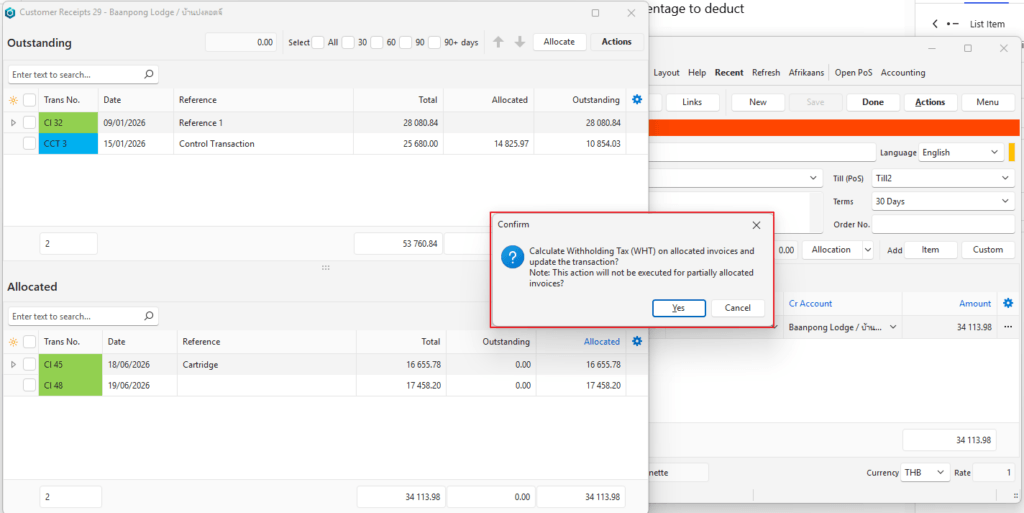
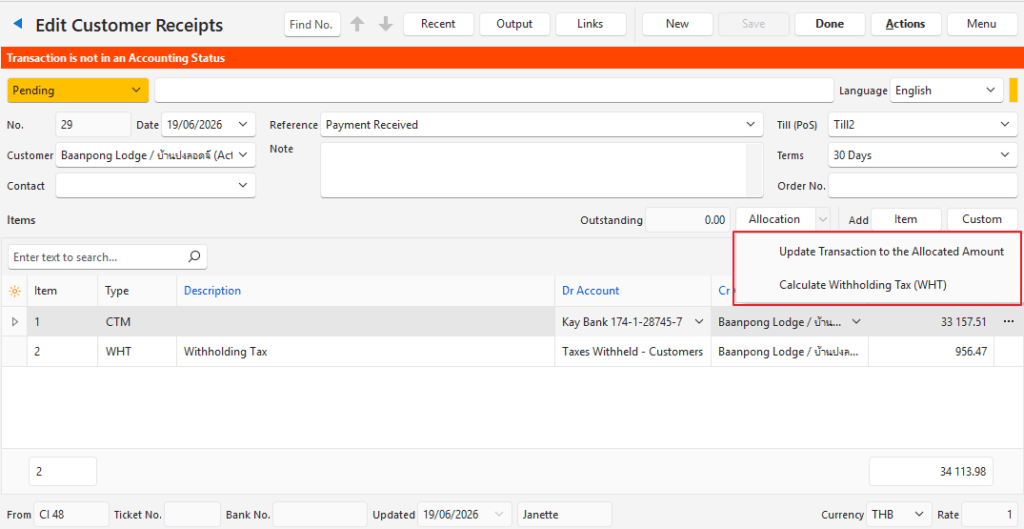
- Click Actions (button) > Update Withholding Tax and confirm the update.
- Close the Allocation popup by clicking the X in the corner.
- Complete the receipt by entering a bank account, or any other missing account details.
- Click Done (button) if there is one, else change the Status to Complete and click Save (button).
How to Process WHT on Supplier Payments
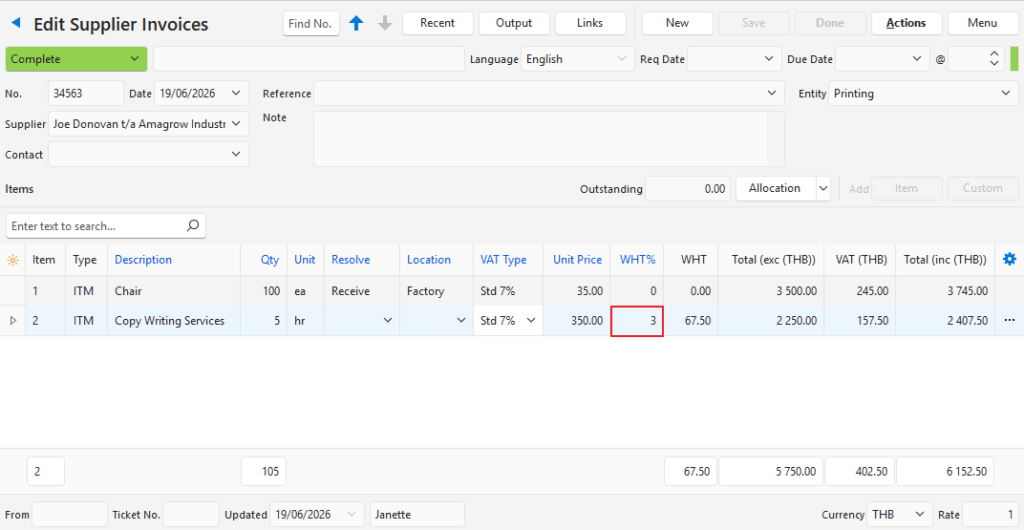
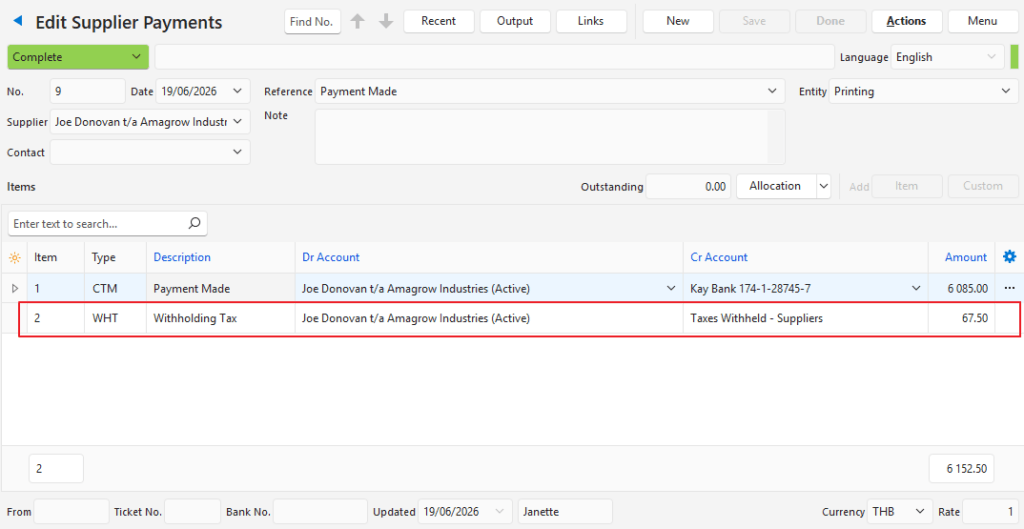
For this process to work, a WHT percentage must be entered on the Supplier Invoice. On the invoice itself, nothing is processed. It is only when the payment is captured, that the amount on the invoice is deducted from the payment and posted to the WHT account.
- Create a Supplier Payment.
- Enter the header details (e.g. select a supplier, enter a reference).
- Click Save (button).
- Click Allocation (button).
- Click the invoices that were paid.
- Click Allocate (button).
- Click Actions (button) > Update Transaction to the Allocated Amount and confirm the update.
- Click Actions (button) > Update Withholding Tax and confirm the update.
- Close the Allocation popup by clicking the X in the corner.
- Complete the payment by entering a bank account, or any other missing account details.
- Click Done (button) if there is one, else change the Status to Complete and click Save (button).
See the screenshots under Customer Receipts for step-by-step illustrations. The process for customers and suppliers is the same.
Learn More
- Tax Reconciliation Interface: Explains the interface used to reconcile VAT and WHT.
- Tax Reconciliation Setup Tutorials: These tutorials explain how to setup QuickEasy BOS to use the Tax Reconciliation feature.
- WHT Reconciliation Tutorials: These tutorials explain how to reconcile Withholding Taxes.
- WHT Setup Steps: These tutorials explain how to setup BOS to use WHT.
- WHT Tutorials: These tutorials explain how to apply withholding taxes to transactions.