
Admin – Users
- Once a database is created, users must be linked or assigned to the Database.
- A default Support User is automatically created for every database as QuickEasy Software – support@quickeasysoftware.com. This Support User is automatically linked to all the databases and cannot be deleted; however, the user’s access can be revoked.
- The Primary Contacts are emailed to notify them when a User is added.
- If someone logs into the Desktop application for the first time, they are added to the Local Users Table.
- Users can only log in on one machine at a time. When a user logs in on a new machine, their session expires on the old machine after five minutes.
- User passwords are encrypted when stored in a user’s database.
Navigation: BOS Tools > Admin (BOS) > Right click a Subscriber > View / Edit Users (context menu)
How to Add a User
- Navigate to the User interface in BOS Tools.
- Verify that the correct database is displayed on the dropdown list.
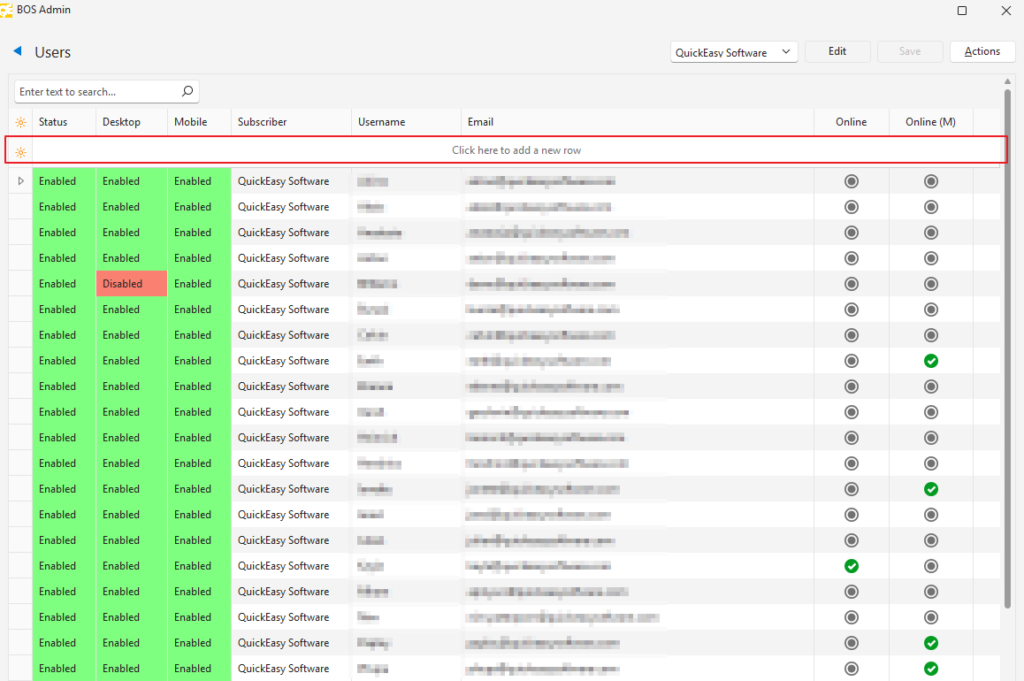
- Click the Edit (button) to enable a new row (“Click here to add a new row”).
- Enter a Username and Email address (duplicate email addresses are not allowed).
- Select a Status for the Desktop version: Enabled or Disabled.
- Select a Status for the Mobile version: Enabled or Disabled.
- Click Save (button).
- Right click the User to invite them to Windows or Mobile as required:
- Context menu options:
- Assign Databases
- Invite to Desktop
- Send Download Link (Desktop)
- Invite to Mobile
- Disable Desktop
- Disable Mobile
- Sign out Desktop
- Reset Password
- Delete
- Note: An error message is displayed if there are no Databases assigned to the User.
- Context menu options:
How to Add Users in BOS Desktop
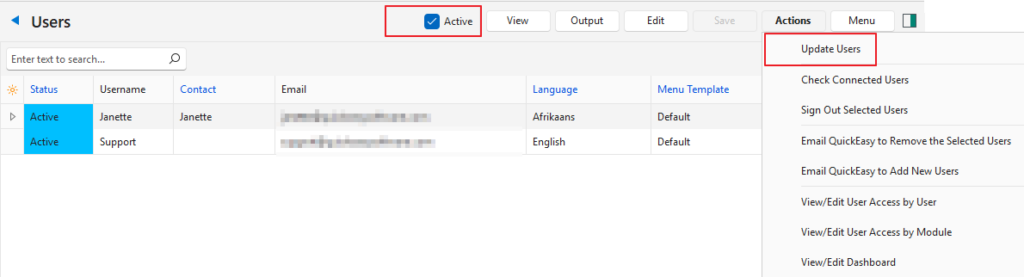
This action removes inactive users and adds active users. After updating, the checkbox to only show Active users is automatically unchecked.
- Open BOS Desktop.
- Click Setup > Users.
- Click Actions (button) > Update Users.
- Confirm the action on the popup.
How to Invite a User to Mobile
Multiple users can be invited using Actions (button) > Invite to Mobile.
- Navigate to the User interface in BOS Tools.
- Right click the User and select Invite to Mobile from the context menu.
- A confirmation is displayed on screen.
- The User is sent an email with their login details.
How to Invite a User to Desktop
Multiple users can be invited using Actions (button) > Invite to Desktop.
- Navigate to the User interface in BOS Tools.
- Right click the User and select Invite to Desktop from the context menu.
- A confirmation is displayed on screen.
- The User is sent an email with their login details.
How to Send a Download Link (Desktop)
- Navigate to the User interface in BOS Tools.
- Right click the Username and select Send Download Link (Desktop) from the context menu.
How to Disable a User’s Desktop Access
Multiple users can be invited using Actions (button) > Disable Desktop.
- Navigate to the User interface in BOS Tools.
- Right click the Username and select Disable Desktop from the context menu.
How to Disable a User’s Mobile Access
Multiple users can be invited using Actions (button) > Disable Mobile.
- Navigate to the User Interface in BOS Tools.
- Right click the Username and select Disable Mobile from the context menu.
How to Link Databases to a User
- Navigate to the User Interface in BOS Tools.
- Click Edit (button).
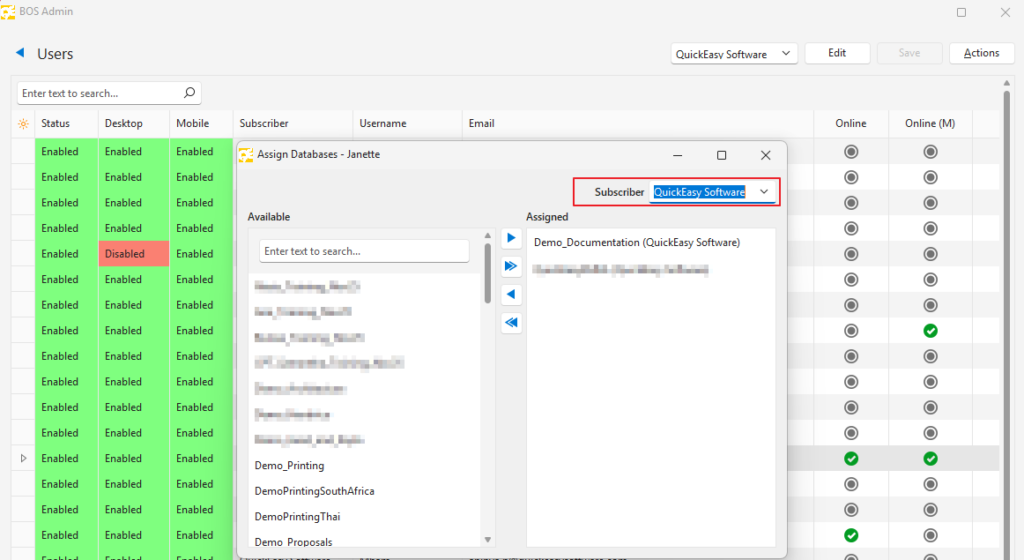
- Right click a Username and select Assign Databases from the context menu.
- Add a database by clicking it in the Available section and moving it, with the arrows, to the Assigned section. (Use Ctrl left click to select multiple databases.)
- Remove a database by clicking it in the Assigned section and moving it, with the arrows, to the Available section.
- Close the popup using the X in the corner.
How to Link or Unlink a Database to Multiple Users
This feature is currently unavailable (March 2026).
- Navigate to the User interface in BOS Tools.
- Click Actions (button) > Batch Update.
- Select all the Users you want to allocate a Database to (use Ctrl left click to select multiple users).
- Select a Database from the dropdown list next to Batch Assign Database.
- Click Assign (button) to link or Unassign to delink the selected users.
- Confirm that you want to assign the database on the popup.
- Check the checkboxes for the Desktop or Web versions next to the Usernames.
How to Reset a User’s Password
Multiple users’ passwords can be reset using Actions (button) > Reset Password.
- Navigate to the User interface in BOS Tools.
- Right click a Username and select Reset Password from the context menu.
- A password is emailed to the user, and a confirmation message is displayed.
- The applicable user will be prompted to change their password when they login with the emailed password.
How to Disable a User’s Access
Multiple users’ passwords can be reset using Actions (button) > Disable Desktop or Actions (button) > Disable Mobile.
- Navigate to the User Interface in BOS Tools.
- Right click a Username and select Disable Desktop or Disable Mobile from the context menu.
- Confirm that you want to disable the access.
How to Sign a User out of the Desktop App
- It may be necessary to first sign users out of the apps so that the apps can be upgraded or backed up.
- This step can also be performed from inside BOS. Navigate to Main Menu > Setup > Users > Actions (button) > Sign out Selected Users. However, there is a five-minute delay when signing users out from BOS Desktop.
- Navigate to the User Interface in BOS Tools.
- Select the User/s you want to sign out.
- Click Actions (button) > Sign Out Desktop.
- Confirm the action on the popup.
How User Authentication Works
- When a user logs into BOS Desktop, a token is issued against the database that the user is signed into.
- The token is assigned against the user_id and the database_id.
- This token is checked for validity against the database and the user it has been issued for, every five minutes by the BOS Desktop App.
- If the same user logs into the same database, the previous token is invalidated.
- If the expiry date on the token is reached, the token becomes invalid, and the user is signed out.
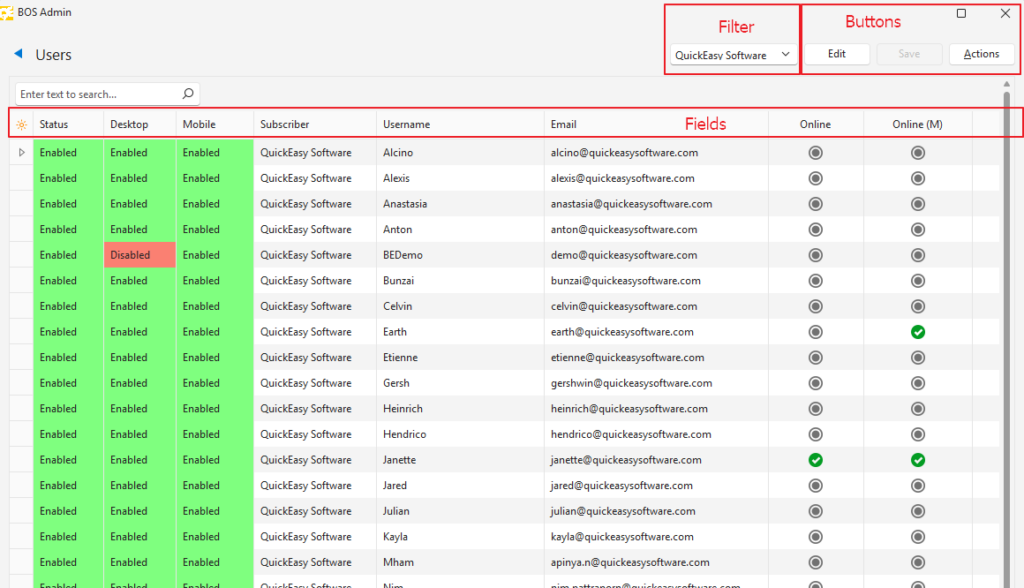
Fields Explained: Users (BOS)
| Field | Description |
|---|---|
| Field Chooser (*) | Allows users to add or remove columns. |
| ID | The system-generated number allocated to the subscriber. |
| Status | Status can be Enabled or Disabled. Users cannot log into disabled databases. This field is not on the Field Chooser (*) and cannot be hidden. |
| Desktop | The status of the desktop app which can be Enabled or Disabled. |
| Mobile | The status of the desktop app which can be Enabled or Disabled. |
| Primary | A checkbox. If checked, the user is a primary user (admin). |
| Username | The name by which the user is known. |
| The user’s email address. | |
| Online | A radio button. If checked, the user is currently using the desktop app. |
| Online (M) | A radio button. If checked, the user is currently using the mobile app. |
| User Updated | The User who last updated the record. |
| Last Updated | The date and time on which the record was last updated. |
| Menu (blank entry on field chooser) | A submenu that can be accessed by right clicking a username with the following functions: – Assign Databases: Assigns databases to the user. – Invite to Desktop: Sends the user an email with desktop login details. – Send Download Link (Desktop): Sends the user a link to download the desktop app. – Invite to Mobile: Sends the user an email with mobile login details. – Disable Desktop: Disables the user’s desktop access. – Disable Mobile: Disables the user’s mobile access. – Sign Out Desktop: Signs the user out of the desktop app. – Reset Password: Sends the user an email with a new password. – Delete: Deletes the user. |
Learn More
- Admin – BOS Tools Upgrade Notes: Upgrade notes for BOS Tools.
- Admin – Currencies: Activating currencies in BOS Tools.
- Admin – Database Backups: Backing up databases manually and automatically.
- Admin – Database Upgrades: Upgrading a database.
- Admin – Database Version Control: Technical information on versions in BOS.
- Admin – Databases: Managing and creating databases and user access.
- Admin – Mobile App: Mobile app management and user access.
- Admin – Subscribers and Languages: Managing subscribers in BOS Tools.

