
Assets Edit Views
The Assets module can be used in a variety of ways. Businesses that service assets (e.g. motor vehicles, or computer equipment) can enter their customer’s assets and link these assets to the customer accounts and service tickets. Businesses that use assets to produce income (e.g. printers) can link these assets for production features to determine the profitability of the asset.
The asset types named equipment and vehicles provide additional fields like serial numbers. If those fields are not needed, the type ‘other’ can be used, even for equipment and vehicles.
Assets is part of the setup menu but can be added to any menu group.
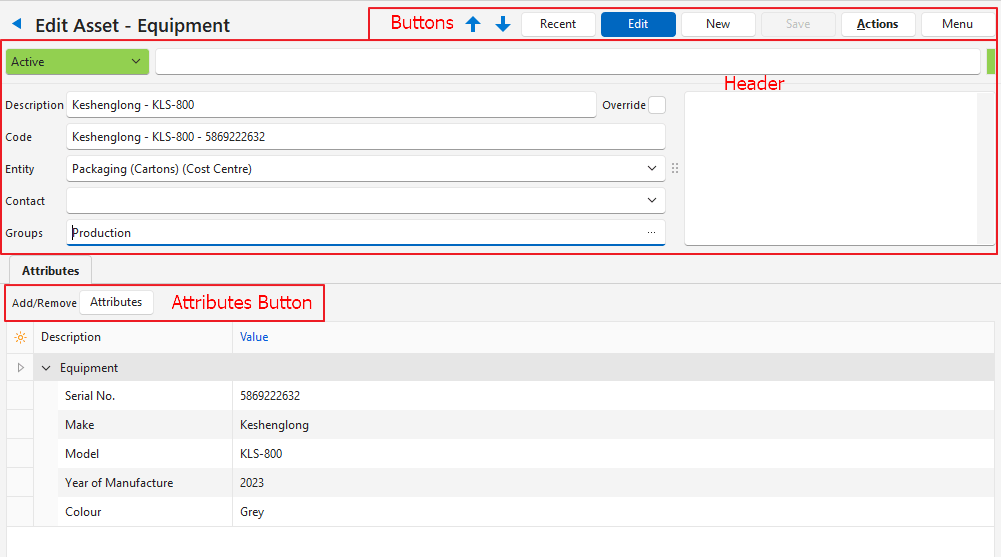
Buttons Explained
Button | Description |
Arrows | Navigates to the next or previous entry. |
Recent | A dropdown list of recently viewed records for quick access to those records. The button is supressed if there are no recent items. |
Edit | Allows the entry to be edited. |
New | Creates a new asset of the type selected. The available types are:
|
Save | Saves any changes. |
Actions |
|
Menu | View/Edit Notes & Attachments: Allows notes and attachments to be viewed, edited, and created. Settings
|
Header Explained
Field | Description |
Status | A dropdown list of statuses to select one. |
Status Note | A field to type a status note. |
Description | A field to enter a description. If auto generated the description is created as follows:
|
Code | A field to enter a brief description or code. Only the code is used in asset lookups on transactions or service tickets. If auto generated the code is created as follows:
|
Override | A checkbox. If checked the description and code can be edited (in Edit View). |
Entity | A dropdown list of entities for selection. |
Contact | A dropdown list of contacts for selection. |
Groups | Click the ellipses to add groups (categories) to the asset. |
Note | A space to enter a note. |
Attributes (tab) Explained
- Fixed attribute sets are automatically added for equipment and vehicles.
- Additional fixed attribute sets can be added (e.g. Financial).
- Fixed attribute fields cannot be altered, only the values can be captured.
- Custom attributes can be created to input additional information (Menu (button) > Edit Attributes).
- Lookup lists can be created for the attributes from the context menu (right click the entry and select Edit Lookups). Alternatively, the values can be typed in.
Button | Description |
Attributes | |
> Add | Provides a list of attributes that can be added. |
> Remove | Provides a list of attributes that can be removed. |
Equipment Attributes | |
Serial No. | Enter the machine’s serial number. |
Make | Enter the machine’s make. |
Model | Enter the machine’s model. |
Year of Manufacture | Enter the year of manufacture. |
Colour | Enter the asset’s colour. |
Vehicle Attributes | |
VIN (Vehicle Identification Number) | Enter the vehicle’s identification number. |
Engine No. | Enter the vehicle’s engine number. |
Registration No. (License Plate) | Enter the vehicle’s registration number. |
Make | Enter or select the vehicle’s make. |
Model | Enter or select the vehicle’s make. |
Year of Manufacture | Enter the vehicle’s year of manufacture. |
Body Type | Enter or select the vehicle’s body type. |
Colour | Enter or select the vehicle’s body type. |
Financial Attributes | |
Supplier | A dropdown list of suppliers to select one. |
Purchase Price | Enter the asset’s purchase price. The purchase price should exclude VAT if VAT was claimed back. The purchase price should include VAT, if VAT was not claimed (e.g. if the tax laws do not allow VAT to be claimed on the specific asset or the you are not registered for VAT). |
Current Value | Enter the asset’s current value. |
Salvage Value | Enter the asset’s salvage value (i.e. the asset’s value at the end of its useful life). |
Depreciation Method | Enter the way the asset is depreciated (e.g. Straight Line or Reducing Balance). |
Useful Life (Years) | Enter the number of years the asset should last. |
Monthly Cost | Enter the asset’s monthly costs (e.g. running and maintenance costs). |
Odometer (tab) Explained
Fields in blue can be edited if the entry is not linked to a Service Ticket. If the entry is linked to a Service Ticket, it can only be edited on the ticket.
Field | Description |
Field Chooser (*) | Used to add or remove columns. |
ID | The system-generated number for the entry. |
Type | The type of reading. |
Ticket No. | The linked service ticket’s number. |
Date | The reading’s date. This field can only be edited if the reading was captured directly (i.e. not transferred from the linked service ticket). |
Reading | The odometer reading. This field can only be edited if the reading was captured directly (i.e. not transferred from the linked service ticket). |
Created | The date on which the entry was created. |
Updated | The date on which the entry was last updated. |
Updated By | The user who last updated the entry. |

| A submenu with the following options:
|
Learn More
- Assets List Views: Explains the interface and different displays for viewing lists of assets.
- Assets Tutorials: Creating and Editing Assets: These tutorials explain how to create and edit assets.
- Assets Groups: These tutorials explain how to create and edit groups to classify assets.