- Home
- Knowledge Base
- Assets
- Asset List Views
Asset List Views
The Assets module can be used in a variety of ways. Businesses that service assets (e.g. motor vehicles, or computer equipment) can enter their customer’s assets and link these assets to the customer accounts and service tickets. Businesses that use assets to produce income (e.g. printers) can link these assets for production features to determine the profitability of the asset.
Assets can be added to any menu group.
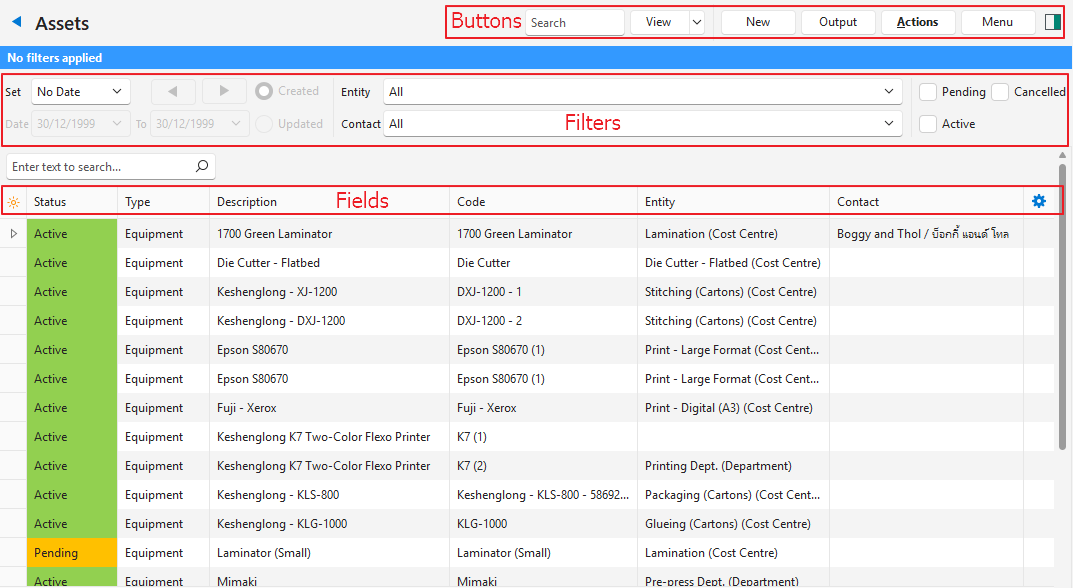
There are multiple views. The Actions button is only available on the Default view.
The Vehicle and Equipment views include additional fields for the asset’s attributes.
Default View: Buttons Explained

| Button | Description |
| View | Generates a list of entries as per the selected data filters. |
| Arrow on View Button | > Reset Data Filter: Resets all the data filters. |
| Recent | A dropdown list of recently viewed records for quick access to those records. The button is supressed if there are no recent items. |
| New | Creates a new asset of the type selected. The available types are: – Equipment – Vehicles |
| Output | Prints, previews, or exports the selected report if Output Templates are added. Allows the display to be exported in .xlsx, .csv, or .htm format. |
| Actions | Batch Update: Applies the changes to all the selected records when Update (button) is clicked and the changes are confirmed. – Contact: Changes the contact to the one selected from the dropdown list. – Entity: Changes the entity to the one selected from the dropdown list. – Groups: Adds or removes the group selected from the dropdown list. – Status: Changes the status to the one selected from the dropdown list. |
| Menu | Show Notes: Toggles displaying or hiding notes. Views: – Default – Vehicles – Equipment Settings – User Access: Sets the user access for assets. – Edit Attributes: Allows custom attributes to be created and applied to assets. – Edit Statuses: Creates statuses for assets. – Edit Groups: Allows groups to be created for assets. Layout |
Default View: Filters Explained
| Filter | Description |
| Set | A dropdown list with date options (e.g. No Date, Today, This Year). |
| Arrows | Adjusts the Date in the direction of the arrow. |
| Date | Allows users to set their own Dates (based on the selection under Set). |
| Created | If selected displays transactions Created on the selected date. |
| Updated | If selected displays transactions Updated on the selected date. |
| Entity | A dropdown list of Entities to select All or a specific Entity. |
| Contact | A dropdown list of Contacts to select All or a specific Contact. |
| Status Checkboxes | Checkboxes. Only entries with the checked statuses are displayed. If no boxes are checked, all the entries are displayed. |
Default View: Fields Explained
| Field | Description |
| Field Chooser (*) | Allows users to add or remove columns. |
| ID | The system-generated number for the entry. |
| Status | The current Status of the entry. |
| Type | The type of asset (e.g. Equipment or Vehicles). |
| Description | The asset’s description. If auto generated the description is created as follows: – Equipment: The machine’s make and model. – Vehicles: The vehicles, make, model, year of manufacture, and registration number. |
| Code | The asset’s code which is used in all lookup lists. If auto generated the code is created as follows: – Equipment: The machine’s make, model, and serial number. – Vehicles: The vehicles, make, model, and registration number. |
| Override | A checkbox. If checked the description and code can be edited. |
| Entity | The entity to which the asset is allocated. An asset can only be allocated to one entity. However, an entity can have multiple assets. |
| Contact | The contact to which the asset is allocated. An asset can only be allocated to one contact. However, a contact can have multiple assets. |
| Groups | The groups that the assets belong to. |
| Created | The date on which the entry was created. |
| Updated | The date on which the entry was updated. |
| Updated By | The date on which the entry was updated. |
| Widget | A submenu, which can also be accessed by right clicking the entry, with the following functions: – View/Edit Notes & Attachments: Creates, edits, or displays notes and attachments. – Edit: Opens the asset’s record for editing. – Copy: Copies the asset to create a new asset. – Delete: Displays a warning and lists where the asset is currently used. If confirmed, deletes the asset. Deleted assets are sent to the Recycle Bin. |
Vehicles: Buttons Explained
| Button | Description |
|---|---|
| View | Generates a list of entries as per the selected data filters. |
| Arrow on View Button | > Reset Data Filter: Resets all the data filters. |
| Recent | A dropdown list of recently viewed records for quick access to those records. The button is supressed if there are no recent items. |
| New | Creates a new asset of the type selected. The available types are: – Equipment – Vehicles |
| Output | Prints, previews, or exports the selected report if Output Templates are added. Allows the display to be exported in .xlsx, .csv, or .htm format. |
| Menu | Show Notes: Toggles displaying or hiding notes. Views: – Default – Vehicles – Equipment Settings – User Access: Sets the user access for assets. – Edit Attributes: Allows custom attributes to be created and applied to assets. – Edit Statuses: Creates statuses for assets. – Edit Groups: Allows groups to be created for assets. Layout |
Vehicles: Filters Explained
| Filter | Description |
|---|---|
| Set | A dropdown list with date options (e.g. No Date, Today, This Year). |
| Arrows | Adjusts the Date in the direction of the arrow. |
| Date | Allows users to set their own Dates (based on the selection under Set). |
| Created (radio button) | If selected shows transactions Created on the selected date. |
| Updated (radio button) | If selected shows transactions Updated on the selected date. |
| Entity | A dropdown list of Entities to select All or a specific Entity. |
| Contact | A dropdown list of Contacts to select All or a specific Contact. |
| Status Checkboxes | Checkboxes. Only entries with the checked statuses are displayed. If no boxes are checked, all the entries are displayed. |
Vehicles: Fields Explained
| Field | Description |
|---|---|
| Field Chooser (*) | Allows users to add or remove columns. |
| ID | The system-generated number for the entry. |
| Status | The current Status of the entry. |
| Description | The vehicle’s description. If auto-generated the description is the vehicle’s make and model. |
| Code | The vehicle’s code. If auto generated, the code is the vehicle’s make, model, and registration number. |
| Entity | The entity to which the vehicle is allocated. |
| Contact | The contact to which the vehicle is allocated. |
| Groups | The group the vehicle belongs to. |
| VIN | The vehicle’s identity number. |
| Engine No. | The vehicle’s engine number. |
| Registration No. | The vehicle’s registration umber. |
| Make | The vehicle’s make. |
| Model | The vehicle’s model. |
| Year | The year of manufacture. |
| Body Type | The vehicle’s body type. |
| Colour | The vehicle’s colour. |
| Widget | A submenu, which can also be accessed by right clicking the entry, with the following functions: – View/Edit Notes & Attachments – Edit |
Equipment: Buttons Explained
| Button | Description |
|---|---|
| View | Generates a list of entries as per the selected data filters. |
| Arrow on View Button | > Reset Data Filter: Resets all the data filters. |
| Recent | A dropdown list of recently viewed records for quick access to those records. The button is supressed if there are no recent items. |
| New | Creates a new asset of the type selected. The available types are: Equipment Vehicles |
| Output | Prints, previews, or exports the selected report if Output Templates are added. Allows the display to be exported in .xlsx, .csv, or .htm format. |
| Menu | Show Notes: Toggles displaying or hiding notes. Views: – Default – Vehicles – Equipment Settings – User Access: Sets the user access for assets. – Edit Attributes: Allows custom attributes to be created and applied to assets. – Edit Statuses: Creates statuses for assets. – Edit Groups: Allows groups to be created for assets. Layout |
Equipment: Filters Explained
| Filter | Description |
|---|---|
| Set | A dropdown list with date options (e.g. No Date, Today, This Year). |
| Arrows | Adjusts the Date in the direction of the arrow. |
| Date | Allows users to set their own Dates (based on the selection under Set). |
| Created | If selected shows transactions Created on the selected date. |
| Updated | If selected shows transactions Updated on the selected date. |
| Entity | A dropdown list of Entities to select All or a specific Entity. |
| Contact | A dropdown list of Contacts to select All or a specific Contact. |
| Status Checkboxes | Checkboxes. Only entries with the checked statuses are displayed. If no boxes are checked, all the entries are displayed. |
Equipment: Fields Explained
| Field | Description |
|---|---|
| Field Chooser (*) | Allows users to add or remove columns. |
| ID | The system-generated number for the entry. |
| Status | The current Status of the entry. |
| Description | The asset’s description. If auto generated the description is the machine’s make and model. |
| Code | The asset’s code. If auto generated the description is the machine’s make, model, and serial number. |
| Entity | The entity to which the asset is allocated. |
| Contact | The contact to which the asset is allocated. |
| Groups | The group that the asset belongs to. |
| Serial No. | The asset’s serial number. |
| Make | The asset’s make. |
| Model | The asset’s model. |
| Year | The asset’s year of manufacture. |
| Colour | The asset’s colour. |
| Widget | A submenu, which can also be accessed by right clicking the entry, with the following functions: – View/Edit Notes & Attachments – Edit |
Learn More
- Asset Edit Views: Explains the interface for adding assets such as equipment and vehicles.
- Creating and Editing Assets: These tutorials explain how to create and edit assets.
- Asset Groups (Categories): These tutorials explain how to create and edit categories.
มุมมองรายการสินทรัพย์
โมดูลสินทรัพย์สามารถใช้ได้หลายวิธี ธุรกิจที่ให้บริการสินทรัพย์ (เช่น ยานยนต์ หรืออุปกรณ์คอมพิวเตอร์) สามารถป้อนสินทรัพย์ของลูกค้าและเชื่อมโยงสินทรัพย์เหล่านี้กับบัญชีลูกค้าและตั๋วบริการได้ ธุรกิจที่ใช้สินทรัพย์เพื่อสร้างรายได้ (เช่น เครื่องพิมพ์) สามารถเชื่อมโยงสินทรัพย์เหล่านี้สําหรับคุณสมบัติการผลิตเพื่อกําหนดความสามารถในการทํากําไรของสินทรัพย์
คุณสามารถเพิ่มเนื้อหาลงในกลุ่มเมนูใดก็ได้
มีหลายมุมมอง ปุ่ม การดําเนินการ จะพร้อมใช้งาน ในมุมมองเริ่มต้น เท่านั้น
มุมมองยานพาหนะและอุปกรณ์มีฟิลด์เพิ่มเติมสําหรับคุณลักษณะของสินทรัพย์
มุมมองเริ่มต้น: อธิบายปุ่ม

| ปุ่ม | คำอธิบาย |
| ดู | สร้างรายการรายการตามตัวกรองข้อมูลที่เลือก |
| ลูกศรบนปุ่มดู | > รีเซ็ตตัวกรองข้อมูล: รีเซ็ตตัวกรองข้อมูลทั้งหมด |
| ล่าสุด | รายการดรอปดาวน์ของเรกคอร์ดที่ดูล่าสุดเพื่อการเข้าถึงเรกคอร์ดเหล่านั้นอย่างรวดเร็ว ปุ่มจะถูกระงับหากไม่มีรายการล่าสุด |
| ใหม่ | สร้างเนื้อหาใหม่ของชนิดที่เลือก ประเภทที่มีจําหน่ายคือ: – อุปกรณ์ – ยานพาหนะ |
| ผลลัพธ์ | พิมพ์ แสดงตัวอย่าง หรือส่งออกรายงานที่เลือกหากมีการเพิ่มเทมเพลตเอาต์พุต อนุญาตให้ส่งออกจอแสดงผลในรูปแบบ .xlsx, .csv หรือ .htm |
| การดำเนินการ | อัปเดตแบทช์: นําการเปลี่ยนแปลงไปใช้กับเรกคอร์ดที่เลือกทั้งหมดเมื่อคลิก อัปเดต (ปุ่ม) และยืนยันการเปลี่ยนแปลง – ผู้ติดต่อ: เปลี่ยนผู้ติดต่อเป็นผู้ติดต่อที่เลือกจากรายการดรอปดาวน์ – เอนทิตี: เปลี่ยนเอนทิตีเป็นเอนทิตีที่เลือกจากรายการดรอปดาวน์ – กลุ่ม: เพิ่มหรือลบกลุ่มที่เลือกจากรายการดรอปดาวน์ – สถานะ: เปลี่ยนสถานะเป็นสถานะที่เลือกจากรายการแบบเลื่อนลง |
| เมนู | แสดงหมายเหตุ: สลับการแสดงหรือซ่อนโน้ต มุมมอง: – ค่าเริ่มต้น – ยานพาหนะ – อุปกรณ์ การตั้งค่า – การเข้าถึงของผู้ใช้: ตั้งค่าการเข้าถึงของผู้ใช้สําหรับเนื้อหา – แก้ไขแอตทริบิวต์: อนุญาตให้สร้างและนําแอตทริบิวต์ที่กําหนดเองไปใช้กับเนื้อหาได้ – แก้ไขสถานะ: สร้างสถานะสําหรับเนื้อหา – แก้ไขกลุ่ม: อนุญาตให้สร้างกลุ่มสําหรับเนื้อหา เลย์เอ้าต์ |
มุมมองเริ่มต้น: อธิบายตัวกรอง
| ตัวกรอง | คำอธิบาย |
| ชุด | รายการแบบเลื่อนลงที่มีตัวเลือกวันที่ (เช่น ไม่มีวันที่ วันนี้ ปีนี้) |
| ลูกศร | ปรับวันที่ตามทิศทางของลูกศร |
| วันที่ | อนุญาตให้ผู้ใช้ตั้งค่า วันที่ ของตนเอง (ตามการเลือกภายใต้ Set) |
| สร้าง | หากเลือก จะแสดงธุรกรรม ที่สร้างขึ้น ในวันที่ที่เลือก |
| อัปเดตแล้ว | หากเลือก จะแสดงธุรกรรมที่ อัปเดต ในวันที่ที่เลือก |
| หน่วยงาน | รายการดรอปดาวน์ของ เอนทิตี เพื่อเลือก ทั้งหมด หรือเอ นทิตีเฉพาะ |
| ติดต่อ | รายการดรอปดาวน์ของ ผู้ติดต่อ เพื่อเลือก ทั้งหมด หรือผู้ติดต่อที่ระบุ |
| ช่องทำเครื่องหมายสถานะ | ช่องทําเครื่องหมาย เฉพาะรายการที่มีสถานะที่ทําเครื่องหมายไว้เท่านั้นที่จะแสดง หากไม่มีช่องใดถูกเลือก จะแสดงรายการทั้งหมด |
มุมมองเริ่มต้น: อธิบายเขตข้อมูล
| ฟิลด์ | คำอธิบาย |
| ตัวเลือกฟิลด์ (*) | อนุญาตให้ผู้ใช้เพิ่มหรือลบคอลัมน์ |
| รหัส | หมายเลขที่ระบบสร้างขึ้นสำหรับรายการ |
| สถานะ | สถานะปัจจุบันของรายการ |
| ประเภท | ประเภทของทรัพย์สิน (เช่น อุปกรณ์หรือยานพาหนะ) |
| คำอธิบาย | คําอธิบายของชิ้นงาน ถ้าสร้างขึ้นโดยอัตโนมัติ คําอธิบายจะถูกสร้างขึ้นดังนี้: – อุปกรณ์: ยี่ห้อและรุ่นของเครื่อง – ยานพาหนะ: ยานพาหนะ ยี่ห้อ รุ่น ปีที่ผลิต และหมายเลขทะเบียน |
| รหัส | รหัสของสินทรัพย์ที่ใช้ในรายการค้นหาทั้งหมด ถ้าสร้างรหัสโดยอัตโนมัติจะถูกสร้างขึ้นดังนี้: – อุปกรณ์: ยี่ห้อ รุ่น และหมายเลขซีเรียลของเครื่อง – ยานพาหนะ: ยานพาหนะ ยี่ห้อ รุ่น และหมายเลขทะเบียน |
| แทนที่ | ช่องทําเครื่องหมาย หากเลือกคําอธิบายและรหัสสามารถแก้ไขได้ |
| หน่วยงาน | เอนทิตีที่มีการปันส่วนสินทรัพย์ สินทรัพย์สามารถปันส่วนให้กับเอนทิตีได้เพียงหนึ่งเอนทิตีเท่านั้น อย่างไรก็ตาม เอนทิตีสามารถมีสินทรัพย์ได้หลายรายการ |
| ติดต่อ | ผู้ติดต่อที่มีการปันส่วนสินทรัพย์ สินทรัพย์สามารถปันส่วนให้กับผู้ติดต่อได้เพียงรายเดียวเท่านั้น อย่างไรก็ตาม ผู้ติดต่อสามารถมีสินทรัพย์ได้หลายรายการ |
| กลุ่ม | กลุ่มที่เนื้อหาเป็นสมาชิก |
| สร้างแล้ว | วันที่ที่รายการถูกสร้าง |
| อัปเดตแล้ว | วันที่ที่รายการถูกอัปเดต |
| อัปเดตโดย | วันที่ที่รายการถูกอัปเดต |
| วิดเจ็ต | เมนูย่อยซึ่งสามารถเข้าถึงได้โดยการคลิกขวาที่รายการ พร้อมฟังก์ชันต่อไปนี้: – ดู/แก้ไขโน้ตและไฟล์แนบ: สร้าง แก้ไข หรือแสดงโน้ตและไฟล์แนบ – แก้ไข: เปิดระเบียนของเนื้อหาเพื่อแก้ไข – คัดลอก: คัดลอกเนื้อหาเพื่อสร้างเนื้อหาใหม่ – ลบ: แสดงคําเตือนและแสดงรายการที่เนื้อหากําลังใช้อยู่ หากได้รับการยืนยัน ให้ลบเนื้อหา เนื้อหาที่ถูกลบจะถูกส่งไปยังถังรีไซเคิล |
ยานพาหนะ: อธิบายปุ่ม
| ปุ่ม | คำอธิบาย |
|---|---|
| ดู | สร้างรายการรายการตามตัวกรองข้อมูลที่เลือก |
| ลูกศรบนปุ่มดู | > รีเซ็ตตัวกรองข้อมูล: รีเซ็ตตัวกรองข้อมูลทั้งหมด |
| ล่าสุด | รายการดรอปดาวน์ของเรกคอร์ดที่ดูล่าสุดเพื่อการเข้าถึงเรกคอร์ดเหล่านั้นอย่างรวดเร็ว ปุ่มจะถูกระงับหากไม่มีรายการล่าสุด |
| ใหม่ | สร้างเนื้อหาใหม่ของชนิดที่เลือก ประเภทที่มีจําหน่ายคือ: – อุปกรณ์ – ยานพาหนะ |
| ผลลัพธ์ | พิมพ์ แสดงตัวอย่าง หรือส่งออกรายงานที่เลือกหากมีการเพิ่มเทมเพลตเอาต์พุต อนุญาตให้ส่งออกจอแสดงผลในรูปแบบ .xlsx, .csv หรือ .htm |
| เมนู | แสดงหมายเหตุ: สลับการแสดงหรือซ่อนโน้ต มุมมอง: – ค่าเริ่มต้น – ยานพาหนะ – อุปกรณ์ การตั้งค่า – การเข้าถึงของผู้ใช้: ตั้งค่าการเข้าถึงของผู้ใช้สําหรับเนื้อหา – แก้ไขแอตทริบิวต์: อนุญาตให้สร้างและนําแอตทริบิวต์ที่กําหนดเองไปใช้กับเนื้อหาได้ – แก้ไขสถานะ: สร้างสถานะสําหรับเนื้อหา – แก้ไขกลุ่ม: อนุญาตให้สร้างกลุ่มสําหรับเนื้อหา เลย์เอ้าต์ |
ยานพาหนะ: อธิบายตัวกรอง
| ตัวกรอง | คำอธิบาย |
|---|---|
| ชุด | รายการแบบเลื่อนลงที่มีตัวเลือกวันที่ (เช่น ไม่มีวันที่ วันนี้ ปีนี้) |
| ลูกศร | ปรับวันที่ตามทิศทางของลูกศร |
| วันที่ | อนุญาตให้ผู้ใช้ตั้งค่า วันที่ ของตนเอง (ตามการเลือกภายใต้ Set) |
| สร้าง (ปุ่มตัวเลือก) | หากเลือก จะแสดงธุรกรรม สร้างขึ้น ในวันที่ที่เลือก |
| อัปเดต (ปุ่มตัวเลือก) | หากเลือก จะแสดงธุรกรรมที่ อัปเดต ในวันที่ที่เลือก |
| หน่วยงาน | รายการดรอปดาวน์ของ เอนทิตี เพื่อเลือก ทั้งหมด หรือเอ นทิตีเฉพาะ |
| ติดต่อ | รายการดรอปดาวน์ของ ผู้ติดต่อ เพื่อเลือก ทั้งหมด หรือผู้ติดต่อที่ระบุ |
| ช่องทำเครื่องหมายสถานะ | ช่องทําเครื่องหมาย เฉพาะรายการที่มีสถานะที่ทําเครื่องหมายไว้เท่านั้นที่จะแสดง หากไม่มีช่องใดถูกเลือก จะแสดงรายการทั้งหมด |
ยานพาหนะ: อธิบายฟิลด์
| ฟิลด์ | คำอธิบาย |
|---|---|
| ตัวเลือกฟิลด์ (*) | อนุญาตให้ผู้ใช้เพิ่มหรือลบคอลัมน์ |
| รหัส | หมายเลขที่ระบบสร้างขึ้นสำหรับรายการ |
| สถานะ | สถานะปัจจุบันของรายการ |
| คำอธิบาย | คําอธิบายของยานพาหนะ หากสร้างขึ้นโดยอัตโนมัติ คําอธิบายจะเป็นยี่ห้อและรุ่นของรถ |
| รหัส | รหัสของรถ หากสร้างขึ้นโดยอัตโนมัติ รหัสคือยี่ห้อ รุ่น และหมายเลขทะเบียนของรถ |
| หน่วยงาน | เอนทิตีที่จัดสรรยานพาหนะ |
| ติดต่อ | ผู้ติดต่อที่จัดสรรยานพาหนะ |
| กลุ่ม | กลุ่มที่รถอยู่ |
| วิน | หมายเลขประจําตัวของรถ |
| หมายเลขเครื่องยนต์ | หมายเลขเครื่องยนต์ของรถ |
| เลขทะเบียน | ทะเบียนรถสีเหลือง |
| ทําให้ | ยี่ห้อของรถ |
| รุ่น | รุ่นของรถ |
| ปี | ปีที่ผลิต |
| ประเภทของร่างกาย | ประเภทตัวถังของรถ |
| สี | สีของรถ |
| วิดเจ็ต | เมนูย่อยซึ่งสามารถเข้าถึงได้โดยคลิกขวาที่รายการ โดยมีฟังก์ชันดังต่อไปนี้: – ดู / แก้ไขบันทึกย่อและไฟล์แนบ – แก้ไข |
อุปกรณ์: อธิบายปุ่ม
| ปุ่ม | คำอธิบาย |
|---|---|
| ดู | สร้างรายการรายการตามตัวกรองข้อมูลที่เลือก |
| ลูกศรบนปุ่มดู | > รีเซ็ตตัวกรองข้อมูล: รีเซ็ตตัวกรองข้อมูลทั้งหมด |
| ล่าสุด | รายการดรอปดาวน์ของเรกคอร์ดที่ดูล่าสุดเพื่อการเข้าถึงเรกคอร์ดเหล่านั้นอย่างรวดเร็ว ปุ่มจะถูกระงับหากไม่มีรายการล่าสุด |
| ใหม่ | สร้างเนื้อหาใหม่ของชนิดที่เลือก ประเภทที่มีจําหน่ายคือ: อุปกรณ์ ยานพาหนะ |
| ผลลัพธ์ | พิมพ์ แสดงตัวอย่าง หรือส่งออกรายงานที่เลือกหากมีการเพิ่มเทมเพลตเอาต์พุต อนุญาตให้ส่งออกจอแสดงผลในรูปแบบ .xlsx, .csv หรือ .htm |
| เมนู | แสดงหมายเหตุ: สลับการแสดงหรือซ่อนโน้ต มุมมอง: – ค่าเริ่มต้น – ยานพาหนะ – อุปกรณ์ การตั้งค่า – การเข้าถึงของผู้ใช้: ตั้งค่าการเข้าถึงของผู้ใช้สําหรับเนื้อหา – แก้ไขแอตทริบิวต์: อนุญาตให้สร้างและนําแอตทริบิวต์ที่กําหนดเองไปใช้กับเนื้อหาได้ – แก้ไขสถานะ: สร้างสถานะสําหรับเนื้อหา – แก้ไขกลุ่ม: อนุญาตให้สร้างกลุ่มสําหรับเนื้อหา เลย์เอ้าต์ |
อุปกรณ์: อธิบายตัวกรอง
| ตัวกรอง | คำอธิบาย |
|---|---|
| ชุด | รายการแบบเลื่อนลงที่มีตัวเลือกวันที่ (เช่น ไม่มีวันที่ วันนี้ ปีนี้) |
| ลูกศร | ปรับวันที่ตามทิศทางของลูกศร |
| วันที่ | อนุญาตให้ผู้ใช้ตั้งค่า วันที่ ของตนเอง (ตามการเลือกภายใต้ Set) |
| สร้าง | หากเลือก จะแสดงธุรกรรม สร้างขึ้น ในวันที่ที่เลือก |
| อัปเดตแล้ว | หากเลือก จะแสดงธุรกรรมที่ อัปเดต ในวันที่ที่เลือก |
| หน่วยงาน | รายการดรอปดาวน์ของ Entities เพื่อ เลือก ทั้งหมด หรือ เอนทิตีเฉพาะ |
| ติดต่อ | รายการดรอปดาวน์ของ ผู้ติดต่อ เพื่อเลือก ทั้งหมด หรือผู้ติดต่อที่ระบุ |
| ช่องทำเครื่องหมายสถานะ | ช่องทําเครื่องหมาย เฉพาะรายการที่มีสถานะที่ทําเครื่องหมายไว้เท่านั้นที่จะแสดง หากไม่มีการเลือกช่อง รายการทั้งหมดจะปรากฏขึ้น |
อุปกรณ์: อธิบายฟิลด์
| ฟิลด์ | คำอธิบาย |
|---|---|
| ตัวเลือกฟิลด์ (*) | อนุญาตให้ผู้ใช้เพิ่มหรือลบคอลัมน์ |
| รหัส | หมายเลขที่ระบบสร้างขึ้นสำหรับรายการ |
| สถานะ | สถานะปัจจุบันของรายการ |
| คำอธิบาย | คําอธิบายของชิ้นงาน หากสร้างขึ้นโดยอัตโนมัติ คําอธิบายคือยี่ห้อและรุ่นของเครื่อง |
| รหัส | รหัสของเนื้อหา หากสร้างขึ้นโดยอัตโนมัติ คําอธิบายจะเป็นยี่ห้อ รุ่น และหมายเลขซีเรียลของเครื่อง |
| หน่วยงาน | เอนทิตีที่มีการปันส่วนสินทรัพย์ |
| ติดต่อ | ผู้ติดต่อที่มีการปันส่วนสินทรัพย์ |
| กลุ่ม | กลุ่มที่เนื้อหาเป็นสมาชิก |
| หมายเลขซีเรียล | หมายเลขซีเรียลของเนื้อหา |
| ทําให้ | สินทรัพย์ทํา |
| รุ่น | โมเดลของสินทรัพย์ |
| ปี | ปีที่ผลิตของสินทรัพย์ |
| สี | สีของชิ้นงาน |
| วิดเจ็ต | เมนูย่อยซึ่งสามารถเข้าถึงได้โดยคลิกขวาที่รายการ โดยมีฟังก์ชันดังต่อไปนี้: – ดู / แก้ไขบันทึกย่อและไฟล์แนบ – แก้ไข |
เรียนรู้เพิ่มเติม
- มุมมองการแก้ไขเนื้อหา: อธิบายอินเทอร์เฟซสําหรับการเพิ่มสินทรัพย์ เช่น อุปกรณ์และพาหนะ
- การสร้างและแก้ไขเนื้อหา: บทช่วยสอนเหล่านี้อธิบายวิธีสร้างและแก้ไขเนื้อหา
- กลุ่มชิ้นงาน (หมวดหมู่): บทช่วยสอนเหล่านี้จะอธิบายวิธีสร้างและแก้ไขหมวดหมู่