
Proposal Templates Edit and List Views
Proposals are a quick and efficient way of offering customers buying options. Proposal templates simplify creating quotations for complex products that have multiple add-ons or customisations.
An unlimited number of proposal templates can be created. Proposals integrate with transactions and the selected proposal options are added as line items.
Proposal Templates can be created from transactions or transaction types.
Navigation: Main Menu > Setup > Transaction Types > Double click the applicable Transaction Type > Menu (button) > Edit Proposal Templates
Transaction Type Settings
Navigation: Main Menu > Setup > Transaction Types > Double click a Transaction Type > Settings (tab)
These settings are mandatory for proposals to work with the transaction.
- Accounting > Pricing: Select Sell Price from the dropdown list.
- General > Enable Proposals: Check the checkbox to enable proposals.
- Transaction Items > Enable Adding Items: Select All or Items.
List View

Buttons Explained
| Button | Description |
|---|---|
| View | … |
| New | Creates a new proposal. |
| Menu | – Show Notes: Displays the proposal notes (typed on the transaction) below the line items. – Layout |
Fields Explained
| Field | Description |
|---|---|
| Field Chooser (*) | Allows users to add or remove columns. |
| ID | The system-generated number allocated to the proposal. |
| Status | The proposal’s status which can be: – Draft – Review – Ready |
| Description | The name of the proposal. |
| Code | The abbreviated name of the proposal. |
| Status Note | Any note typed on the status bar. |
| Created | The date on which the proposal was created. |
| Updated | The date on which the proposal was last updated. |
| Updated By | The user who last updated the proposal. |
| Widget | A submenu with the following options: – Edit – Copy – Delete |
Edit View
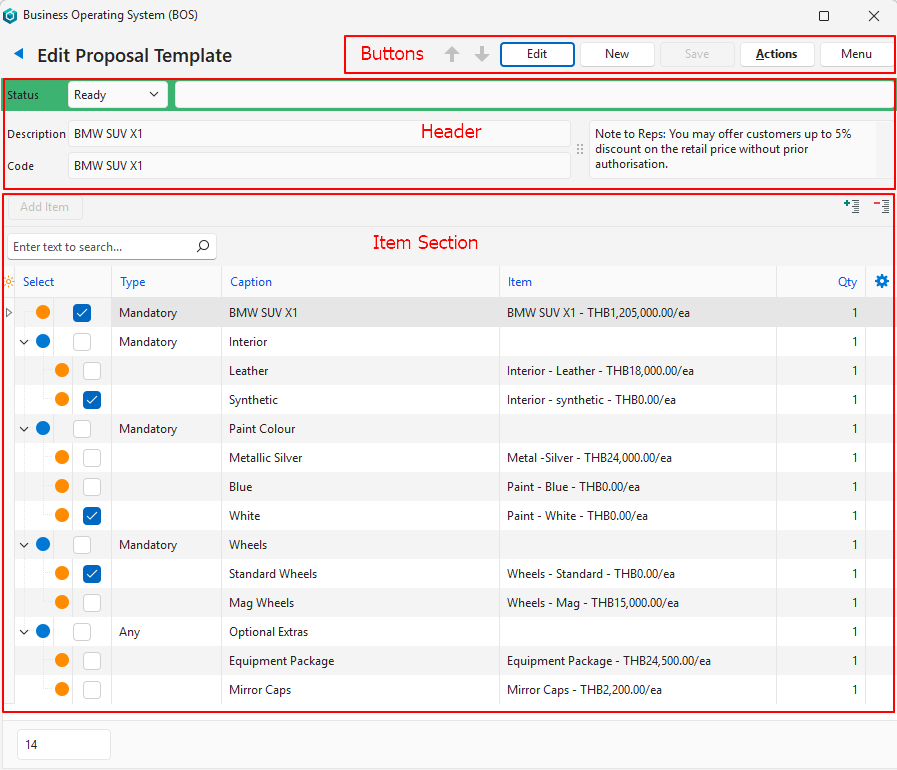
Buttons Explained
| Button | Description |
|---|---|
| Arrows | Navigates between proposals. |
| Edit | Allows the proposal to be edited. |
| New | Creates a new proposal. |
| Save | Saves any changes. |
| Actions | – Refresh Lookups – Copy – Delete Proposal |
| Menu | Layout |
Header Explained
| Field | Description |
|---|---|
| Status | A dropdown list to select one of these statuses: – Draft – Review – Ready |
| Status Note | An option to enter a note on the status bar. |
| Description | A field to enter the proposal template’s name. |
| Code | A field to enter the proposal template’s abbreviated name. |
| Note | A field to enter any note. |
Item Fields Explained
- The main items are added by clicking Add Item (button).
- Sub-items are added by right clicking a main item.
- Click the + or – icons to expand or collapse the entries.
| Field | Description |
|---|---|
| Field Chooser (*) | Allows users to add or remove columns. |
| ID | The system-generated number allocated to the entry. |
| Key ID | The system-generated number allocated to the entry. |
| Parent ID | The system-generated number to identify the parent (main item of sub-items). |
| Order ID | The system-generated number to identify the order of the entries. |
| Select | A checkbox. Allows optional items to be pre-selected. |
| Type | A dropdown list to select one of these: – Mandatory: The item must be included. – Optional: The item may be included, but only one of the options can be selected. – Any: The item may be included, and multiple options may be selected. |
| Caption | The item’s caption. – The caption is editable when it is the name of the group or if it is a standalone item (has no parent). |
| Item | – A dropdown list of items with Sell Prices to select the item the entry is linked to. – An item must be selected. |
| Qty | The quantity that must be added. |
| Widget | A submenu with the following options: – Add Item Ctrl + Enter – Move Up Ctrl+U – Move Down Ctrl+D – Delete Item Ctrl+Del |

