
Timekeeping Statuses Tutorials
- A timekeeping system is a tool or method used to record, track, and manage the time that employees work.
- This system ensures accurate calculation of work hours, overtime, and attendance.
- The data collected is used for payroll, compliance with labour laws, performance tracking, and related functions.
- In QuickEasy BOS, the Timekeeping module can be used to track both Work and Travel.
- Timekeeping can be recorded from the desktop or Mobile App.
- When timekeeping records are started or stopped on the desktop app, the following rules apply:
- Projects: Timekeeping records are linked to the Resource on the project, not the logged in user if the user and Resource differ.
- Production: Timekeeping records are linked to the Operator, not the logged in user if the user and Operator differ.
Navigation Example: Main Menu > Operations > Timekeeping
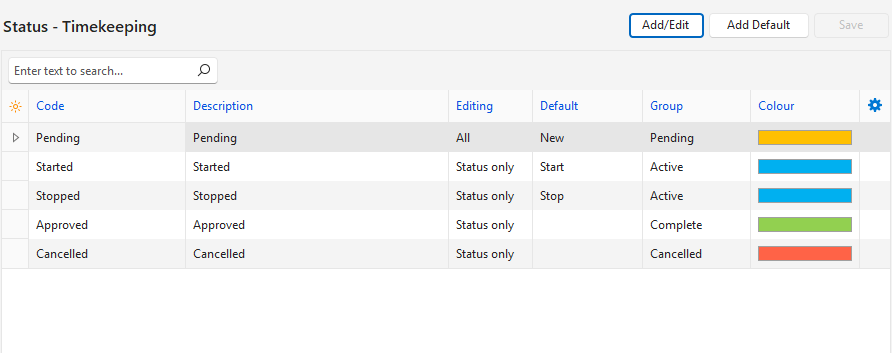
How to Create Default Statuses
- This feature is only available if Statuses have not yet been created. The following statuses are added:
- Pending
- Started
- Stopped
- Approved
- Cancelled
- Navigate to Timekeeping.
- Click Menu (button) > Edit Statuses.
- Click Add Default (button).
- Edit the Statuses, as necessary.
- Click Save (button) if it is not greyed out.
How to Create Unique Statuses
You can create statuses from scratch or edit the default statuses to suit your requirements.
- Navigate to Timekeeping.
- Click Menu (button) > Edit Statuses.
- Click Add/Edit (button).
- Click the top row and fill in the details as follows:
- Code = Type a short description for the code (e.g. Pending).
- Description = Type an explanation of when the status is used.
- Editing = Select None (no editing), All (editing allowed), or Status only (only the status may be changed).
- Default =
- Select New from the dropdown list if the status applies to newly created entries. One status must have the default New option.
- Select Start to automatically change the status of the timekeeping record when it is started. This feature only works if the Mobile App is used.
- Select Stop to automatically change the status of the timekeeping record when it is stopped. This feature only works if the Mobile App is used.
- Group = Select a group from the lookup list of groups. The options are:
- Pending: The entry can be edited.
- Active: The entry is active.
- Complete: The entry is complete.
- Cancelled: The entry is cancelled.
- Colour: Click inside the colour block and select a different colour from the available colours.
- Click Save (button) if it is not greyed out.
How to Edit Statuses
- Navigate to Timekeeping.
- Click Menu (button) > Edit Statuses.
- Click Add/Edit (button).
- Edit any of the fields.
- Click Save (button) if it is not greyed out.
How to Delete Statuses
Once a Status is used, it cannot be deleted.
- Navigate to Timekeeping.
- Click Menu (button) > Edit Statuses.
- Click Add/Edit (button).
- Right click the Status to remove and select Delete from the context menu.
- Confirm the deletion on the popup.
How to Change the Order of Statuses
- The order of the statuses should match the order in which they are used (e.g. Started > Stopped > Approved).
- This order helps to automatically set the next status in the hierarchy when certain processes are completed.
- Navigate to Timekeeping.
- Click Menu (button) > Edit Statuses.
- Click Add/Edit (button).
- Right click the Status to move and select Move Up or Move Down from the context menu.
- Click Save (button) if it is not greyed out.
Learn More
- Mobile App Timekeeping Interface: Explains the interface that is used to record timekeeping on the mobile app.
- Mobile App Timekeeping Tutorials: These tutorials explain how to use the timekeeping and related functions on the mobile app.
- Timekeeping Edit View: Explains the interface from which timekeeping records are captured.
- Timekeeping List View: Explains the interface that displays a list of all the timekeeping records.
- Timekeeping Settings: Explains the available timekeeping settings and how to apply them.
- Timekeeping Tutorials: These tutorials explain how to use the timekeeping features.
- Timekeeping User Access Tutorials: These tutorials explain how to manage user access to timekeeping records.