- Home
- Knowledge Base
- Timekeeping
- Timekeeping Edit View
Timekeeping Edit View
A timekeeping system is a tool or method used to record, track, and manage the time that employees work. It ensures accurate calculation of work hours, overtime, and attendance. The data collected is used for payroll, compliance with labour laws, performance tracking, and related functions.
In QuickEasy BOS, the Timekeeping module can be used to track both Work and Travel.
Timekeeping can be recorded from the desktop or Mobile App.
When timekeeping records are started or stopped on the desktop app, the following rules apply:
- Projects: Timekeeping records are linked to the Resource on the project, not the logged in user.
- Production: Timekeeping records are linked to the Operator, not the logged in user.
Edit View refers to the interface from which timekeeping records are captured.
Navigation Example: Main Menu > Operations > Timekeeping
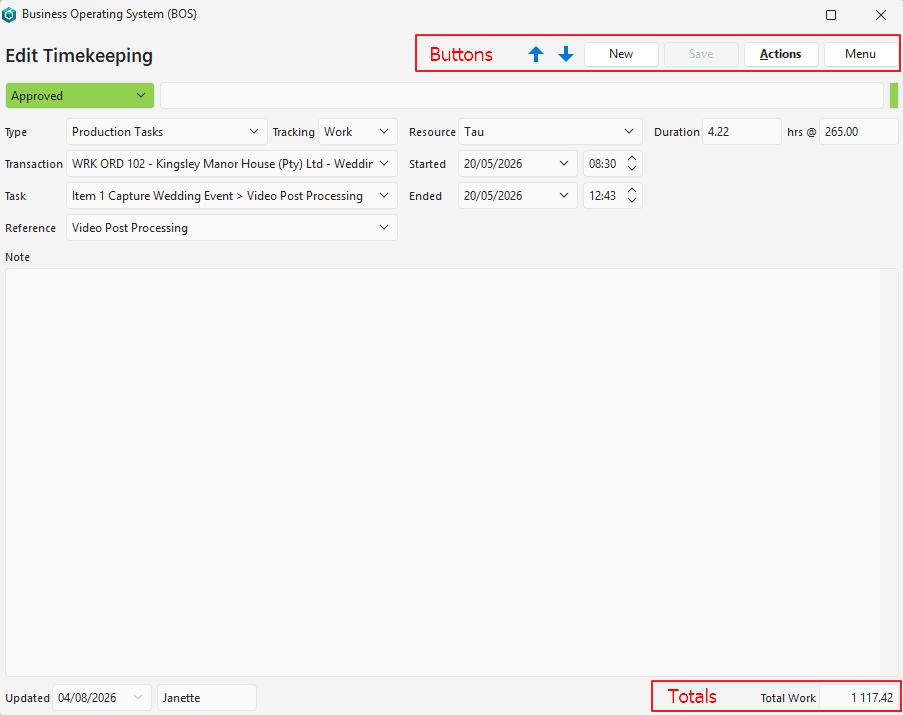

Buttons Explained
| Button | Description |
|---|---|
| Edit | Allows Users to edit the entry. |
| New | Creates and starts a new Timekeeping Record. The following is recorded: – Username – Start time – Geolocation (if enabled and permission is granted) – Odometer reading (for travel, if filled in) |
| Save | Saves any changes. |
| Actions | Allows for changes to be made to multiple records that can be selected using Ctrl + Left Click or by clicking the checkboxes next to each record. The options are: Stop: Only appears when a Timekeeping Record is active. Before a record is stopped, users can add: – A note – An Odometer Reading (for travel) When a Timekeeping Record is stopped, the following information is recorded: – End Time – Geolocation (if enabled and permission is granted) – Total Hrs (Calculates the difference between the start and end times.) – Total Km (Calculates the difference between odometer start and end readings. If the distance in km is entered, the end odometer reading is adjusted accordingly.) Unstop: Allows the Timekeeping Record to continue. Only available if the Timekeeping Record is still open on screen. Show Signature: Displays the start and stop signatures. View Geolocation on Google Maps: Opens Google Maps to the user’s location. Only applicable if a travel-related timekeeping record is still open. Delete Timekeeping Ctrl+Del: Deletes the Timekeeping Record. |
| Menu | Settings – Edit User Access – Edit General Settings – Edit User Settings – Edit Statuses |
Status Bar Explained
| Field | Description |
|---|---|
| Status | Allows users to set the Status for the entry. |
| Status Note | Allows users to type in a Note or instruction for that Status. |
Fields Explained
| Field | Description |
|---|---|
| Type | An option to select one of these types: Clock In: Used for timekeeping in Point of Sale (PoS). Links the user to the active till session. Production Tasks: Allows users to select a task that meets these conditions: – The transaction type has Production enabled for the setting Estimating Enabled. – The applicable User is the assigned Operator for the task. – The Task’s current status is in the Active Status Group. Project Tasks: Allows users to select a task that meets these conditions: – The applicable User must be the selected Resource for the task. – The Project’s current status is in the Active Status Group. – The Task’s current status is in the Active Status Group. Services: Links the timekeeping record to the Service Ticket selected from the dropdown list. – Only Active Service Tickets are available on the dropdown list. – Timekeeping can be started and stopped from within the ticket. Sign In: Used for PoS. Allow the user to update or create a PoS transaction. Transactions: Allows users to select a transaction that meets these conditions: – Timekeeping is enabled for the transaction. – The transaction is assigned to the applicable user. – The Transaction’s current Status is in the Active Status group. Unlinked: The timekeeping record is not linked to any transaction or task. However, users can select a customer. |
| Tracking | An option to select Work or Travel. |
| Company | A dropdown list of Customers or Suppliers for users to select one. |
| Resource | A dropdown list of Resources for users to select one. |
| Duration | The duration of the timekeeping record if it has been stopped. |
| Hrs @ | The person’s hourly rate for the timekeeping record. If an hourly cost is filled in for the person under Staff Attributes, the rate is auto filled on the timekeeping record and used in the calculation. |
| Company | A dropdown list of Customers and Suppliers for users to select one. |
| Reference | A field to type a reference or select one if a lookup list was created. |
| Started | The Date and Time when the timekeeping record was Started. Automatically recorded when New (button) is clicked. The Start date and time must be earlier than the End date and time. If the start date or time is edited to be later than the end date or time, the End date is changed to match the Start date. |
| Ended | The Date and Time when the timekeeping record was Stopped. The End date and time must be later than the Start date and time. If the End date or time is edited to be earlier than the Start date or time, the Start date is changed to match the End date. |
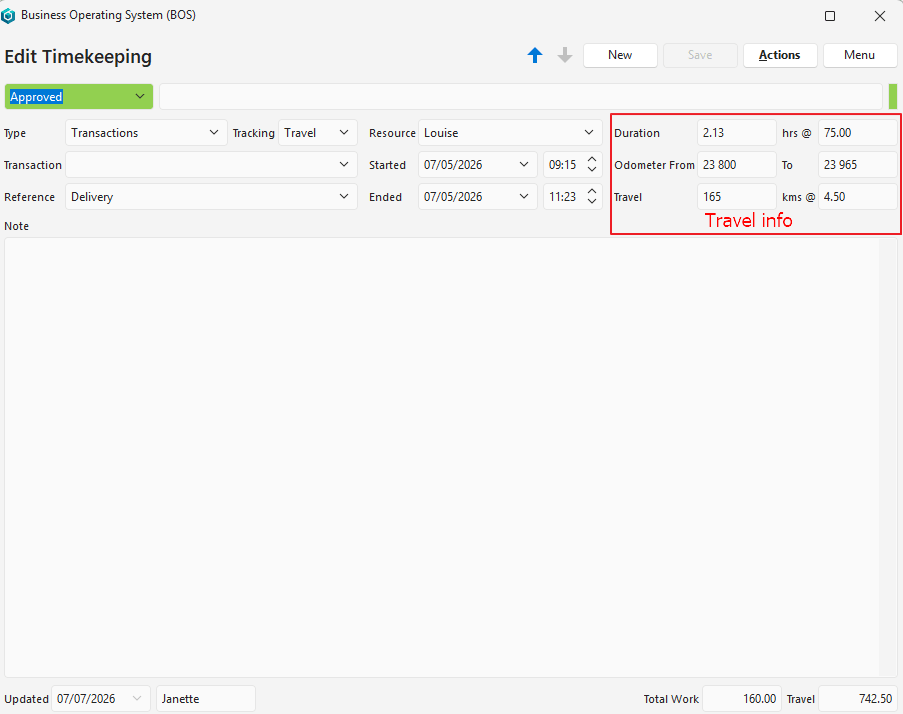
| Odometer From | A field to type the Start Odometer Reading. Only applies if Travel is selected as the Tracking option. |
| Odometer To | A field to type the Closing Odometer Reading (automatically calculated if the kms in filled in next to Travel). Only applies if Travel is selected as the Tracking option. |
| Travel | A field to type the Kilometres travelled (automatically calculated if the ending odometer reading is filled in). Only applies if Travel is selected as the Tracking option. |
| kms@ | A field to type the Rate per Kilometre which can be the rate the User is paid, or the rate that the Customer must be charged. The cost is shown in the footer next to Travel. Only applies if Travel is selected as the Tracking option. |
| Note | A field for users to type a Note relating to the timekeeping (e.g. what they were doing, or if there were roadworks that delayed them). |
Learn More
- Mobile App Timekeeping Interface: Explains the interface that is used to record timekeeping on the mobile app.
- Mobile App Timekeeping Tutorials: These tutorials explain how to use the timekeeping and related functions on the mobile app.
- Timekeeping List View: Explains the interface that displays a list of all the timekeeping records.
- Timekeeping Settings: Explains the available timekeeping settings and how to apply them.
- Timekeeping Statuses Tutorials: These tutorials explain how to create and edit statuses for timekeeping.
- Timekeeping Tutorials: These tutorials explain how to use the timekeeping features.
- Timekeeping User Access Tutorials: These tutorials explain how to manage user access to timekeeping records.
มุมมองแก้ไขการบันทึกเวลา
ระบบบอกเวลาเป็นเครื่องมือหรือวิธีการที่ใช้ในการบันทึก ติดตาม และจัดการเวลาที่พนักงานทํางาน ช่วยให้มั่นใจได้ถึงการคํานวณชั่วโมงการทํางาน การทํางานล่วงเวลา และการเข้างานที่แม่นยํา ข้อมูลที่รวบรวมจะใช้สําหรับบัญชีเงินเดือน การปฏิบัติตามกฎหมายแรงงาน การติดตามผลการปฏิบัติงาน และฟังก์ชันที่เกี่ยวข้อง
ในระบบ QuickEasy BOS โมดูลการบันทึกเวลาสามารถใช้ติดตามทั้งการทำงานและการเดินทาง
สามารถบันทึกการบอกเวลาได้จากเดสก์ท็อปหรือแอพมือถือ
เมื่อบันทึกการบอกเวลาปกติเริ่มต้นหรือหยุดทํางานบนแอปเดสก์ท็อป จะมีการใช้กฎต่อไปนี้:
- โครงการ: การบันทึกเวลาจะเชื่อมโยงกับทรัพยากรในโครงการ ไม่ใช่ผู้ใช้ที่เข้าสู่ระบบ
- การผลิต: การบันทึกเวลาจะเชื่อมโยงกับผู้ปฏิบัติงาน ไม่ใช่ผู้ใช้ที่เข้าสู่ระบบ
มุมมองแก้ไข หมายถึงอินเทอร์เฟซที่ใช้สำหรับบันทึกข้อมูลการลงเวลา
ตัวอย่างการนำทาง: เมนูหลัก > การดำเนินงาน > การบันทึกเวลา


คำอธิบายปุ่ม
| ปุ่ม | คำอธิบาย |
|---|---|
| แก้ไข | อนุญาตให้ ผู้ใช้ แก้ไขรายการ |
| ใหม่ | สร้างและเริ่ม บันทึกการบอกเวลาปกติใหม่ มีการบันทึกข้อมูลต่อไปนี้: – ชื่อผู้ใช้ – เวลาเริ่มต้น – ตําแหน่งทางภูมิศาสตร์ (หากเปิดใช้งานและได้รับอนุญาต) – การอ่านมาตรวัดระยะทาง (สําหรับการเดินทางหากกรอกข้อมูล) |
| บันทึก | บันทึกการเปลี่ยนแปลงใดๆ |
| การดำเนินการ | อนุญาตให้ทําการเปลี่ยนแปลงกับหลายระเบียนที่สามารถเลือกได้โดยใช้ Ctrl + คลิกซ้าย หรือโดยการคลิกกล่องกาเครื่องหมายถัดจากแต่ละระเบียน ตัวเลือกคือ: หยุด: จะปรากฏเฉพาะเมื่อ บันทึกการลงเวลา ยังทำงานอยู่ ก่อนที่จะหยุดบันทึก ผู้ใช้สามารถเพิ่ม: – หมายเหตุ – การอ่านมาตรวัดระยะทาง (สำหรับการเดินทาง) เมื่อ บันทึกการลงเวลา ถูกหยุด ข้อมูลต่อไปนี้จะถูกบันทึก: – เวลาสิ้นสุด – ตำแหน่งทางภูมิศาสตร์ (หากเปิดใช้งานและได้รับอนุญาต) – ชั่วโมงรวม (คำนวณความแตกต่างระหว่างเวลาเริ่มต้นและเวลาสิ้นสุด) – กิโลเมตรรวม (คำนวณความแตกต่างระหว่างการอ่านมาตรวัดระยะทางเริ่มต้นและสิ้นสุด หากระยะทางเป็นกิโลเมตรถูกป้อน การอ่านมาตรวัดระยะทางสิ้นสุดจะถูกปรับตามนั้น) ยกเลิกการหยุด: อนุญาตให้ บันทึกการลงเวลา ดำเนินต่อไป ใช้ได้เฉพาะเมื่อ บันทึกการลงเวลา ยังเปิดอยู่บนหน้าจอ แสดงลายเซ็น: แสดงลายเซ็นเริ่มต้นและหยุด ดูตำแหน่งทางภูมิศาสตร์บน Google Maps: เปิด Google Maps ไปยังตำแหน่งของผู้ใช้ ใช้ได้เฉพาะเมื่อบันทึกการลงเวลาที่เกี่ยวข้องกับการเดินทางยังเปิดอยู่ ลบการบอกเวลาปกติ Ctrl+Del: ลบบันทึกการบอกเวลาปกติ |
| เมนู | การตั้งค่า – แก้ไขการเข้าถึงของผู้ใช้ – แก้ไขการตั้งค่าทั่วไป – แก้ไขการตั้งค่าผู้ใช้ – แก้ไขสถานะ |
คำอธิบายแถบสถานะ
| ฟิลด์ | คำอธิบาย |
|---|---|
| สถานะ | อนุญาตให้ผู้ใช้ตั้ง สถานะ สำหรับรายการ |
| บันทึกสถานะ | อนุญาตให้ผู้ใช้พิมพ์บันทึกหรือคำแนะนำสำหรับสถานะนั้น |
คำอธิบายฟิลด์
| ฟิลด์ | คำอธิบาย |
|---|---|
| ประเภท | ตัวเลือกในการเลือกประเภทใดประเภทหนึ่งจากต่อไปนี้: นาฬิกาเข้า: ใช้สําหรับการบอกเวลาใน Point of Sale (PoS) เชื่อมโยงผู้ใช้กับเซสชันที่ใช้งานอยู่จนถึง งานการผลิต: อนุญาตให้ผู้ใช้เลือกงานที่ตรงตามเงื่อนไขเหล่านี้: – ประเภทธุรกรรมมีการผลิตเปิดใช้งานสำหรับการตั้งค่าการประมาณการเปิดใช้งาน – ผู้ใช้ที่เกี่ยวข้องเป็นผู้ปฏิบัติงานที่ได้รับมอบหมายสำหรับงานนั้น – สถานะปัจจุบันของงานอยู่ในกลุ่มสถานะที่ใช้งานอยู่ งานโครงการ: อนุญาตให้ผู้ใช้เลือกงานที่ตรงตามเงื่อนไขเหล่านี้: – ผู้ใช้ที่เกี่ยวข้องต้องเป็นทรัพยากรที่เลือกสำหรับงานนั้น – สถานะปัจจุบันของโครงการอยู่ในกลุ่มสถานะที่ใช้งานอยู่ – สถานะปัจจุบันของงานอยู่ในกลุ่มสถานะที่ใช้งานอยู่ บริการ: เชื่อมโยงการบันทึกเวลากับตั๋วบริการที่เลือกจากรายการดรอปดาวน์ – เฉพาะ ตั๋วบริการที่ใช้งานอยู่ เท่านั้นที่มีในรายการแบบเลื่อนลง – การบันทึกเวลาสามารถเริ่มต้นและหยุดได้จากภายในตั๋ว ลงชื่อเข้าใช้: ใช้สําหรับ PoS อนุญาตให้ผู้ใช้อัปเดตหรือสร้างธุรกรรม PoS ธุรกรรม: อนุญาตให้ผู้ใช้เลือกธุรกรรมที่ตรงตามเงื่อนไขเหล่านี้: – การบันทึกเวลาถูกเปิดใช้งานสำหรับธุรกรรม – ธุรกรรมถูกมอบหมายให้กับผู้ใช้ที่เกี่ยวข้อง – ธุรกรรมปัจจุบันของ สถานะ อยู่ในกลุ่ม สถานะที่ใช้งานอยู่ ไม่เชื่อมโยง: บันทึกการลงเวลาไม่ได้เชื่อมโยงกับธุรกรรมหรืองานใดๆ อย่างไรก็ตาม ผู้ใช้สามารถเลือกลูกค้าได้ |
| การติดตาม | ตัวเลือกในการเลือกงานหรือการเดินทาง |
| บริษัท | รายการแบบเลื่อนลงของลูกค้าหรือผู้จัดหาสำหรับผู้ใช้เลือกหนึ่งรายการ |
| ทรัพยากร | รายการแบบเลื่อนลงของทรัพยากรสำหรับผู้ใช้เลือกหนึ่งรายการ |
| ระยะเวลา | ระยะเวลาของบันทึกการบอกเวลาปกติหากหยุดทํางาน |
| ชม. @ | อัตรารายชั่วโมงของบุคคลนั้นสําหรับบันทึกการบอกเวลาปกติ ถ้ามีการกรอกต้นทุนรายชั่วโมงสําหรับบุคคลภายใต้ แอตทริบิวต์ของพนักงาน อัตราจะถูกกรอกโดยอัตโนมัติในเรกคอร์ดการบอกเวลาปกติและใช้ในการคํานวณ |
| บริษัท | รายการแบบเลื่อนลงของลูกค้าและผู้จัดหาสำหรับผู้ใช้เลือกหนึ่งรายการ |
| อ้างอิง | ฟิลด์สําหรับพิมพ์การอ้างอิงหรือเลือกหนึ่งฟิลด์ถ้ามีการสร้างรายการค้นหา |
| เริ่มต้น | วันที่และเวลาเมื่อบันทึกการบอกเวลาปกติเริ่มต้น บันทึกโดยอัตโนมัติเมื่อคลิก สร้าง (ปุ่ม) วันที่และเวลาเริ่มต้นต้องเร็วกว่าวันที่และเวลาสิ้นสุด ถ้าวันที่หรือเวลาเริ่มต้นถูกแก้ไขให้ช้ากว่าวันที่หรือเวลาสิ้นสุด วันที่สิ้นสุด จะถูกเปลี่ยนให้ตรงกับวันที่เริ่มต้น |
| สิ้นสุด | วันที่และเวลาเมื่อบันทึกการจับเวลาได้หยุด วันที่และเวลาสิ้นสุดต้องช้ากว่าวันที่และเวลาเริ่มต้น หากวันที่หรือเวลาสิ้นสุดถูกแก้ไขให้เร็วกว่าวันที่หรือเวลาเริ่มต้น วันที่เริ่มต้นจะถูกเปลี่ยนให้ตรงกับวันที่สิ้นสุด |
| มาตรวัดระยะทางจาก | ฟิลด์สําหรับพิมพ์ เริ่มการอ่านมาตรวัดระยะทาง ใช้ได้เฉพาะเมื่อเลือกการเดินทางเป็นตัวเลือกการติดตาม |
| มาตรวัดระยะทางถึง | ฟิลด์สําหรับพิมพ์ การอ่านมาตรวัดระยะทางปิด (คํานวณโดยอัตโนมัติหากกรอกกิโลเมตรถัดจาก การเดินทาง) ใช้ได้เฉพาะเมื่อเลือกการเดินทางเป็นตัวเลือกการติดตาม |
| การเดินทาง | ฟิลด์สําหรับพิมพ์ กิโลเมตร ที่เดินทาง (คํานวณโดยอัตโนมัติหากกรอกการอ่านมาตรวัดระยะทางสิ้นสุด) ใช้ได้เฉพาะเมื่อเลือกการเดินทางเป็นตัวเลือกการติดตาม |
| กม.@ | ช่องสําหรับพิมพ์ อัตราต่อกิโลเมตร ซึ่งอาจเป็นอัตราที่ ผู้ใช้ ได้รับ หรืออัตราที่ ลูกค้า ต้องเรียกเก็บเงิน ค่าใช้จ่ายจะแสดงในส่วนท้ายถัดจากการเดินทาง ใช้ได้เฉพาะเมื่อเลือกการเดินทางเป็นตัวเลือกการติดตาม |
| บันทึก | ฟิลด์สําหรับผู้ใช้พิมพ์ บันทึกที่เกี่ยวข้องกับ การบอกเวลา (เช่น สิ่งที่พวกเขากําลังทํา หรือหากมีการก่อสร้างถนนที่ทําให้พวกเขาล่าช้า) |
เรียนรู้เพิ่มเติม
- อินเทอร์เฟซการบอกเวลาปกติของแอปบนอุปกรณ์เคลื่อนที่: อธิบายอินเทอร์เฟซที่ใช้ในการบันทึกการบอกเวลาบนแอปบนอุปกรณ์เคลื่อนที่
- บทช่วยสอนการบอกเวลาแอพมือถือ: บทช่วยสอนเหล่านี้อธิบายวิธีใช้การบอกเวลาและฟังก์ชันที่เกี่ยวข้องบนแอพมือถือ
- มุมมองรายการบอกเวลาปกติ: อธิบายอินเทอร์เฟซที่แสดงรายการบันทึกการบอกเวลาปกติทั้งหมด
- การตั้งค่าการบอกเวลาปกติ: อธิบายการตั้งค่าการบอกเวลาปกติที่ใช้ได้และวิธีนําไปใช้
- บทช่วยสอนสถานะการบอกเวลาปกติ: บทช่วยสอนเหล่านี้อธิบายวิธีสร้างและแก้ไขสถานะสําหรับการบอกเวลาปกติ
- บทช่วยสอนการบอกเวลาปกติ: บทช่วยสอนเหล่านี้อธิบายวิธีใช้คุณสมบัติการบอกเวลาปกติ
- บทช่วยสอนการเข้าถึงของผู้ใช้การบอกเวลา: บทช่วยสอนเหล่านี้อธิบายวิธีจัดการการเข้าถึงบันทึกการบอกเวลาของผู้ใช้