
Service Tickets Edit View Interface
A service manager is a tool used to manage and streamline an organisation’s service management processes. It helps organisations automate and track service requests, incidents, queries, changes, and problems. It includes features for ticketing, management, and reporting. It aims to improve efficiency, reduce downtime, and ensure a higher level of service quality by enabling organisations to manage, prioritise, and resolve issues effectively.
The Service Manager in QuickEasy BOS can also be used to track and follow up on leads and to manage Projects.
Before creating Service Tickets, Service Types must be created, added to a menu, and user access must be set.
The fields and tabs that are available depend on the settings chosen for the Service Type.
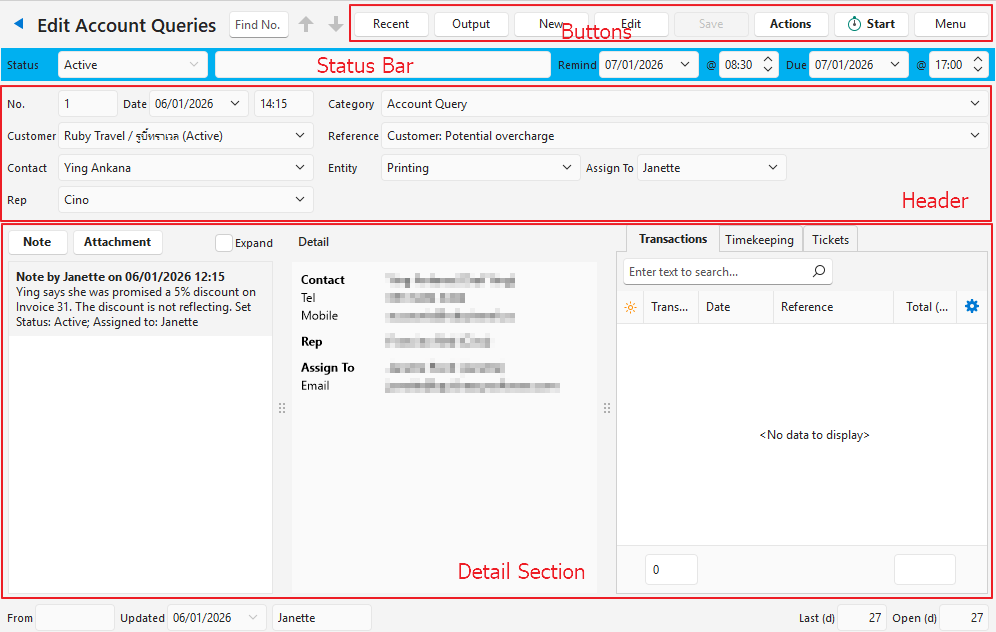
Buttons Explained
| Button | Description |
|---|---|
| ↑ ↓ | Navigates through the service tickets. |
| Recent | Lists recently viewed tickets for quick navigation. |
| Output | Prints, previews, or exports the selected report if Output Templates are added. |
| New | Creates a new Service Ticket. |
| Edit | Allows Users to edit the entry. |
| Save | Saves any changes. |
| Actions | Allows for changes to be made to multiple records that can be selected using Ctrl + Left Click. The options are: Refresh Delete Ticket: Deletes the ticket. Filter: Filters the entries on the three tabs on the Detail tab (Transactions, Timekeeping, Tickets). Only the filters enabled by the service type are displayed. – Ticket – Asset – Company Contact – Add Customer – Edit Customer – Edit Contact Copy to New Ticket: Copies the ticket to create a new ticket. (Only appears if Copy Rules have been created for the Service Type). Create Transaction: Option to create a transaction based on the ticket’s information (e.g. Quotations). |
| Start / Stop | If confirmed, starts or stops Timekeeping for the ticket. |
| Menu | Open Timekeeping View/Edit Followers Open linked Asset Settings – User Access: Sets User Access for the specific Service Type. – Edit Service Type: Allows the Service Type’s setup to be edited (e.g. Tags, Statuses, Resources). – Edit Project Templates: Allows the project templates to be edited. Layout |
Top Status Bar Explained
| Field | Description |
|---|---|
| Status | The entry’s status. Statuses can be changed by adding a Note. |
| Status Note | Allows users to type in a Note or instruction for that Status. |
| Remind | A field to set the Reminder Date. |
| @ | A field to set the Reminder Time. |
| Due | A field to set the Due Date. |
| @ | A field to set the Due Time. |
Header Section Explained
| Field | Description |
|---|---|
| No. | The system-generated number for the ticket. |
| Date | The Date on which the ticket was created. |
| Time | The Time when the ticket was created. |
| Customer | A dropdown list of Customers to select one. |
| Contact | The customer’s Contact person or a dropdown list if there is more than one contact. |
| Rep | A dropdown list from which to select a Rep. |
| Asset | A dropdown list of assets. If a customer is selected and an asset is linked to the customer, the asset field is auto filled. |
| Category | A dropdown list of categories for the Service Type. |
| Reference | A field to type in a Reference or select one if a lookup list was created. |
| Entity | A dropdown list of registered Entities to select the Entity that the ticket belongs to. |
| Assign To | The person the ticket is currently assigned to. Can be changed by adding a Note. |
| Lead Source | A field to type in the source of the lead (can also be a lookup list). |
| Referred By | The User who referred the lead. |
| Once-off | The Once-off Price quoted to the customer / or expected once-off earnings. |
| Annual | The Annual Price quoted to the customer / or the expected annual earnings. |
| Probability % | A field to type in the probability of a successful outcome as a percentage. |
Detail (tab) Explained
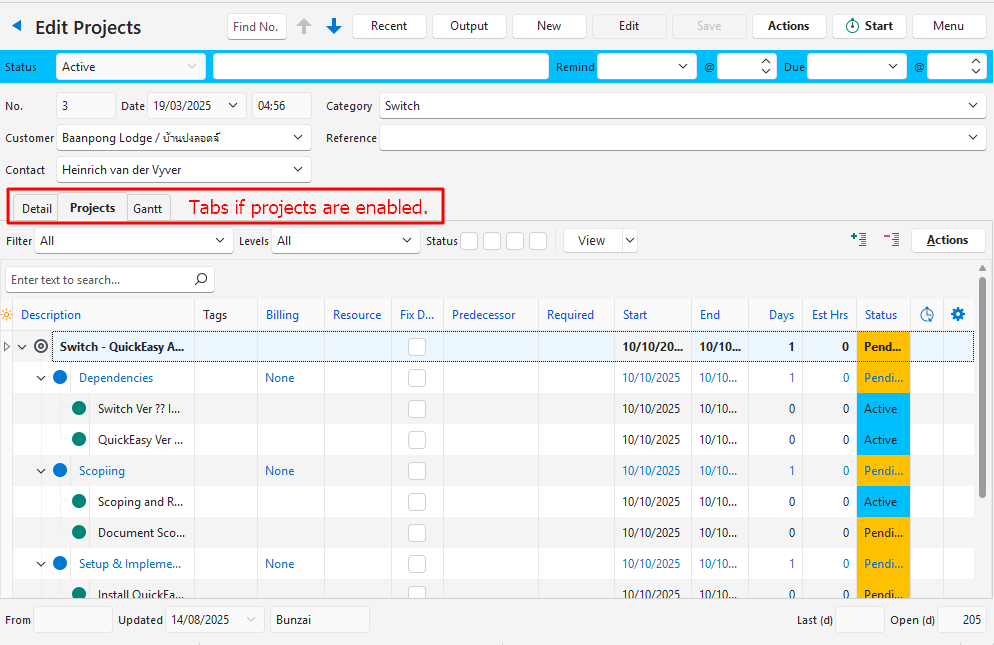
- The tabs that appear depend on the settings under the project’s setup.
- If Projects are disabled, the tab feature is removed and the information on the Detail (tab) is displayed.
Notes Section: Buttons and Filters
| Button / Filter | Description |
|---|---|
| Note (button) | Adds a response or note to the ticket (e.g. Call, Meeting, Message). |
| Attachment (button) | Adds an attachment to the ticket. Attachments can be images, files, or URLs. |
| Expand (Checkbox) | If checked, expands the responses (notes). |
| Fields | Description |
|---|---|
| Response section | A list of all the responses linked to the ticket or company, |
| Detail (tab) | Displays Contact details for the contact, rep, and user the ticket is assigned to. Displays Asset Attributes for assets linked to the ticket. Customising the detail tab is a service that QuickEasy offers. |
| Profit / Loss (tab) | Displays the detailed income, expenses, and profit or loss earned based on the linked transactions and timekeeping records as per the Service Type’s setup. Transactions can be linked to a service ticket at an item level. Timekeeping that is linked to the ticket or a linked transaction can be included. |
Transactions (tab)
| Field | Description |
|---|---|
| Filter | |
| Linked to Filter on Actions (button) | Ticket: Filters the transactions to show only those linked to the ticket. Asset: Filters the transactions to show all those linked to the asset. Company: Shows all the transactions that are linked to the Customer or Supplier. |
| Columns | |
| Field Chooser (*) | Allows users to add or remove columns. |
| ID | The system-generated number for the entry. |
| Trans No. | A code indicating the Transaction Type followed by the document number of the transaction. |
| Date | The transaction’s date. |
| Reference | The reference typed or selected for the transaction. |
| Total (exc) | The VAT exclusive transaction total. |
| Widget | A submenu that allows users to: – Link Transaction: Links the transaction to the ticket. – Open Transaction: Opens the original transaction. |
Timekeeping (tab)
Timekeeping linked to the service ticket either from within the service ticket or from the Timekeeping module are listed on this tab.
| Field | Description |
|---|---|
| Expand | Checkbox. Toggles truncating or expanding the reference. Only works if the reference field is longer than the column width when displayed full screen. |
| Field Chooser (*) | Allows users to add or remove columns. |
| ID | The system-generated number for the entry. |
| Trans No. | The timekeeping transaction number which includes the source (e.g. Projects). |
| Start Date | The date on which timekeeping was started. |
| @ | The time on which timekeeping was started. |
| Resource | The user (person selected as the resource) who started the timekeeping. |
| Reference | The reference on the timekeeping record. |
| Hrs | The duration of the timekeeping record in hours. |
Tickets (tab)
| Field | Description |
|---|---|
| Filter | |
| Linked to Filter on Actions (button) | Ticket: Displays only the ticket that is open. Asset: Displays all the tickets linked to the asset. Company: Displays all the tickets linked to the customer or supplier. |
| Columns | |
| Field Chooser (*) | Allows users to add or remove columns. |
| No. | The service ticket number. |
| Date | The ticket’s date. |
| Reference | The ticket’s Category. |
| Widget | A submenu allowing users to: – Unlink Ticket / Link Ticket: Links or unlinks the selected ticket to the open ticket. – Open Ticket: Opens the ticket. |
Projects (tab) Explained
Buttons in the middle of the screen (not the top row buttons)
| Button | Description |
|---|---|
| View | Generates a list of entries as per the selected data filters. |
| Arrow on View Button | Reset Data Filter > Resets all the data filters. |
| Actions | Allows for changes to be made to multiple records that can be selected using Ctrl Left Click. The options are: Add Project Templates: Add project templates to use when creating projects. Batch Update: Allows the following fields to be updated for all the selected records: – Status – Required – Start – End – Hrs – Days – Billing – Resource – Fix Dates – Tags Update Start and End Dates (ASAP From First Start Date): Updates the End Date to complete the task as soon as possible from the first Start Date. Update Start and End Dates (ALAP from First Required Date): Updates the End Date to complete the task as late as possible from the first Required Date. Update Status from Templates: Updates the Status list of the Project from the linked Project Templates. Set Start-To-Finish (SF) Predecessor: Creates the steps in order from Start to Finish. The function inserts the previous step in the Predecessor column. Clear Predecessor: Clears the steps that must be taken before the task can start. The function deletes the current step in the Predecessor column. Set Audit Dates to Start Dates: Changes the Audit Dates to match the Start Dates. Delete: Deletes the selected item/s. |
Filters
| Filter | Description |
|---|---|
| Filter | The first filter depends on the type of ticket. For projects, all the added templates are listed. For NCR tickets, the options are All, Follow Up, and Resolve. |
| Levels | A dropdown list of Levels for users to select All or a specific Level. The level options are: – All – Milestones (top-level items on project templates) – Groups (mid-level items) – Tasks (third-level items) – Milestones & Groups – Groups & Tasks |
| Status | Checkboxes to filter the records to only show the Checked Statuses. The names of the Statuses are displayed if a mouse cursor is held over the checkboxes. |
| + – | Expands or collapses the display of project items. |
Fields
| Field | Description |
|---|---|
| Field Chooser (*) | Allows users to add or remove columns. |
| ID | The system-generated number for the entry. |
| Component | A colour-coded circle indicating the level of the entry. |
| Parent ID | The system-generated number for the parent item. |
| Order ID | The system-generated number for the order of entries under a parent. |
| Template | The number of the project template selected for the project. |
| Description | The Descriptions of the project items. |
| Tags | The Tags as defined on the Service Type. Tags can be added using Batch Update. |
| Group | The Group assigned to the project item. Groups can be added using Batch Update. |
| Billing | A dropdown list to select the type of Billing. The options are: None, Fixed, Variable, Out of Scope. |
| Resource | The Resource allocated to the task. |
| Note | Any note that was created from the context menu for the item. |
| Fix Dates | A checkbox indicating whether the dates are fixed. |
| Predecessor | The name of the Predecessor. |
| Required | The Date on which the Task is Required. |
| Start | The Start Date of the Task. |
| End | The End Date of the Task. |
| Audit | Records the original Start Date. Only applicable if the Start Date is changed. |
| Days | The number of Days the Task is expected to take. |
| Note | A field to enter a note. |
| Est Hrs | The number of Hours the Task is expected to take. |
| Moved (d) | The number of days the Task’s Start Date was moved. |
| Act Hrs | The Actual Hours the Task has taken. |
| Var Hrs | The difference between the Actual and Estimate Hours. |
| Status | The Status of the specific Milestone, Group or Task. |
| Created | The date on which the entry was created. |
| Updated | The date on which the entry was updated. |
| Updated By | The User who last updated the entry. |
| Clock | Indicates whether a timekeeping record is active. |
| Widget | A submenu that changes depending on the hierarchy of the item that is right clicked. The options are: – Add Sub-Item (Ctrl Enter): Adds a sub item. – Insert Item Above (Ctrl Up): Inserts a new line above the selected line. – Insert Item Below (Ctrl Down): Inserts a new line below the selected line. – Duplicate (Shift Alt Down): Duplicates the selected line. – Fix The Dates (Ctrl F): Unchecks the checkbox that fixes the dates. – Move Up (Alt Up): Moves the entry one line higher. – Move Down (Alt Down): Moves the entry one line lower. – Add/Remove Tags: Used to add or remove Tags. – View/Edit Note: Opens an interface to create, edit, or view a Note. – Start / Stop Timekeeping: Starts or stops timekeeping for the task. – Delete: Deletes the current line. |
Gantt (tab) Explained
Buttons
| Button | Description |
|---|---|
| Refresh | Refreshes the display. |
Fields
| Field | Description |
|---|---|
| Field Chooser (*) | Allows users to add or remove columns. |
| Description | The description of the project items. |
| Duration | How long the task is expected to take in days. |
| Start | The expected start date. |
| Finish | The expected finish date. |
| Calendar | A visual representation of the project that displays the start date and duration of each task in the project. |
| Context menu | Scroll to Task: A submenu accessed by right clicking an entry. Scrolls the calendar to display the task. |

