
Price Lists
- Price lists allow you to set different prices for customers based on specific criteria. For example, you can set different prices for retail and wholesale customers. Alternatively, you can use price lists to give a class of customers a discount or to implement regional pricing.
- You may create as many price lists as you need.
- Price lists affect the sell prices on transactions like quotations and customer invoices. They are set across two modules:
- Customers:
- They are added to customer records as part of the customer’s attributes.
- Customers can be linked to one Price List only.
- The Price list must match the Customer Currency.
- Items:
- The Price List prices are added to an Item in the same way a Supplier, Cost, or Sell Price is added.
- The Price From field only displays Selling Prices in the same Currency and Unit.
- The currency field on the Price List items is displayed read-only.
- The Status is derived from the Price List. Only Active Prices may be used.
- Price list prices can be managed in bulk from the Items > Pricing view.
- Customers:
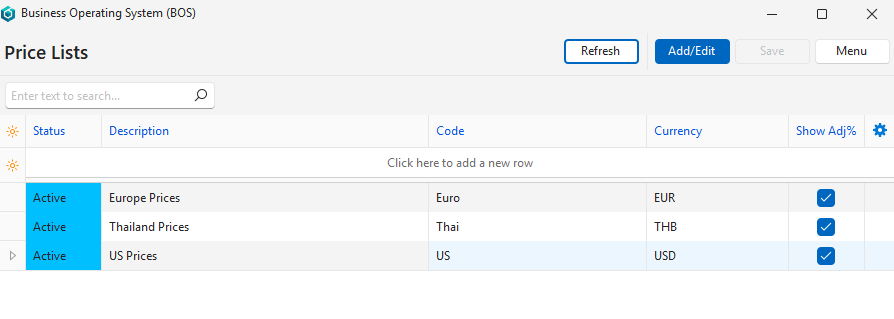
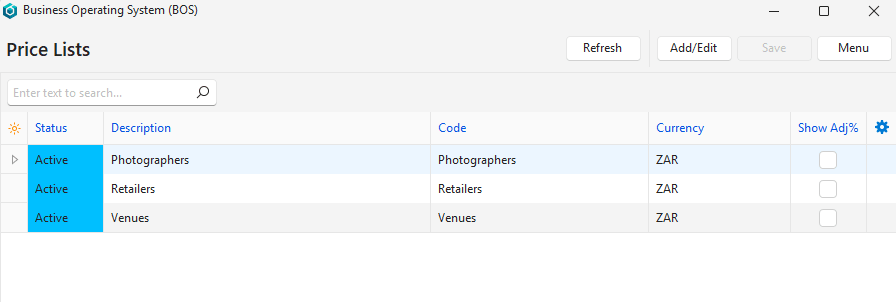
How to Create a Price List
Price lists can also be accessed from a list of items. The Items > Pricing view has a batch update feature that lets you update all the prices at once.
- Navigate to a list of Customers (or Items).
- Click Menu (button) > Edit Price Lists.
- Click Add/Edit (button).
- Complete the top row as follows:
- Status = Select Active from the dropdown list.
- Description = Type a description for the price list (e.g. European Customers).
- Code = Type a brief description for the price list (e.g. Euro).
- Currency = Select a currency from the dropdown list if you use multiple currencies.
- Show Adj% = Check the checkbox to show the adjustment percentage on transactions (e.g. if the price list discounts the price and you want to show the discount to customers).
- Click Save (button).
How to Add Price Lists to a Customer
- Navigate to a list of Customers.
- Double-click the applicable customer record to edit it.
- Click Edit (button) on the top row if it is white.
- Click Attributes (tab).
- Click Customers on the Groups section.
- On the right navigate down to Price Lists.
- Click the arrow in the value column next to Price Lists and select a price list from the dropdown list.
- Click Save (button).
How to Add Price Lists to Multiple Customers
Only one price list can be added to a customer record. The price list must use the same currency as the customer.
- Navigate to a list of Customers.
- Click Menu (button) > Accounting.
- Change the filters if needed.
- Click View (button).
- Click Actions (button) > Batch Update.
- Select all the customers you want to update by checking the applicable checkboxes.
- Click Price List from the dropdown list next to Update.
- Select the price list you want to add from the adjacent dropdown list.
- Click Update (button).
- Click Yes (button) to confirm the Update.
How to Set Price List Prices
Also see Item List View Tutorials for managing Price Lists using batch updates.
- Navigate to a list of Items.
- Double-click an item to edit it.
- Click Edit (button) on the top row if it is white.
- Click Prices (tab).
- Click Price (button) next to Add and click the price list price you want to add on the list.
- Complete the price as you would any other sell price. For example:
- Price From = Select a sell price that is in the same currency.
- Adj % = Type an adjustment percentage for the price (e.g. 5 for 5%).
- Click Save (button).
Learn More
- Customer Age Analysis and Ledger Tutorials: These tutorials explain how to display the Customer Age Analysis and Customer Ledger and how to send Customer Statements.
- Customer Age Analysis and Statements: Explains the Customer Age Analysis interface an provides a sample Customer Statement.
- Customer Age Analysis – Transactions: Explains the interface to view customer transactions grouped per ageing period.
- Customer Records List and Edit Views: Explains the interface to view a list of customers and to create customer records.
- Customer Records Tutorials: These tutorials explain how to display customer lists and how to create, edit, and delete customer records.