
Transaction Types Output Tab
- Output refers to the output of data (reports and templates) from QuickEasy BOS.
- Forms are created and saved as templates, which are then linked to each transaction (e.g. Customer Invoices) or module (e.g. Customer Age Analysis).
- Forms are generated when Output (button) is clicked and an output option is selected.
- Forms, or templates can be customised.
- Every time a template is selected from Output, the latest data is fetched and recalculated which may cause a slight delay. It could also result in the Output not matching what a user sees on their screen (if someone else edited the transaction).
- Lists such as Transaction Lists, Items, Customers or Suppliers can also be exported in Excel format from Output (button).
Template Interface Explained
Navigation: Main Menu > Transaction Types > Double-click a Transaction Type > Output Templates (tab)
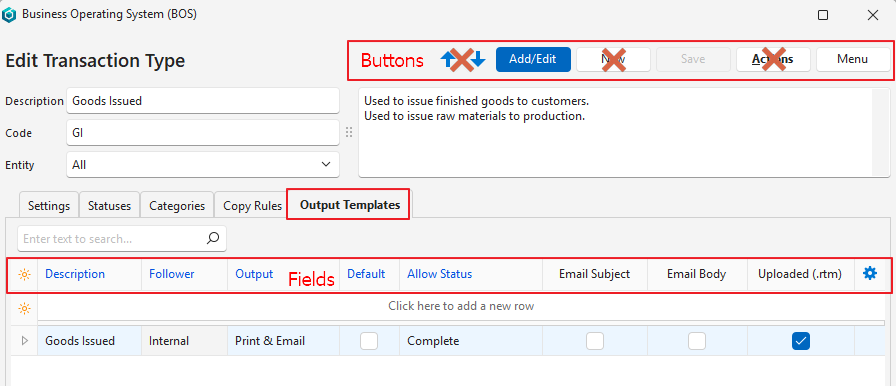
Buttons Explained
| Button | Description |
|---|---|
| ↑ ↓ | Not applicable to this tab. (Navigates between Transaction Types.) |
| Edit | Allows the Output Templates (tab) to be edited. |
| New | Not applicable to this tab. (Creates a new Transaction Type.) |
| Save | Saves any changes. |
| Actions | Not applicable to this tab. |
| Menu | Layout |
Fields Explained
Blue captions in QuickEasy BOS indicate the fields are editable.
| Field | Description |
|---|---|
| Field Chooser | Allows users to add or remove columns. |
| ID | A system-generated number for the Template entry. |
| Description | A user-provided Description (name) of the template. |
| Language | The template’s language. |
| Document | Provides a dropdown list of documents created in the Document Designer for users to select one. Only applicable if Document was selected as the Type. |
| Follower | A dropdown list for users to select who to email the template to: – All: Both internal and external followers. – Internal: Only in-house followers (e.g. Staff). – External: Only external followers (e.g. Customers or Suppliers). |
| Output | Print only Email only Print & Email The print options also enable an onscreen preview. The document can be printed from the preview, including to .pdf. |
| Default | Checkbox. Allows an output template to be executed by clicking Output (button) and the remainder of templates to be selected by clicking the arrow on the Output button. Can be checked for only one template. Only works with Print only or Email only output options. |
| Allow Status | Applies to transactions. Determines in which transaction status output is allowed. |
| Email Subject | A checkbox. Automatically checked when an Email Subject is created through the context menu (right-click). |
| Email Body | A checkbox. Automatically checked when an Email Body is created through the context menu (right-click). |
| Uploaded (.rtm) | A checkbox. Automatically checked when a .rtm template is linked using the context menu (right-click). |
| Created | The date on which the entry was created. |
| Updated | The date on which the entry was updated. |
| Updated By | The User who updated the entry. |
| Widget | A submenu with the following functions: – Load Reportbuilder (.rtm) file: Links the file created in Form Designer. Only displayed if the Type = Reportbuilder. – Edit Email Body: Allows users to create a pre-written email body. – Edit Email Subject: Allows users to create a pre-written email subject. – Delete Ctrl+Del: Deletes the entry. |
Learn More
- Copying Transactions (Copy Rules): Explains what copy rules are and includes tutorials that explain how to implement the rules.
- Followers: These tutorials explain what followers are and how to use the feature.
- Linking Transactions: Explains how a transaction flow is created.
- Transaction Categories Interface and Tutorials: Explains the transaction categories’ interface and how to create categories.
- Transaction Type Settings: Explains all the settings that can be added to Transaction Types and how to add them.
- Transaction Type Statuses Interface and Tutorials: Explains the interface for transaction statuses and how to set them.
- Transaction Type Tutorials: These tutorials explain how to create Transaction Types.
- Transaction Types Edit View: Explains the interface from which Transaction Types are created.
- Transaction Types List View: Explains the interface that lists all the Transaction Types.