
Footers
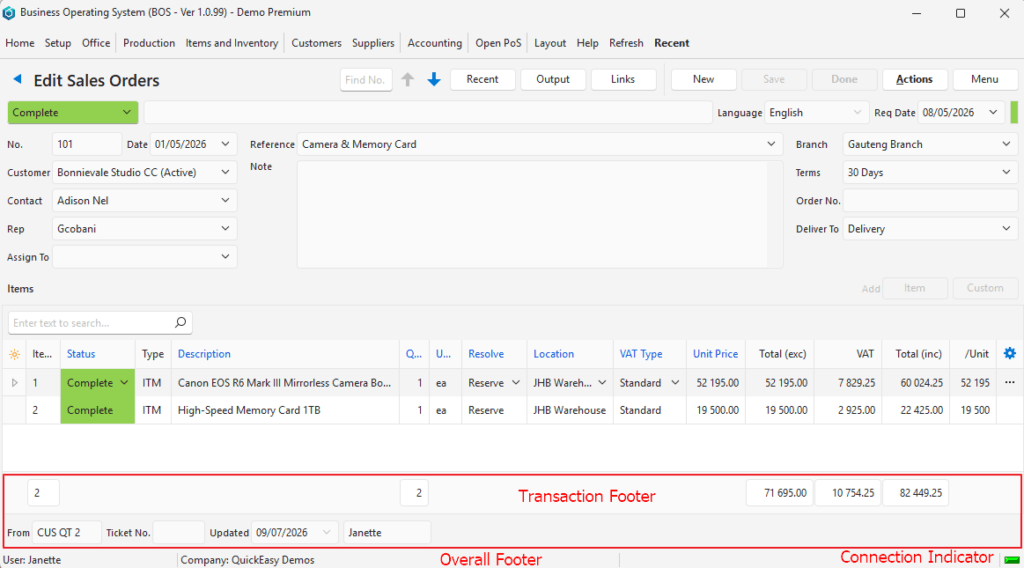
Transaction Footer
| Field | Description |
|---|---|
| Item Columns | A count of the number of items. |
| Quantity Columns | A count of all the Quantities. |
| Calculated Value Columns | Columns with calculated Totals (e.g. Total (exc), Total (inc) are added, and the totals are displayed at the bottom of the screen. |
| Deposit | Transactions on which deposits apply show the Deposit Percentage and Amount. |
| Source Transaction Numbers (From) | If the transaction was created from another transaction, then a code indicating the Transaction Type and the Document Number are displayed. |
| Service Ticket Numbers (Ticket No.) | If the transaction is linked to a service ticket, the name of the service and ticket number is displayed (e.g. Sales 2). |
| Updated | The Date on which the transaction was last updated. |
| User | The name of the User who last updated the transaction. |
Overall Footer
| Field | Description |
|---|---|
| User | The name of the user who is logged in. |
| Company | The name of the company (licensee of the software). |
| Connection Indicator | Indicates whether QuickEasy BOS is connected to the cloud server. Green = Connected Yellow = Reconnecting Grey = Disconnected |
Learn More
- Edit Views: Explains what Edit Views are and provides some examples.
- Grid View Tutorials: These tutorials explain how to use the built-in context menu to group records.
- Grid Views: Explains what grid views are and the functions that can be used to customise displays.
- Layout: Explains the various layout options.
- List Views: Explains what List Views are.
- Popups: Explains what popups are and how they function.
- Saving and Restoring Layouts: These tutorials explain how to save and restore the grid layout.
- Search Functions: Explains the built-in search features.