Setup Example – Quotations
- Quotations are used to give customers an upfront price.
- Estimates can be created for every line item of a quotation.
- Billing information can be pre-created as items with selling prices.
- Quotations can also have custom entries in which case the person creating the quotation must enter the information and prices when they create the quotation.
Header
- Description: Quotations
- Code: QT
- Entities: All
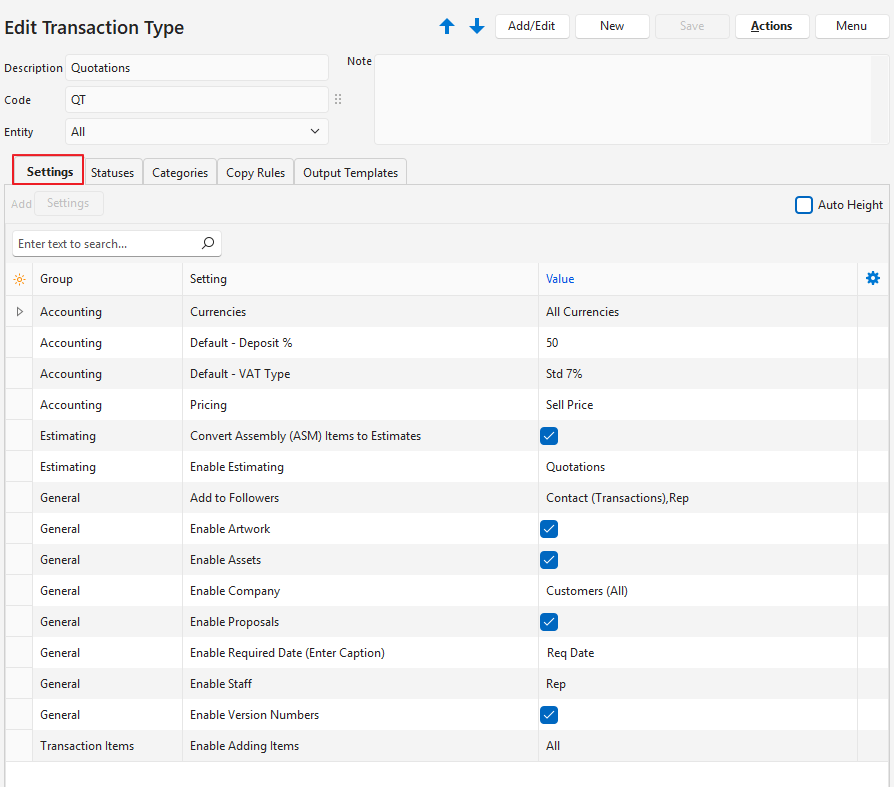
Settings (tab)
- This section lists the compulsory and optional settings that can be used to customise Quotations.
- Settings with Default as part of the name, can be changed when capturing a transaction.
| Setting | Description | Value | When Required |
|---|---|---|---|
| Accounting > Currencies | Field to select which currencies apply to the transaction type. The options are: – Local: The transaction type can only use the local currency. – Company Currency: The transaction type can use the customer or supplier’s currencies. – All: The transaction type can use all the currencies set up for the organisation. | Select an option from the dropdown list. | If you use multiple currencies. If you change this setting on one transaction type, you must change the setting on all the transaction types in the same transaction flow (e.g. Quotation > Sales Order > Customer Invoice). |
| Accounting > Default – Deposit % | Field to type the default Percentage Deposit customers must pay or that must be paid to suppliers. | Type the default deposit that must be paid. | If customers must pay deposits. |
| Accounting > Default – Price includes VAT | A checkbox that is checked if the price includes VAT. Determines how VAT is calculated. – Exclusive (unchecked) = VAT is added to determine the VAT-inclusive price. – Inclusive (checked) = VAT is subtracted to determine the VAT-exclusive price. | Inclusive | If you want to enter VAT inclusive prices (as opposed to VAT exclusive prices). |
| Accounting > Default – VAT Type | Select a default VAT Type for the transaction type from a dropdown list of all the created VAT types. | Select the VAT Type for Standard VAT. | If you are registered for VAT. |
| Defaults > Default – Data Filter | The default display when a list of transactions for the transaction type is viewed (e.g. This Month, Pending). | Select an option from the dropdown list. | The default value is Pending & Active. Add this setting if you want a different default filter. |
| Estimating > Enable Estimating | A dropdown list with the following options: – None: Estimating is not used. – Quotations: Estimating is used to quote for jobs. – Production: Enables the production planning modules for the transaction type. | Quotations | If prices are based on estimates. |
| General > Add Items from the following Categories | This action adds items from the selected categories. Click Edit in the value column and select the categories. | Click Edit. Move the categories to include from the Available to the Selected section. Move the categories to exclude from the Selected to the Available section. | If you want to limit the items that can be added to quotations (e.g. only Finished Goods). |
| General > Add to Followers | A dropdown list of Follower options. Multiple categories can be selected: – N/A (automatically appears if no selection is made) – Contact (Transactions) – Contact (Accounts) – Rep – Assign To – User | Check the options that apply. | If you want to email quotations to multiple recipients (e.g. the customer, rep, and department manager). |
| General > Contact Lookup | A dropdown list to select which Contact fields should be included when selecting a contact for a transaction. The options are: – Name – Name (Position) – Name (Location) – Name (Position & Location) | Select an option from the dropdown list. | If you want to search for contacts by fields other than their names (e.g. by their positions). |
| General > Enable Artwork | Checkbox. If checked artwork is enabled and can be uploaded to a line item on a transaction as an attachment. | Check the checkbox. | If you want to include artwork with the quotation. |
| General > Enable Assets | Checkbox. If checked a dropdown list of Assets becomes available for users to select one. | Check the checkbox. | If your quotations involve servicing or repairing customer’s assets. |
| General > Enable Company | Users can select an access option as follows: – N/A – Customers (All) – Customers (Active) – Suppliers (All) – Suppliers (Active) | Select Customers (All) or Customers (Active) | Select Customers (Active) to exclude suspended customers, else select Customers (All). |
| General > Enable Delivery Address | A checkbox. If checked, the Delivery Address is enabled. | Check the checkbox. | If you charge for delivery and it is based on a certain address, the address should be shown. |
| General > Enable Due Date (Enter Caption) | Type a caption if the Due Date field should be added to the transaction (e.g. Due Date). | Type a caption. | If you want to indicate the date by which the goods should be ready internally. |
| General > Enable Proposals | Checkbox. If checked, proposals can be created from the transaction. | Check the checkbox. | If you want to use proposals. |
| General > Enable Required Date (Enter Caption) | Type a caption if the Required Date field should be added to the transaction (e.g. Req. Date). | Type a caption. | If you want to indicate the date by which the customer wants the goods or services. |
| General > Enable Staff | Allows an organisation to assign transactions: – None: Transactions are not assigned. – All: Transactions can be assigned to Users, and a Rep can be selected. – Rep: Transactions can only be linked to a Rep. – Assign To: Transactions can only be assigned to a User. | Select an option from the dropdown list. | If you want to select a rep, or assign following up on the quotation to a staff member other than the rep. |
| General > Enable Version Numbers | A checkbox. If checked version numbers are enabled (e.g. Quotation versions). This setting cannot be changed if there are transactions. | Check the checkbox. | If your quotations contain variations of the same product (e.g. brochures printed on matte paper (Ver 1) or glossy paper (Ver 2)). |
| General > Reference Lookup | A field to type Reference lookup lists. | Click the Value column. Type a reference one entry per line. Check Auto Height to show the full list. | If you want the person capturing the quotation to select a reference instead of typing one. |
| General > Transaction Number | Specifies how transaction numbers are allocated when the transaction type is first created. The options are: – Edit: Allows users to edit/enter numbers only (e.g. for supplier invoices). A warning is displayed on the red warning bar if a duplicate transaction number is entered. – Generate: The system automatically generates numbers in sequence. – Generate (Entity): The system automatically generates numbers in sequence for each entity. This setting cannot be changed if there are transactions. | Generate (Entity) | If you use multiple entities that produce their own documents. |
| Transaction Items > Enable Adding Items | Allows users to specify which type of items can be added to a transaction. The options are: – None: No items are added, only the header information is displayed. This option should be used sparingly and not for accounting transactions because there will be no fields for amounts. – All: Users may add items and custom items. – Custom: Users my only add custom items. Typically used for ledger transactions. – Items: Users may only add items. They may not add custom items. Typically used for Invoicing, credit and debit notes. All the buttons to add items are still displayed. The features that are disabled return an error message if clicked. | All | If you want to limit the type of items that can be added. |
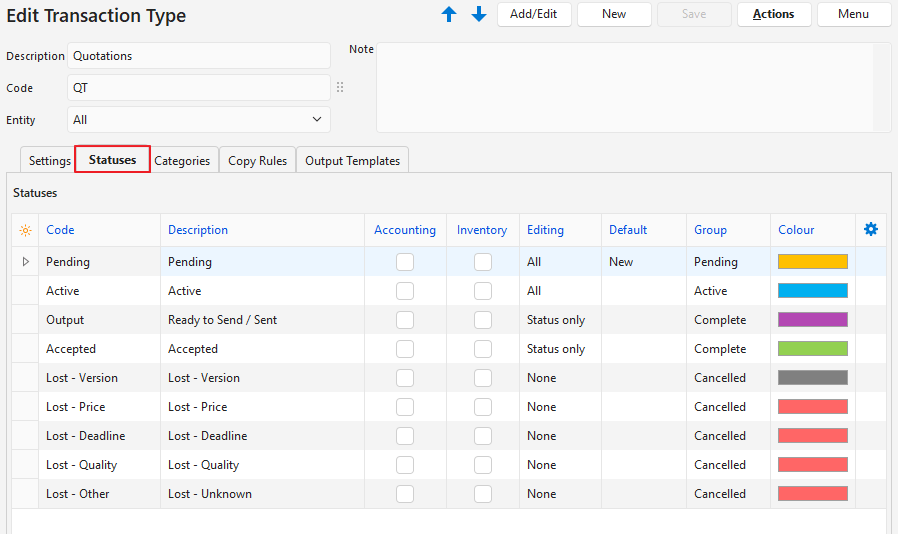
Statuses (tab)
- You may create an unlimited number of Statuses.
- However, there are only four Status Groups (Pending, Active, Complete, and Cancelled).
- The first status should allow editing.
- The final status should ideally not allow editing.
- If the setting Accounting > Enable Accounting is checked, at least one status should have the Accounting column checked.
- If Inventory is used, at least one status should have the Inventory column checked.
- If editing is allowed when the inventory or accounting columns are checked, any accounting or inventory reports should be considered provisional.
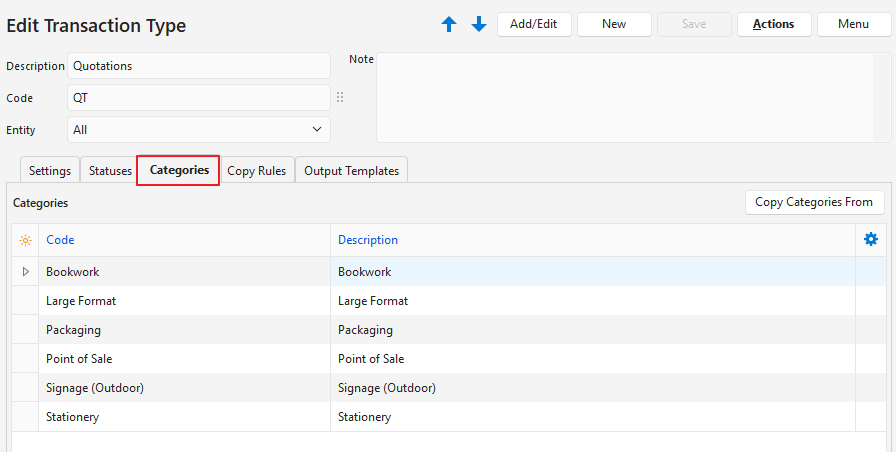
Categories (tab)
- Categories are used to sort records.
- The categories you choose should be meaningful to your business.
- Using categories is optional but recommended.
- Categories can be copied from another transaction type. The existing categories are replaced by the copied categories.
Copy Rules (tab)
- Copy Rules determine the circumstances under which transactions may be copied.
- Although there are two transactions involved in the copy, you only need to create one copy rule.
- User access must be set for each copy rule.
- You can automate copying transactions by selecting a Trigger status.
- Columns that were hidden in the screenshot were left blank or unchecked.

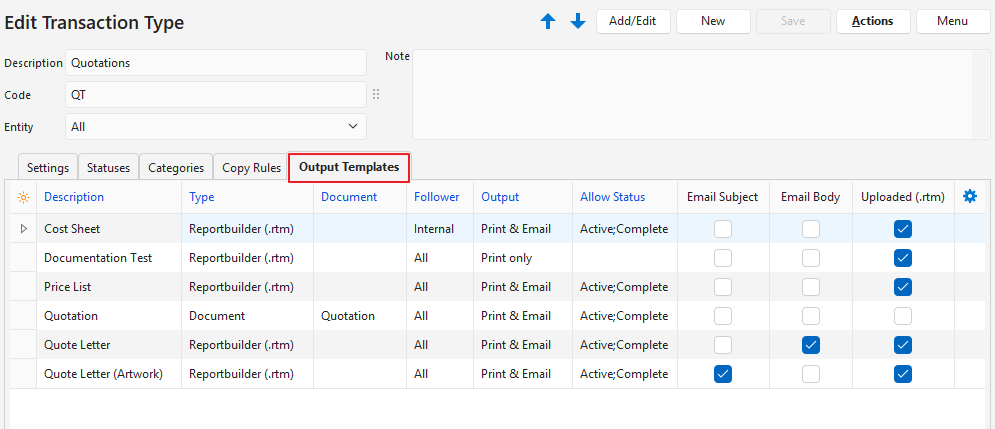
Output Templates (tab)
- Output templates are the forms you need to print, preview or email a transaction (e.g. invoices).
- Default templates are included which will automatically include your company name, logo, and bank details as filled in on the Output tab of a registered Entity.
- You may edit these templates to include or exclude information.
- You may also create your own forms and templates from scratch.