
Proposals Tutorials
Proposals are a quick and efficient way of offering customers buying options. Proposal templates simplify creating quotations for complex products that have multiple add-ons or customisations.
An unlimited number of proposal templates can be created. Proposals integrate with transactions and are added as line items.
Proposal Templates can be created from editing transactions or transaction types.
Proposal Templates
Navigation: Main Menu > Setup > Transaction Types > Double click the applicable Transaction Type > Menu (button) > Edit Proposal Templates
How to Create a Proposal Template
For this tutorial we illustrate a vehicle with a few optional extras. However, the number of options you can add are unlimited.
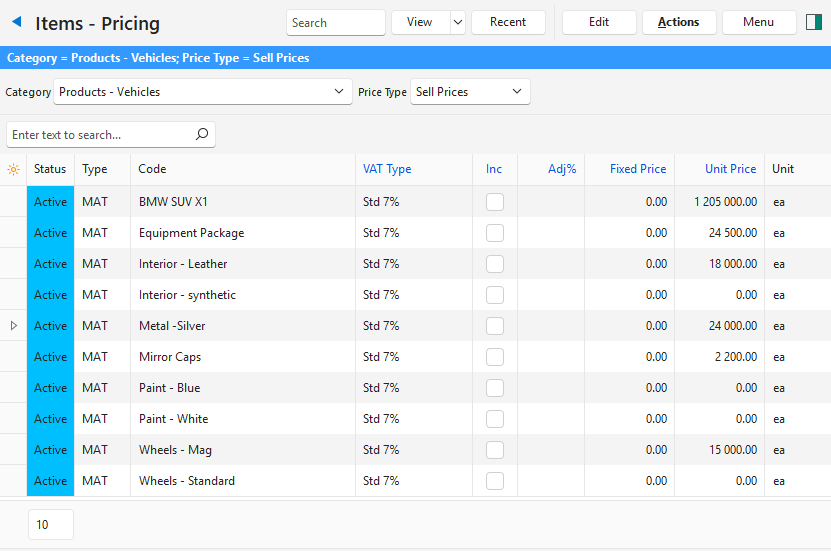
Step 1: Create Items for all the mandatory and optional elements
- The items depend on the product.
- They must all have Sell Prices, even if the price is zero in cases where the add-on option is included in the main price.
- See the screenshot below for examples:
Step 2: Create the Proposal Template
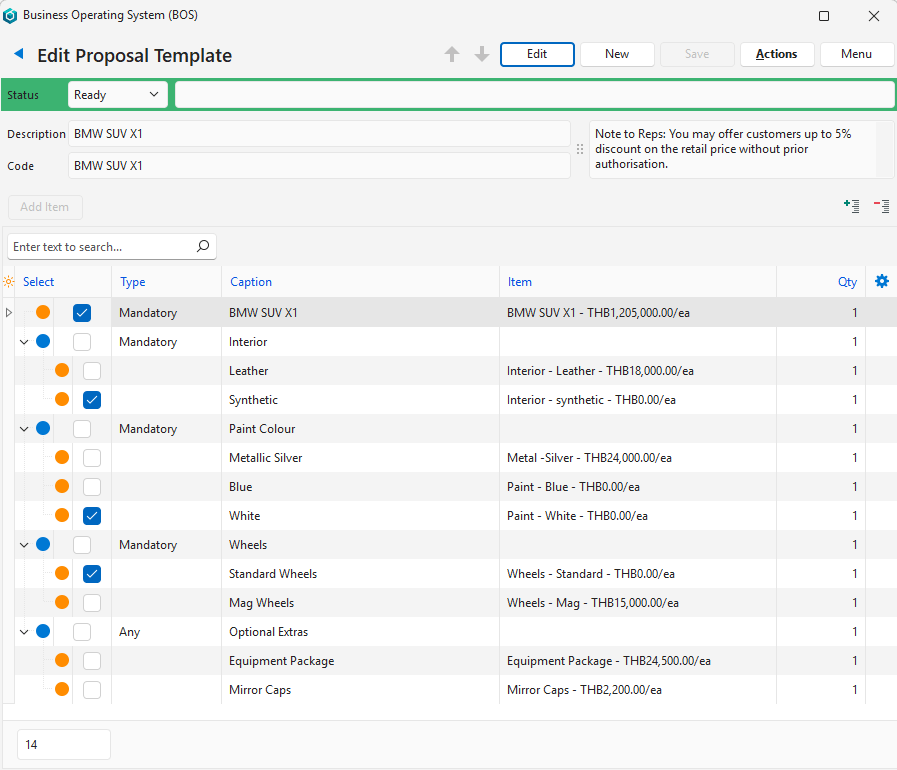
On the proposal template, captions can only be added to group names or standalone entries.
- Navigate to Proposal Templates.
- Click New (button).
- Status = Select a status from the dropdown list (e.g. Review).
- Note: The status must be Ready to use the proposal on a transaction.
- Note: To edit a proposal, click Edit (button) and change the status to Draft.
- Status Bar = (Optional) Type a note on the status bar (e.g. a note for the reviewer).
- Description = Type a name for the proposal (e.g. BMW SUV X1).
- Code = Type an abbreviated name for the proposal (e.g. BMW SUV X1).
- Note (block next to Description and Code) = Type any note about the proposal (optional).
- Click Add Item (button) to open a new row and complete the details as follows:
- Select = Check the checkbox.
- Type = Select Mandatory from the dropdown list.
- Description = Type BMW SUV X1.
- Item = Select the item BMW SUV X1 from the dropdown list.
- Qty = Type 1.
- Click Add Item (button).
- Select = Leave unchecked.
- Type = Select Mandatory from the dropdown list.
- Caption = Type Interior.
- Right click the entry and select Add Item from the context menu.
- Description = Type Leather.
- Item = Select the item Interior – Leather from the dropdown list.
- Qty = Type 1.
- Right click the entry and select Add Item from the context menu.
- Description = Type Synthetic.
- Item = Select the item Interior – Synthetic from the dropdown list.
- Qty = Type 1.
- Check the Select checkbox next to one of the interior options (the default option).
- Click Add Item (button).
- Select = Leave unchecked.
- Type = Select Mandatory from the dropdown list.
- Description = Type Paint Colour.
- Right click the entry and select Add Item from the context menu.
- Description = Type Metallic Silver.
- Item = Select the item Metal – Silver from the dropdown list.
- Qty = Type 1.
- Right click the entry and select Add Item from the context menu.
- Description = Type Blue.
- Item = Select the item Paint – Blue from the dropdown list.
- Qty = Type 1.
- Right click the entry and select Add Item from the context menu.
- Description = Type White.
- Item = Select the item Paint – White from the dropdown list.
- Qty = Type 1.
- Check the Select checkbox next to one of the paint options (the default option).
- Click Add Item (button).
- Select = Leave unchecked.
- Type = Select Mandatory from the dropdown list.
- Description = Type Wheels.
- Right click the entry and select Add Item from the context menu.
- Description = Type Standard Wheels.
- Item = Select the item Wheels – Standard from the dropdown list.
- Qty = Type 1 if the price is for all the wheels. Type 4 or 5 if the price is per wheel (4 wheels + spare wheel).
- Right click the entry and select Add Item from the context menu.
- Description = Type Mag Wheels.
- Item = Select the item Wheels – Mag from the dropdown list.
- Qty = Type 1 if the price is for all the wheels. Type 4 or 5 if the price is per wheel (4 wheels + spare wheel).
- Check the Select checkbox next to one of the wheel options (the default option).
- Click Add Item (button).
- Select = Leave unchecked.
- Type = Select Any from the dropdown list. This option allows all the extras to be selected whereas selecting Optional would only allow one extra to be selected.
- Description = Type Optional Extras.
- Right click the entry and select Add Item from the context menu.
- Description = Type Equipment Package.
- Item = Select the item Equipment Package from the dropdown list.
- Qty = Type 1.
- Right click the entry and select Add Item from the context menu.
- Description = Type Mirror Caps.
- Item = Select the item Mirror Caps from the dropdown list.
- Qty = Type 1.
- Check one or more of the Select checkboxes to automatically include the extra, else leave all the checkboxes unchecked.
- Click Save (button).
- Change the proposal template’s Status to Ready once it has been checked.
Transactions
How to Incorporate a Proposal on a Transaction
- Navigate to Quotations (or any transaction for which proposals have been activated).
- Click New (button).
- Customer = Select a customer from the dropdown list.
- Contact = Select a contact from the dropdown list.
- Rep = Select a rep from the dropdown list.
- Reference = Type a reference (e.g. quote for BMW)
- Proposal = Select BMW SUV X1 from the dropdown list.
- Qty (next to proposal) = Type the number of vehicles included in the quotation.
- Entity = Select an entity if applicable.
- Category = Select a category from the dropdown list.
- Order No. = Type an order number in the field provided (optional).
- Terms = Select the terms from the dropdown list.
- Deliver To = Select a delivery address if applicable.
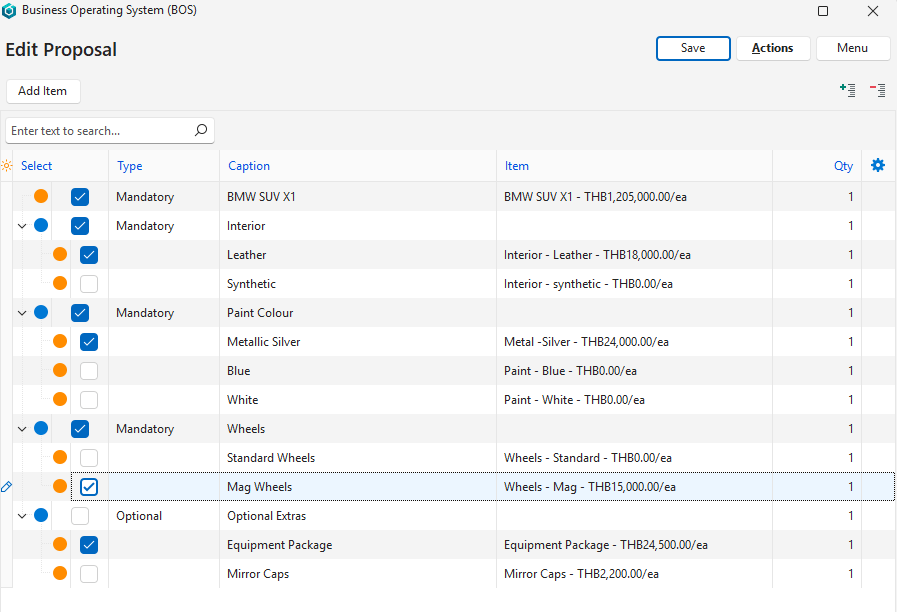
- All the checked items from the proposal are automatically added. Click Actions (button) > View/Edit Proposal to open the proposal.
- Check the items that must be included on the quotation. Uncheck the rest.
- Click Save (button) on the proposal popup.
- Close the popup.
- The quotation will reflect the changes. Add any adjustments, or additional items as needed.
- Change the quotation’s Status.
- Click Save (button) if not greyed out.

How to Select a Different Proposal on a Transaction
This feature clears the proposal items and allows a new proposal to be selected.
- After adding a proposal to a transaction as explained above, click Actions (button) >Select a different Proposal Template.
- Confirm that all the proposal items will be deleted.
- Select a new proposal from the dropdown list next to Proposal on the transaction.
How to Update a Proposal on a Transaction
This resets the proposal to the default options.
- After adding a proposal to a transaction as explained above, click Actions (button) > Update Transaction from linked Proposal.
- Confirm the change on the popup.

